

Before you start
- A calendar connected to the workspace, with the event types to book: Cal.com, Calendly (with a paid plan) or Google Calendar.
- A plan with “Calendar booking”.
#How it works during the call
- The agent confirms the appointment only after the booking succeeds. If the time has been taken in the meantime, the booking fails and the agent doesn't confirm it.
The calendar sends the confirmation to the customer. Cal.com sends its confirmation email to the address the customer gave; Google Calendar sends them the invitation. With Calendly, the appointment is recorded with the customer's name and email: any emails to the customer are sent by Calendly, according to your Calendly account settings. For a WhatsApp reminder the day before, use an automation: there's an example in Ready-made examples.
#Turning on booking
- Connect a calendar to the workspace
In WorkspaceIntegrations, “Calendars” panel, press Connect on Cal.com, Calendly or Google Calendar. How to do it is in Appointments: how they work.
- Open the In-call step
In Agent profile, “In-call Actions” area, press Set up or Edit. The “In-call” step opens: it's the same step, under the name the step bar uses. The panel is “Appointment Booking and Calendar”.
- Turn on booking
Turn on Enable booking.
- Link an event
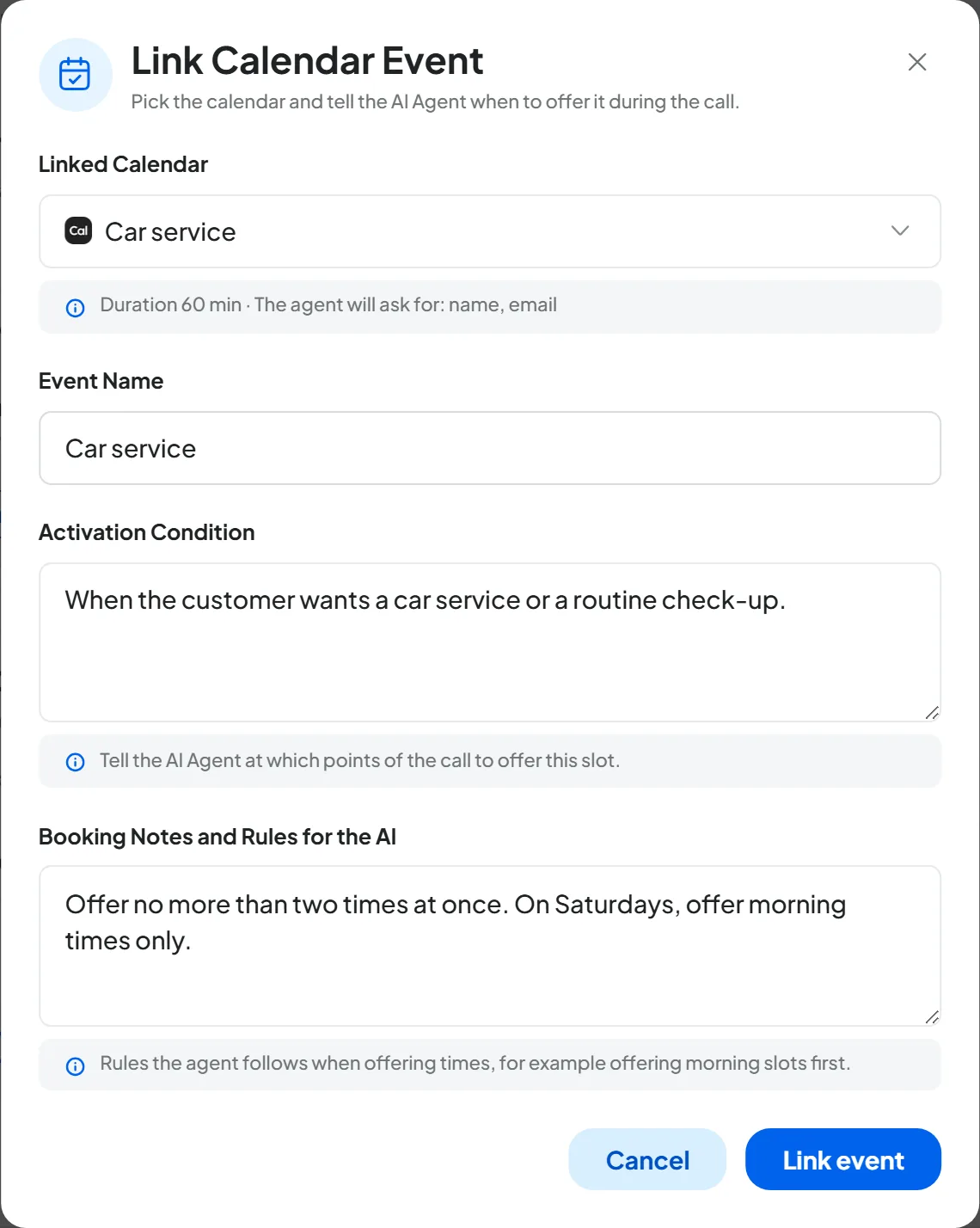
Press Add calendar: despite the name, it links to the agent an event type from a calendar already connected to the workspace. The “Link Calendar Event” window opens: fill in the fields and press Link event.
- Save
Press Save changes in the bar at the bottom.
Result
In the Agent profile summary, the “Appointments and calendar” row says, for example, “2 bookable events on Cal.com”.
#The event fields
- Linked Calendar List · required
The event types of the workspace's calendars, with their duration. An event this agent already uses shows “Already linked”. Below the list you can read the duration and what the agent will ask, for example “The agent will ask for: name, email, Car model”.
- Event Name Text
The name the agent uses for this appointment, for example “Car service” or “First visit”.
- Activation Condition Text · required
At which points of the call the agent offers this event. With several events, this is how the agent picks the right one.
- Booking Notes and Rules for the AI Text
The rules the agent follows when it offers times, for example: “Offer no more than two times at once. On Saturdays, offer only morning times.”
The event's duration, its bookable hours and the details to ask for are set on the calendar, not here. You can see them on the calendar's page, in WorkspaceIntegrations, in the event's panel: the details to ask for are in the “Booking Fields” panel. For Google Calendar, you set them in SupportFast, in the “Event Types” of the Google Calendar page: see Event types.
#Several events on the same agent
You can link up to 10 events (“Up to 10 events”). For example, for a car repair shop:
| Event Name | Activation Condition |
|---|---|
| Car service | When the customer wants a car service or a routine check-up. |
| Inspection | When the customer needs the mandatory vehicle inspection. |
| Tire change | When the customer wants to change or fit tires. |
- The Event active switch turns an event off without deleting it.
- From the Event options menu, choose Edit calendar or Delete calendar. Delete calendar removes only the event from this agent, after Save changes: the calendar stays connected to the workspace and to the other agents. To disconnect the calendar, see Disconnecting a calendar.
- “No longer available”: the event was deleted on the calendar. Choose another one or delete the link.
- “Reconnect”: access to the calendar has expired. Reconnect the account from the calendar's page in Integrations.
#Name, email, phone and required fields
The agent asks for the details the event requires. The rule on required fields is in Appointments: how they work.
- The email must be spelled out in a valid format, otherwise the booking doesn't go through. Add
emailin Precise Information Handling and write in the prompt that the agent should repeat it letter by letter. - The phone. With Cal.com, the booking automatically gets the number the customer is calling from. With Calendly, the phone is a question like any other: if the event type asks for it, the agent asks the customer.
- Choice fields. A field can have preset answers, such as a dropdown or a multiple choice. During the call, the agent offers the customer exactly those answers.
- After changing fields or events on Cal.com or Calendly, press Sync now on the calendar's page. With Google Calendar you don't need to: you edit the event type directly in SupportFast.
#How to test it
Booking also works in the Web Call. The appointment is real, though: it appears on the calendar, and the test customer receives the Cal.com email, the Google Calendar invitation or any Calendly emails. So for the test, give one of your own email addresses. After the test, delete the appointment from the calendar.
- Ask for an appointment
Use words close to the condition, for example “I'd like to book a car service for Thursday”.
- Give your details
Name and email: listen for whether the agent repeats them and asks you to confirm.
- Check the calendar
The appointment must be on the day and at the time that were confirmed.
How to check. In Calls, the test has the “Appointment booked” outcome. The “Appointment booking” label opens the details, which say whether the booking succeeded. You can also receive the appointment's date and calendar in the end-of-call email.
#Frequently asked questions
The agent says there are no free times, but the calendar is empty.
The agent uses the event's bookable hours, not the calendar's hours in general. What to check is on your calendar's page: Cal.com, Calendly or Google Calendar.
The booking failed: how do I find out why?
In the details of the “Appointment booking” label, if the calendar refused the booking, read “Refused by”. The reason is often an invalid email or a missing required field.