

Before you start
- An account on the cloud service of Cal.com, with your event types already created. A Cal.com installed on your own server can't be connected: the console asks only for the key, not for the server address.
- The “Calendar booking” feature in your plan.
#Create the API key on Cal.com
-
Open the Cal.com settings
Sign in to Cal.com and go to SettingsSecurityAPI Keys.
-
Create the key and copy it
Create a new key, give it a name you'll recognize, for example “SupportFast”, and copy it.
Choose the expiry date carefully. Cal.com lets you decide when the key expires. After that, Cal.com rejects it: the agent stops booking and, at the next sync, the connection changes to “Reconnect”. We recommend a key with no expiry, which you delete on Cal.com when you no longer need it. If you prefer an expiry date, note it down: before it arrives, create a new key and paste it with Reconnect.
Treat the key like a password. Anyone who has it can read and change your calendar. Don't send it by email or in a chat: paste it only into SupportFast.
#Connect Cal.com
-
Open Integrations
Go to WorkspaceIntegrations. In the “Calendars” panel, on the “Cal.com” row, press Connect.
-
Paste the key
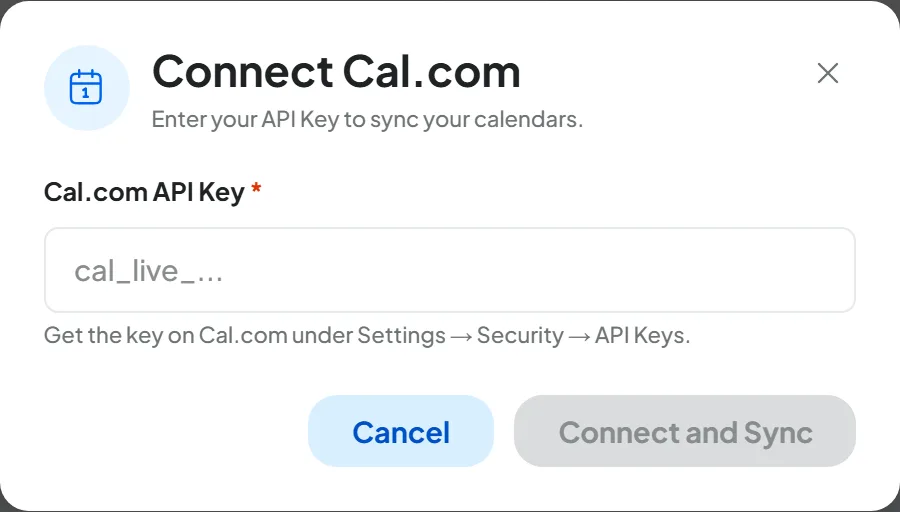
In the “Connect Cal.com” window, paste the key into the Cal.com API Key field.
-
Connect
Press Connect and Sync. SupportFast checks the key and imports the event types, the account's name and email, and the hours. “Cal.com connected” appears.
-
Give the event types to the voice agent
Choose which event types the agent can book: see In-call actions: appointments.
Result
The “Cal.com” row is “Active”. The voice agent knows your event types and can book them during calls.
#How to check
- On the Cal.com page in SupportFast, press Test Connection: “Connection successful” should appear.
- Make a test call to the voice agent and ask for an appointment.
- Check on Cal.com that the booking is there. The customer receives Cal.com's confirmation email at the address they spelled out during the call.
#The Cal.com page
At the top you find the status, the Test Connection button and the ⋮ “Calendar actions” menu, with Reconnect and Delete integration. The “Synced Calendars” panel with the event types is explained in Event types.
Which “Booking Fields” the agent asks for, and why it doesn't need to ask for the “Phone”, is explained in Limits to know.
#Notices you may see
“The key is not valid: Cal.com does not recognize it”, or “Access expired” with the status “Reconnect”, means that the key is wrong, incomplete, expired or deleted on Cal.com. Copy it again in full, or create a new one; if Cal.com was already connected, paste it from the ⋮ menu › Reconnect. For other notices, press Test Connection; if the notice stays, create a new key.
#Disconnecting Cal.com
From the ⋮ menu, choose Delete integration and confirm. For safety, also delete the key on Cal.com, in SettingsSecurityAPI Keys. What happens to agents and to appointments already booked is in Disconnecting a calendar.
#Frequently asked questions
I added a required field on Cal.com: does the agent ask for it?
Yes, after the sync: press Sync now. If the field is a choice, the agent offers the customer the options you wrote on Cal.com.