

What a workspace contains, and what belongs to the account or to each agent instead, is explained in How SupportFast works.
#When to create more than one
One workspace is often enough: it can hold several agents, for example one for the website and one for the phone. Create another one when you want to keep these apart:
- locations or stores with different channels and hours;
- brands with their own WhatsApp number and their own contacts: each workspace connects only one WhatsApp number, one Facebook page and one Instagram account;
- departments with their own languages or hours;
- your clients, if you are an agency or a White Label reseller;
- a test environment, to experiment without touching the one in use.
One workspace for each agent of the same business: the contacts get split up and the same customer shows up more than once.
One workspace per business, location or brand, with all of its agents inside.
Almost all plan quotas apply to the whole account, adding up all workspaces. Some apply per agent, such as training characters and pages, and tools: see Plans, quotas and usage. You can give each teammate access to only some workspaces: you decide this in Team, roles and permissions.
#Home: “Your workspaces”
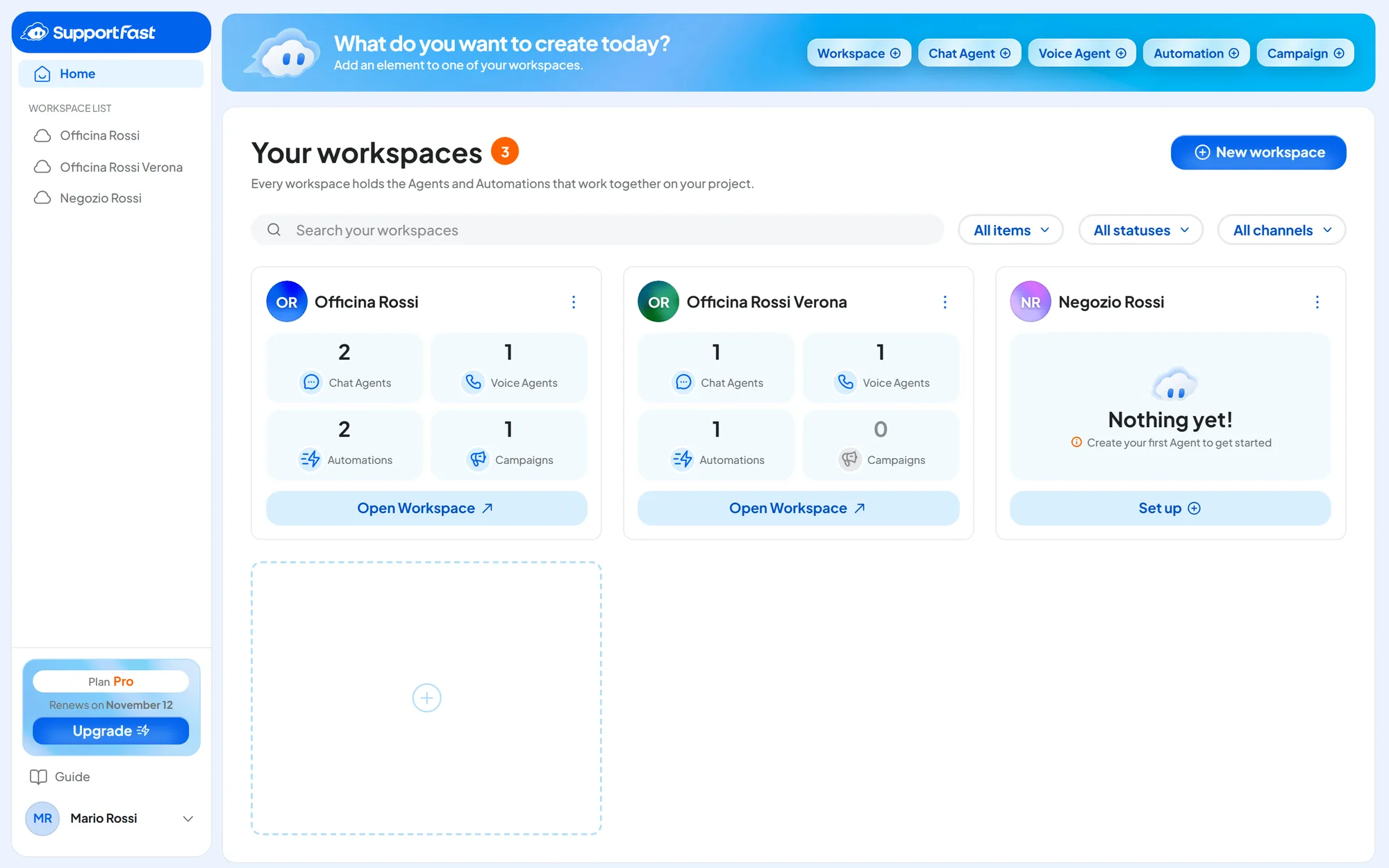
Home lists the workspaces you have access to: open it with Home, at the top of the sidebar.
- The What do you want to create today? bar creates a workspace or an element. For an element, it first asks you “In which workspace?”.
- New workspace creates a workspace.
- Search your workspaces searches by name.
- The All items filter shows only the workspaces with at least one element of the chosen type.
Each workspace has a card with its avatar, its name and how many chat agents, voice agents, automations and campaigns it contains, plus the Open Workspace button. The Workspace options menu (the three dots) offers Rename and Delete.
#Creating a workspace
-
Open the window
In Home, press New workspace. You can also use New workspace at the bottom of the list that opens from the workspace name, in the top left.
-
Type the name
Fill in Workspace name, for example “Officina Rossi Verona”. If you want, add a Description (optional) for your team.
-
Create the workspace
Press Create workspace. “Workspace created” appears and its Overview opens.
-
Complete the settings
Open WorkspaceSettings and check languages, time zone and opening hours.
Result
The workspace appears in Home, ready for its agents.
#Renaming a workspace
From the Workspace options menu, on the card in Home or next to the name in the Overview, choose Rename. Type the new name and press Save: “Name updated” appears and the name changes for everyone. You can also change it from the workspace settings.
#Deleting a workspace
Deleting a workspace can't be undone. When you delete it:
- agents, conversations and training disappear from the console;
- contacts, lists, campaigns and automations disappear from the console;
- connected channels and calendars are disconnected;
- your teammates lose access to that workspace.
-
Keep what you need
To keep an agent, move it to another workspace (see below). Export the contacts and conversations you need.
-
Open the window
From the Workspace options menu, choose Delete. You can also use Delete Workspace at the bottom of the Settings.
-
Confirm
Type
Delete Permanently, with the capitals, and press Confirm and Delete. “Workspace deleted” appears.
You can't delete your last workspace. Create another workspace first or, to close everything, delete the account.
#The workspace Overview
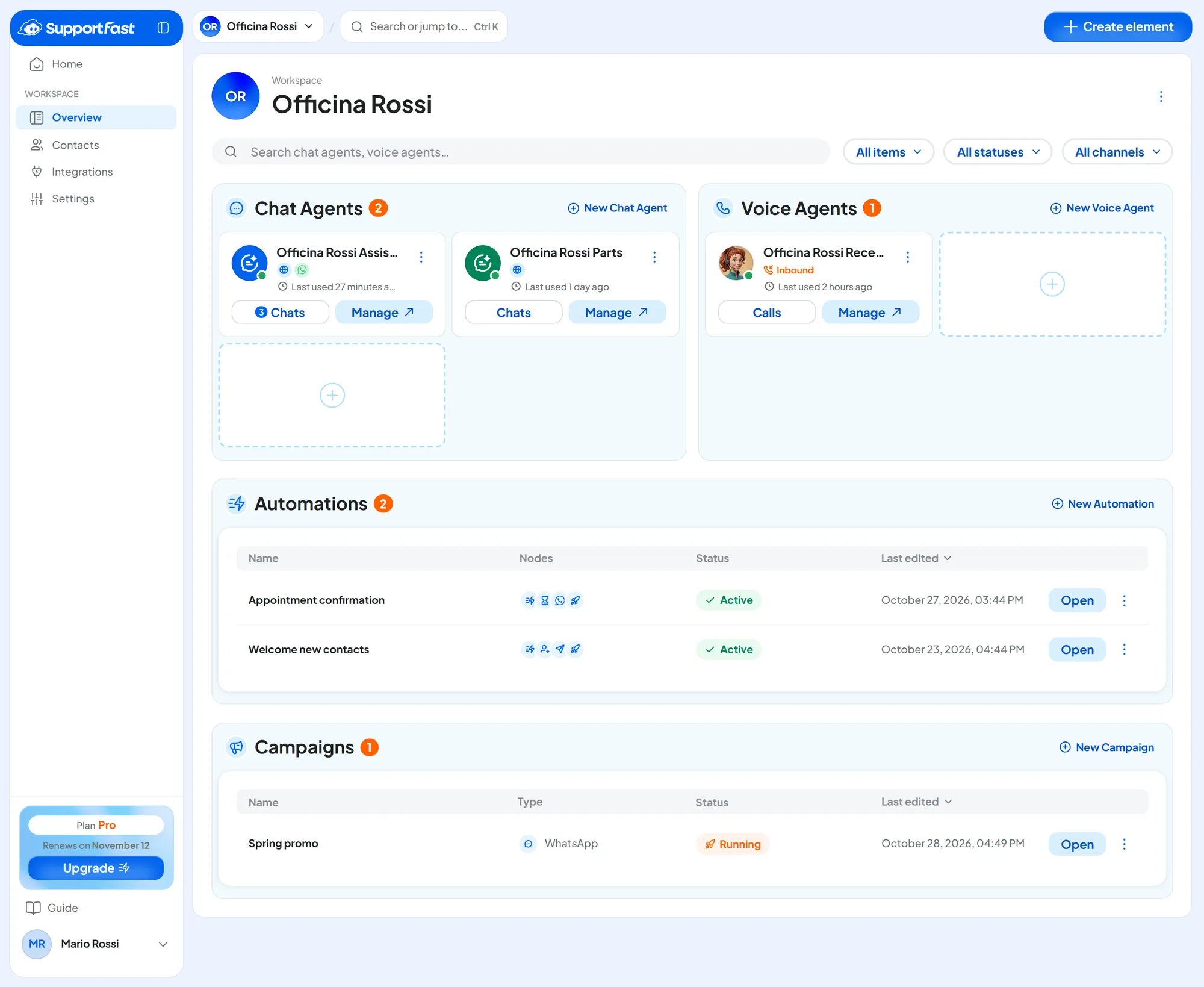
The Overview shows all the elements in the workspace. Open it with Overview in the sidebar or by clicking the workspace card in Home. At the top you find the avatar, the name and the Workspace options menu. In the top right, Create element creates any element.
While the workspace is empty, the page shows “Activate your first AI Agent”. The Chat Agent and Voice Agent panels have the Create agent button. For an automation or a campaign, use Create element.
#Searching and filtering
The Search chat agents, voice agents… field finds elements by name. Next to it are three filters, which you can combine.
| Filter | Choices | What it shows |
|---|---|---|
| All items | Chat agents, Voice agents, Automations, Campaigns | Only the chosen section, at full width. |
| All statuses | Active, Draft, Inactive | Only the elements in that status. “Inactive” means paused. |
| All channels | Website, WhatsApp, Messenger, Instagram, Phone | The agents and campaigns that work on that channel. |
To remove a filter, press the X next to its name.
#Agents
Agents sit in two panels, Chat Agents and Voice Agents, with the New Chat Agent and New Voice Agent buttons. Each agent has a card with:
- the avatar, with a green dot if the agent is active, and the forced pause mark if the plan has stopped it;
- for the chat agent, the channels it answers on: always the website, plus WhatsApp, Messenger and Instagram if connected. For the voice agent, “Inbound” or “Outbound”;
- Chats or Calls, with the number of conversations that have unread messages, and Manage, which opens the agent's Dashboard;
- the Agent options menu, with Move, Duplicate and Delete.
You rename agents from the Internal Name field of their Agent profile, in the General tab: it is the name you typed in Agent name when you created the agent, and only your team sees it. In a chat agent, at creation, that name also becomes the Chat name that customers read: you change it in the Interface tab. See chat agent and voice agent.
#Automations and campaigns
Below the agents are the Automations and Campaigns tables, with the New Automation and New Campaign buttons.
| Column | Automations | Campaigns |
|---|---|---|
| Nodes or Type | The icons of the flow's nodes. | “Phone” or “WhatsApp”. |
| Status | “Active”, “Draft” or “Paused”. | “Draft”, “Running”, “Paused” or “Completed”. The pause is red if the campaign stopped because of an error. |
Open takes you to the element; the three-dot menu offers Rename, Duplicate, Move and Delete.
#Duplicating an element
Duplicate creates a copy in the same workspace, with “(copy)” at the end of the name. Press Duplicate in the window to confirm: “Copy created” appears.
| Element | The copy starts | It carries over | It doesn't carry over |
|---|---|---|---|
| Chat agent | Active, but with no published version: it doesn't answer until you publish one | The Playground draft, the settings and the widget's look | Training, conversations, folders, labels, connected channels, the agent's OpenAI key, reply hours, file and audio sending |
| Voice agent | Active | Prompt and settings | Calls, phone numbers and the end-of-call webhook secret key |
| Automation | As a draft | The flow and the starting event | Executions and statistics |
| Campaign | As a draft | Channel, audience, message, hours and retries | Sends and statistics |
Train and publish the copy of a chat agent before using it with customers. The copy has its own link and its own widget code, and starts with no channels. Customers find it only if you install its code, share its link or connect a channel to it. Even if it is “Active”, it doesn't answer until you press Publish in its Playground: anyone who writes to it reads an error message. If the original had its own OpenAI key, enter it again in the General tab. The copy also counts toward your plan limits.
The end-of-call webhook automatically sends the data of each call to a program of yours (see Webhook in the glossary). If the voice agent uses it, you need to create the secret key again in the copy: until you do, the webhook doesn't fire. Then update the system that receives the data with the new key.
#Moving an element to another workspace
Move takes the element to another workspace in your account. Choose the Destination workspace and press Move: “Agent moved” or “Item moved” appears. Channels, contacts, lists and templates stay in the old workspace, except the voice agent's numbers, which follow it: some connections have to be set up again.
| Element | What happens |
|---|---|
| Chat agent | It takes its training and conversations with it, but the conversations lose the link to the contacts, which stay in the old workspace. Channels and automations that used it are left without an agent and must be reconnected; campaigns with this agent are paused. |
| Voice agent | It takes its calls and assigned phone numbers with it. Automations and campaigns that used it must be reconnected. |
| Automation | It goes back to draft and the published version is removed. Agents, lists and templates chosen in the nodes must be reconnected. The execution history stays in the old workspace. |
| Campaign | It goes back to draft. Agent, phone number and template are cleared, and the audience goes back to All workspace contacts of the destination workspace: check the audience again before restarting it. The send history stays in the old workspace. |
Pause before moving. An active automation and a campaign that is sending can't be moved.
After reconnecting, republish the automation or restart the campaign.