

In the Chat agentAgent profileIntegrations tab you decide which workspace channels go to this agent. It's different from WorkspaceIntegrations, where you connect the channels to the workspace once. Your website isn't in the list: you install the chat on your website from the Share tab. A channel has only one agent; an agent can reply on several channels.
Before you start
- The channel already connected to the workspace, once, in WorkspaceIntegrations: see WhatsApp: connecting your number, Instagram and Messenger.
#Communication Channels
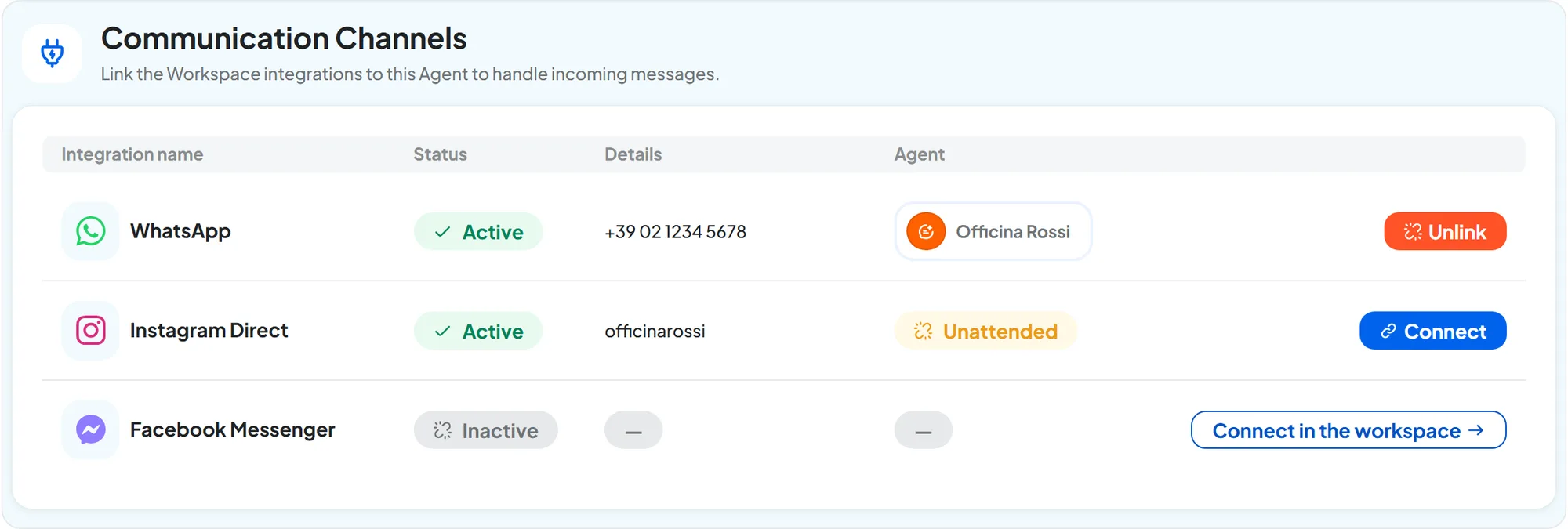
Unattended, in yellow in the Agent column, means that the channel is there but no agent replies. The command in Actions changes depending on the situation:
| Channel situation | Command | What happens |
|---|---|---|
| Not connected to the workspace | Connect in the workspace | Takes you to WorkspaceIntegrations, where you connect it. |
| No agent replies | Connect, then Connect Agent | This agent replies from the next incoming message. “Agent linked” appears. |
| This agent replies | Unlink, then Unlink Agent | No agent replies to the channel's new messages anymore. “Agent unlinked” appears. |
| Another agent replies | Move here, then Move Agent | The channel moves to this agent and the other agent no longer receives its messages. “Agent moved” appears. |
Connect, Unlink and Move here ask for confirmation and take effect immediately: there is nothing to save in this tab. You can also connect the agent from the channel's page, in WorkspaceIntegrations. To test it, write to the channel from a phone.
#What happens to messages without an agent
A channel's messages arrive in Conversations only when the channel has an Active agent. If the channel is Unattended, or its agent is Paused, the messages from that period get no reply and no teammate sees them either. They stay out of Conversations even after you reconnect or reactivate the agent. The console reminds you of this when you connect: “Messages received while the channel had no agent are not recovered.”
So, to change a channel's agent, use Move here from the new agent instead of unlinking. If you want a teammate to reply, leave the agent connected and use the live chat (the Operator Chat tab).
#Channel settings
How the agent replies on each channel, for example during which hours and whether it accepts files and voice messages, is set on the channel's page: WorkspaceIntegrationsConfigure. The WhatsApp, Instagram and Messenger pages have the same settings: we explain them in WhatsApp: channel settings, and the hours in Availability and Reply.
#Frequently asked questions
I connected WhatsApp but the agent doesn't reply.
Look at the Agent column: if it says Unattended, press Connect. Then check that the agent is Active and that the channel's reply hours include the current time.