

A contact is a customer's card: name, contact details, contact variables, lists, conversations and calls. The contact book belongs to the workspace: all its agents share it. If the same person writes to two different agents, they remain a single contact.
With the contact book you can:
- know who is writing to you, even when they switch channels;
- group contacts into lists;
- choose who your campaigns talk to and start automations;
- let the AI agent fill in the cards by reading the conversations;
- block people who should no longer get replies or messages.
#How it fills itself
Contacts are created, or updated, at these moments. On the card, next to the creation date, the source tells you where the contact came from.
| Where from | When | Source |
|---|---|---|
| Website chat | The visitor fills in the contact form, or the form shown before an operator takes over. | Widget |
| Someone writes to your number. If you also use the number on the WhatsApp Business app, the contacts you add or edit in the app's address book come in too. | WhatsApp, WhatsApp contacts | |
| Instagram and Messenger | Someone writes to the connected account or page. | Instagram, Facebook |
| Phone | A call comes in from a number that isn't hidden. | Call |
| Automatic profiling | The AI agent extracts the details from a conversation, if you turned it on. | AI Agent |
| Automations | An automation creates or updates the contact. | Automation |
| Import | You upload a CSV or Excel file. | CSV import |
| By hand | A teammate creates the contact in the console. | Manual |
Tests with Test Chat also create real contacts if you leave your details in a form, and they start the New Contact automations: see Testing and publishing.
A website visitor who chats without leaving any details doesn't become a contact: in the inbox, their conversation shows as “Unknown”.
#The same person on different channels
SupportFast recognizes a person by email (capitalization doesn't matter), by phone number in international format and by Instagram or Facebook account. So someone who writes to you on WhatsApp and then leaves the same number in the website form stays a single contact. A call from the same number also lands on the same card.
Write numbers with the country code. A number without an international prefix, whether typed in the console, imported or sent by an automation, takes the country of the workspace's first language. That's the first language in the Supported languages list in WorkspaceSettings, usually the one the workspace was created with. Italian means Italy, German means Germany. English, however, is spoken in many countries and doesn't point to any of them: if the first language is English, the number stays without a country.
Numbers from the website form take the visitor's country instead. If the country is wrong or missing, the number stays saved but can't be used to recognize the person: the first WhatsApp message from that number would create a second contact. Write numbers like +39 02 1234 5678, and when you import a file, check the Default prefix.
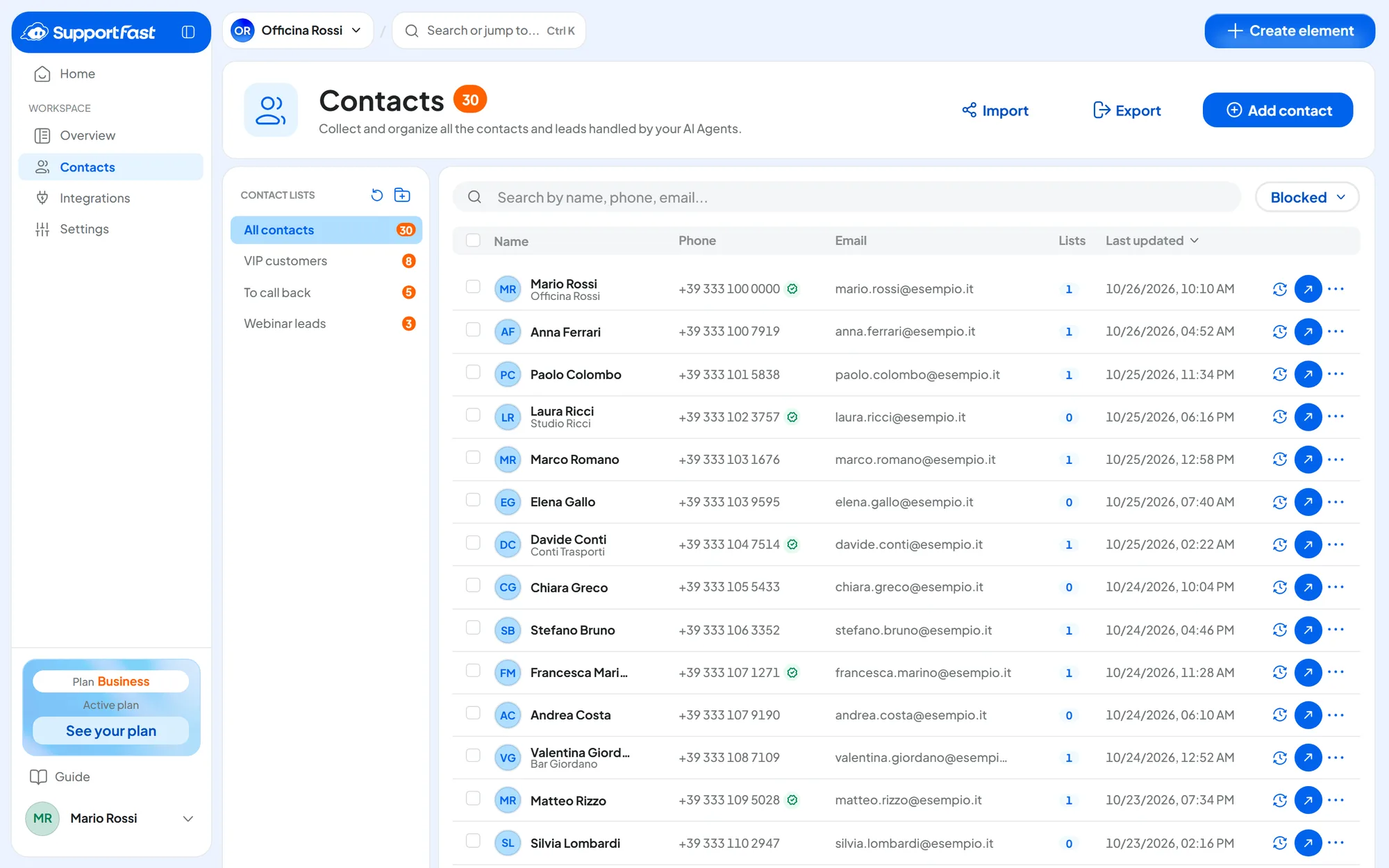
#The Contacts page
Open it from WorkspaceContacts in the sidebar.
- At the top: the title with the total number of contacts, and the Import, Export and Add contact buttons.
- On the left: the Contact lists column, with All contacts and your lists, each showing its number of contacts. Click a list to filter the table.
- Above the table: the Search by name, phone, email... box. It starts searching from 2 characters and also looks at the company, social accounts and the contact's note. Next to it is the Blocked filter. If the workspace has WhatsApp connected, there's also WhatsApp status: Reachable shows contacts whose number is already verified on WhatsApp, for example because they wrote to you; Not reachable shows those whose number turned out to have no WhatsApp. The statuses are explained in The contact card.
- At the end of each row: the Change history clock, the Open contact arrow and the Contact options menu.
When you tick several rows, a bar appears with Add to a list and Delete. To show a teammate what you're looking at, send them the page link: it opens with the same search and the same filters.
#Who can see it
- You need the “Contacts (Workspace)” permission: without it, the Contacts item doesn't appear.
- The contact's conversations, their channels and the Change history also require the “Conversations (Agents)” permission.
We write the permissions the way the console names them when one is missing. In Team, roles and permissions they appear without the part in brackets: “Contacts” in the Workspace group, “Conversations” in the Agents group.
Editing the contact book, importing and managing lists are available on plans that include “Contacts”; exporting, on plans with “Data export”. You can always block and delete a contact. See Plans, quotas and usage.