

#Adding a node
In the automation's Playground the flow runs from top to bottom: at the top the “Start” pill above the trigger card, at the bottom the “End” pill.
- Press the +
Between two blocks there's the Add a node button; inside an empty branch of a Condition there's Add a node to the branch.
- Choose the type
The “Select the node to insert” menu opens.
- Configure it
Press the node's card: its panel opens on the right. As long as the card shows the light blue hint, such as “Enter prompt”, the node still needs configuring.
Some types aren't always in the menu:
- Webhook Response only appears with the Webhook trigger.
- API, Webhook Response and Make Call show a padlock if your plan doesn't include their feature: clicking opens the plans window.
The action nodes, with the rules for Conversation Management, are described in Nodes: messages and actions.
#Naming nodes
Every panel opens with the Node name field. These are the rules:
- only letters without accents, digits and spaces: other characters, including accented letters, disappear as you type;
- no words reserved by the system, such as
user,call,contact,historyortoday, which give the error “This name is reserved by the system: choose another one.”; - up to 50 characters;
- a different name for each node, regardless of upper and lower case.
For Prompt, API and Make Call, the name is also the start of the result variables, such as {{Analisi}}: see Node results. That's why a short, clear name works best, such as “Analysis”, “CRM” or “Callback”.
#Deleting nodes and branches
To delete a node, open the Node options menu on the card and choose Delete, or press the trash icon at the top of the panel, and confirm. Deleting a Condition also deletes its branches and the nodes inside them.
You delete a branch with the trash icon on its row, in the Condition panel, together with the nodes it contains. The “Otherwise” branch can't be deleted, and besides it there is always at least one other branch.
The deletion takes effect when you save: until then, Cancel, at the top, takes you back to the last saved draft.
#How many nodes you can use
An automation has at most 15 nodes in all, trigger and end included; a Condition takes up 2.
Above the cap, the trigger card shows the error “The automation exceeds the maximum limit of 15 nodes.” and publishing is blocked.
Split a long flow into two automations. At the end of the first one, a Contact Management node adds the contact to a list. The second one starts with the Contact in List event on that list and carries on the work.
#Prompt
Use it to have the AI read, summarize or classify something and pass the result to the following nodes. The panel has two sections, General and, with the Tool response, Parameters.
- AI model Menu
The model that runs this node: the default one usually works fine. For a different model you can connect your own OpenAI key: see OpenAI key.
- Number of messages None, 5, 10, 20, 30, All
How many recent messages of the event's conversation the model receives together with the instructions. With contact events and with the webhook there's no conversation, so no messages. More than 5 messages only apply with your own OpenAI key; without it, the node uses 5.
- Instructions for AI (Prompt) Text with variables
What the AI has to do. With Add variable you insert data such as
{{user.firstName}}or{{call.summary}}.- Response type Text response · Tool response
Text response returns free text. Tool response has the AI fill in precise values, the parameters, each in its own variable: the console says “a tool response in JSON format”, that is a response with a fixed shape, which the following nodes read one value at a time.
Here “tool” only refers to the shape of the response. It has nothing to do with the tools in the chat agent Playground or with the Tool used event.
The Tool response parameters. Press Add parameter. Each “Parameter 1”, “Parameter 2”… card has the Remove button and these fields:
- Name: short and unique within the node, for example “interesse” (interest);
- Type: what kind of value the AI must return, as explained below;
- Description: what the value must contain;
- Values, for Enum and List: type a value and press Enter. They are “The only values the AI can return.”. For a List they're optional: without them, the items are free.
| Type | What the AI returns |
|---|---|
| String | Free text, for example a summary. It's the default type. |
| Number | A number, for example a quantity or an amount. |
| Boolean | Yes or no (true or false): you check it in a Condition with Is true or Is false. |
| Date | A date taken from the conversation. |
| Enum | Only one of the values you type in Values, for example alto, medio or basso (high, medium, low). |
| List | Several values together; if you type some Values, only from those. |
What it produces. The result is read with the node name: {{Analisi}} with Text response, {{Analisi.interesse}} for a Tool response parameter. See Node results. In the run detail, the Prompt card shows the prompt that ran, the result and the extracted values.
“Tell me what you think of the customer.” The AI answers with a long text that a Condition can't use.
A Prompt named “Analisi” with Tool response and the parameter “interesse”, type Enum, values alto, medio, basso. Then a Condition on {{Analisi.interesse}} “Equals” alto.
#Condition
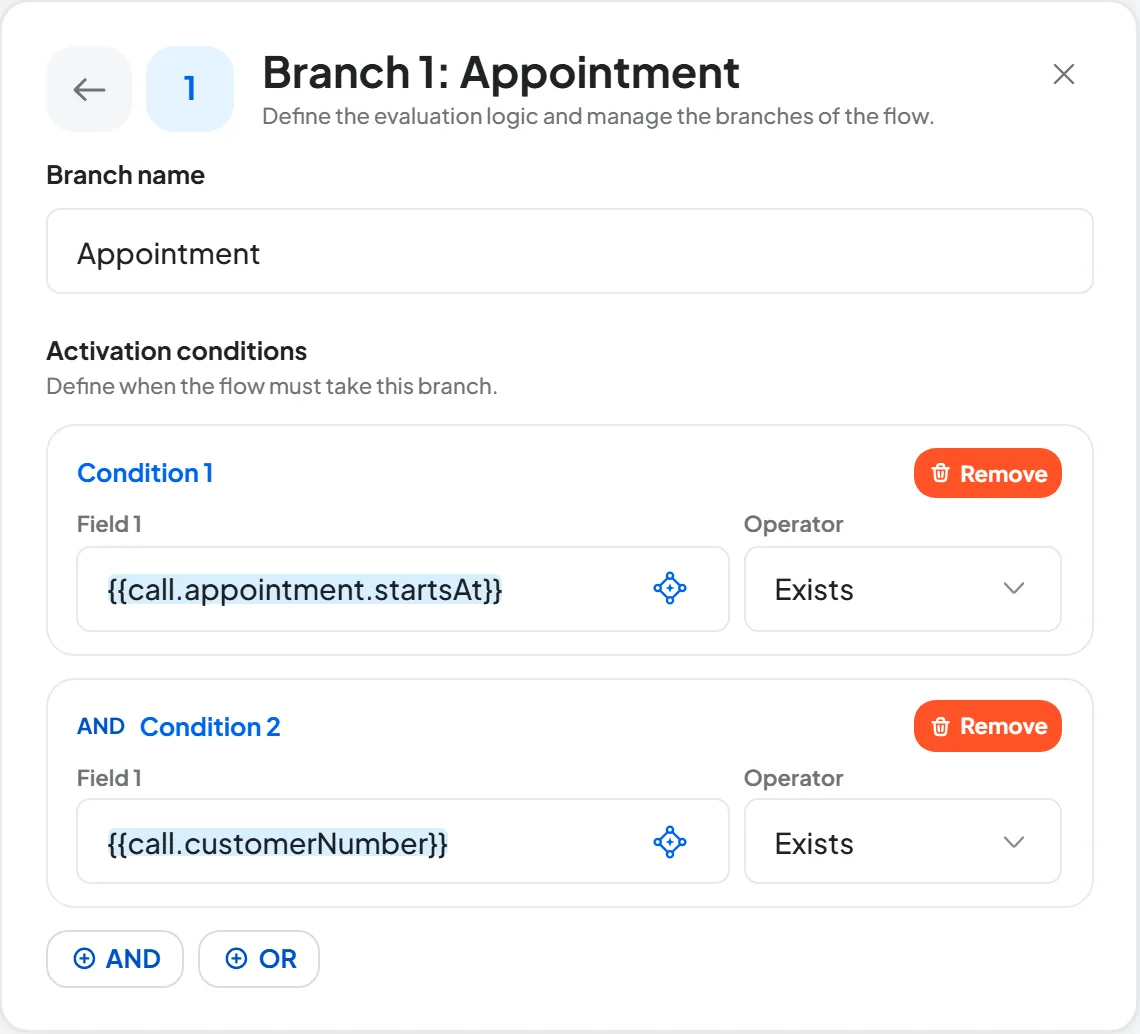
It splits the flow into different paths based on the data: for example one for customers who booked an appointment and one for everyone else. A newly inserted Condition has “Branch 1”, with an empty condition, and “Otherwise”, which takes the cases where no other branch is true.
“Otherwise” always stays last on the right. Clicking a pill opens that branch's conditions.
- Branches List of branches
One row per branch: from the row you reorder it with the handle, edit it with the pencil and delete it with the trash icon. Add new branch creates a branch and opens it.
- Branch name Required
For example “VIP customer”. Left empty: “The branch name is required.”.
- Activation conditions Field 1 · Operator · Field 2
In Field 1 you usually put a variable; choose the Operator, that is the type of comparison (it's not a person: see the three meanings of “operator”); in Field 2 the value to compare against, which only appears with comparison operators. AND adds a condition to the same group: they must all be true. OR adds an alternative group: the branch applies if at least one group is true.
The operators are grouped by family.
| Family | Operators | When it's true |
|---|---|---|
| Text | Equals, Not equal to, Contains, Does not contain, Starts with, Ends with | The comparison between Field 1 and Field 2, as text. |
| Text | Is empty, Is not empty | Field 1 is empty, ignoring spaces, or not. |
| Number | Equals, Not equal to, Greater than, Less than, Greater than or equal to, Less than or equal to | The comparison between two numbers. |
| Boolean | Is true, Is false | The value is a yes or a no; an empty value counts as false. |
| Existence | Exists, Does not exist | The value is there and isn't empty, or it's empty or missing. |
| List | Is empty, Is not empty | A list with no items, or missing, or one with items. |
| Language | Is Italian, Is English and the other console languages | The value's language is the one chosen, for example with {{user.language}}. |
Good to know. A branch with no nodes goes straight past the Condition. In the run detail, Comparisons evaluated shows the values actually compared and the verdict: if the Condition always takes “Otherwise”, often the variable is empty or the value is written differently. For numbers use the Number family, and type the value in Field 2 exactly as the variable produces it.
The most specific branch goes on the left. Branches are evaluated from left to right and the first valid one wins: a generic branch placed earlier “steals” the cases from the ones after it. Reorder the branches with the handle.
#Wait
It pauses the run for a length of time or until a date, then resumes from the next node. While waiting, the run is “Scheduled”.
- Mode From now · Fixed date · Date from variable
From now: the wait starts when the flow reaches the node. Fixed date: it waits until the date and time you choose. Date from variable: it waits until the date contained in a variable.
- Date With Fixed date
Date and time, not earlier than today. They are read in the workspace time zone.
- Variable With Date from variable
The variable between double curly braces, for example
{{webhook.deliverydate}}. It must contain a full date, with the time: for call dates see Variables. If the date can't be read, the run closes as Failed.- Only during opening hours Checkbox
If the calculated moment falls outside the workspace opening hours, the wait continues until the next opening. Special closures apply too. If the workspace has no opening hours, the checkbox is off. You set the opening hours in Workspace settings.
- Offset and Amount Seconds, Minutes, Hours, Days, Weeks, Months
Offset is the time unit menu, from Seconds to Months; Amount is the number. For example Offset Days and Amount 2 means two days.
With From now it's the time to add: with 0 and the opening hours box checked, the node carries on right away if the workspace is open, otherwise it waits for the next opening. With dates you can add or subtract time:
-1with Days means the day before; 0 leaves the date as it is.
Good to know. If the calculated moment has already passed, the flow carries on right away: it's not an error, and in the detail you read Continued right away: Yes. With Only during opening hours it carries on right away only if the workspace is open; otherwise it waits for the next opening.
#API
It reads or writes data in your management software, in a CRM, in an online service. It requires the “API and webhooks” feature in your plan.
Setup, testing, using the response, errors and examples are in Calling an external API.
#Webhook Response
It decides what the software that started the automation with the webhook receives. It appears in the menu only with the Webhook trigger and requires the “API and webhooks” feature. Fields, timing and position in the flow are in The response.
#Frequently asked questions
Can I move a node to another point in the flow?
Node cards can't be dragged. Delete the node and add it again where you need it with the + button. Inside a Condition, though, you can reorder the branches with the handle.