

Before you start
- A free slot among your plan's voice agents: otherwise “Voice agents limit reached” appears. See Plans, quotas and usage.
#Where to create it
In the workspace Overview, in the “Voice Agents” panel, press New Voice Agent. The other ways, from Create element and from Home, are in Workspaces and Overview.
#Create the agent
-
Type the name
In the “New Voice Agent” window, in Agent name, type a name your team will recognize, for example “Officina Rossi Reception”. 50 characters at most. Customers don't hear it. You can change it later in the General step, where the same field is called Internal Name.
-
Choose the function
In Agent function, choose Inbound if the agent answers your customers' calls, or Outbound if it calls your contacts.
In the console, the same choice also appears as the agent's “direction”, or as “Inbound” and “Outbound”. In this guide we say “inbound” agent and “outbound” agent.
-
Create
Press Create Agent. “Voice agent created” appears and a window opens with the first steps, the same ones as the guide in the Dashboard.
#Inbound or outbound: what changes
| Inbound | Outbound | |
|---|---|---|
| What it does | Answers people who call its number. | Calls your contacts, from a campaign or an automation. |
| Number | One or more numbers that receive calls. | A single number that can make calls: see Which number you can buy. |
| Extra settings | — | Ring time and Voicemail detection. |
| Phone test | You call the agent's number. | The agent calls your number. |
| Plan | — | Requires the “Outbound calls” feature. |
You can change the function later, in the General step, in the Agent function field. First, though, you need to unlink the numbers. For agents that make calls, read Outbound calls.
#What is already set up
- Language: the workspace's first language.
- Voice: Giulia, a multilingual female voice.
- Greeting, that is, the welcome message: in the agent's language, already with the AI and recording notice.
- Recording of calls turned on.
- Status: “Active”.
The agent starts without a prompt. Write the instructions before you connect a number: without them, the agent knows nothing about your business. See Prompt & Instructions.
#Assigning a number
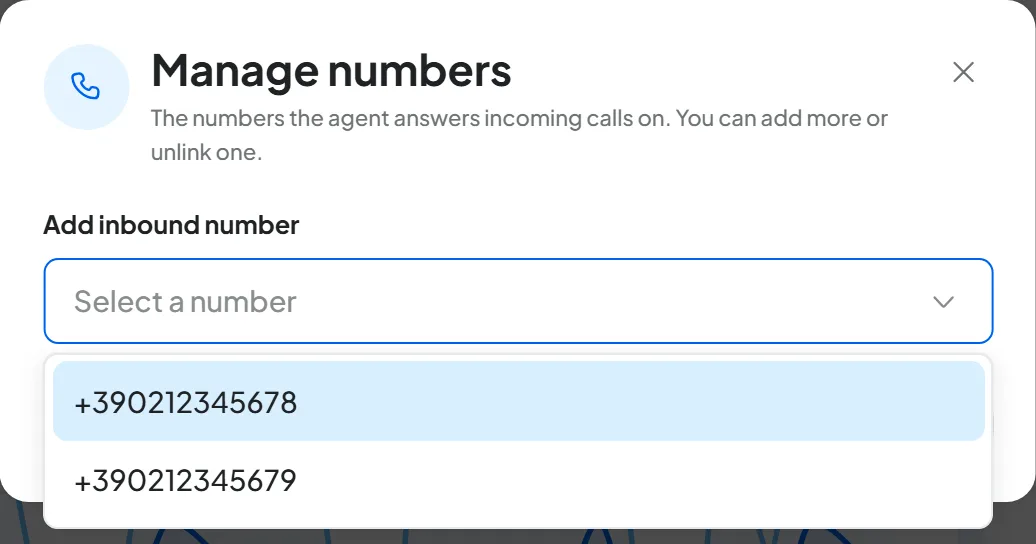
You connect the number with Assign number in the agent's top bar: the steps are in Assigning and managing numbers. Then make a phone test, as explained in Testing the agent.
#Duplicating and moving
From the three dots, “Agent options”, in the workspace Overview, choose Duplicate or Move. What the copy takes with it, and what moving does, is explained in Workspaces and Overview.
Duplicating is useful to try a new prompt without touching the agent that answers your customers. If the agent uses the end-of-call webhook, you need to create the secret key again in the copy: until you do, the webhook isn't sent.
#Deleting
From the three dots, choose Delete: the “Delete Voice Agent” window opens. When you confirm:
- the agent stops answering calls and its assigned numbers become free again;
- its calls, with their transcripts, disappear from the console;
- the automations that used it are left without an agent.
Type “Delete Permanently”, with the capital letters, and press Confirm and Delete. “Agent deleted” appears. You can't undo the deletion: if you only want to stop the agent, set it to Paused.
#Frequently asked questions
I don't see the “New Voice Agent” button.
You don't have the “Create and delete agents” permission: ask the account owner or whoever manages the team.
I created an outbound agent, but it doesn't call anyone.
An outbound agent only calls when a campaign or an automation starts it, and only with a number that can make calls. See Outbound calls.