

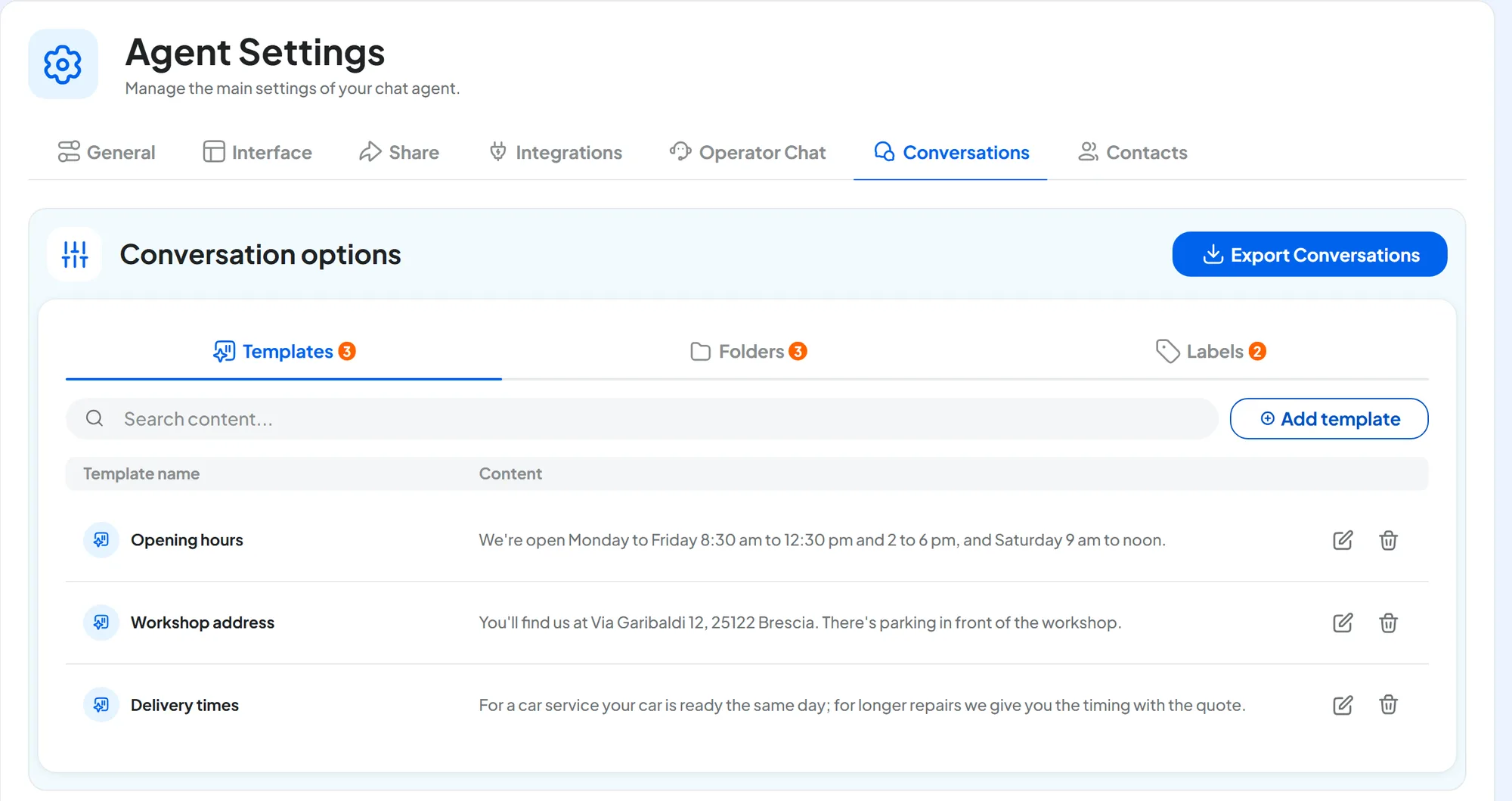
Open Chat agentAgent profileConversations. The Conversation options panel has three tabs, each showing its number of items: Templates, Folders and Labels. At the top right is Export Conversations.
Each item is saved from its own window: this tab has no save bar. Quick replies, folders and labels belong to the agent: another agent has its own.
#Quick replies
Quick replies are ready-made texts that a teammate inserts into a reply without retyping them, such as opening hours, your address or delivery times. You prepare them in the Templates tab: press Add template, fill in Template name and Content, and press Create. With Edit and Delete you change or remove one.
In Conversations, while you reply, you call them up with /: see Writing, attachments and tools.
#Folders and labels
They help you organize chats. A conversation sits in one folder only, but it can have several labels. For example: folders “Quotes”, “Orders” and “Complaints”; labels “Urgent” and “Call back”.
In the Folders tab press Add folder (in the Labels tab, Add label), choose a color, type the name and confirm. The name must be different from those of all the agent's folders and labels. Deleting a folder or a label removes it from all conversations; the conversations stay.
How to create them from the inbox and assign them to chats, one at a time or in bulk: The conversations inbox.
#Export Conversations
With Export Conversations you download this agent's conversations to a file, choosing period and channel. The file can be CSV, a table that opens in Excel or Google Sheets, or JSON, a format for programs and developers. What the file contains and how to use it: Exporting and deleting.