

Contact variables are the data you save about each person besides their name and contact details, for example “Budget”. In the settings they're called Variables, and on the contact card Custom fields: they're the same thing.
The settings are in WorkspaceSettings, on the Contacts tab. The tab has two panels: Variables, where you create the variables, and Automatic Profiling, the AI that fills them in. They apply to the whole workspace: to all its agents, chat and voice. You can also get there from the Manage fields link in a contact's form.
#Contact variables
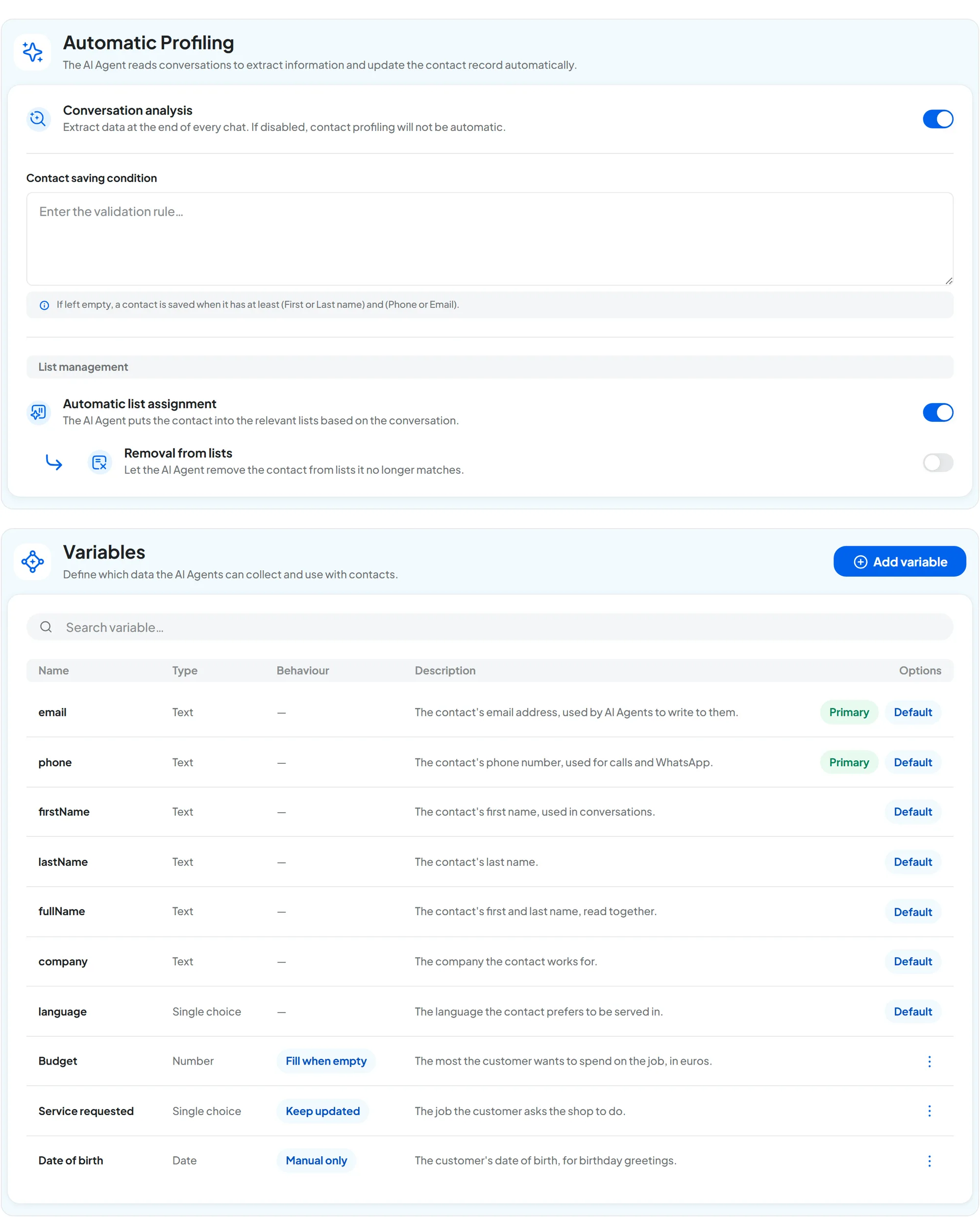
The panel lists all the variables, with the Name, Type, Behaviour, Description and Options columns.
- The product's own variables carry the “Default” badge and can't be edited: email, phone, first name, last name, full name, company and language. They don't count toward the limit.
- Below them are your custom variables, with the Edit / Delete menu. You can create up to 30: at the limit, Add variable is disabled and you read “You have reached the limit of 30 custom variables.”.
#Creating a variable
Press Add variable, fill in the window and press Add variable again. Each variable is saved from its own window.
- Display name Required · max 60 characters
The name the team sees on the contact card, for example “Budget”.
- Data type Required
Text, Number, Yes/No, Date, Single choice or Multiple choice. You can't change it after creation: “Not editable. To change the format, create a new field.”.
- Allowed values Choices only
The options, one per line: at least 2, all different.
- Identifier (ID) for the AI Automatic
The name the AI and your texts use to recognize the variable, for example
budget. It's generated from the display name, and you don't type it by hand. How to use it is explained further down.- Description (instructions for the AI Agent) max 500 characters
What the data is: the AI reads it to understand what to look for in the conversation. For example: “The maximum amount the customer states for the job, in euros”.
- Default value Optional
The value the variable takes when a new contact is created, if no other value comes in. It doesn't change existing contacts.
With the “Fill when empty” behaviour, a default value stops the AI: in new contacts the variable is never empty, so the AI doesn't fill it in. If you want the AI to fill it in, leave the default value empty, or choose “Keep updated”.
- Behaviour
How much the AI can do with this variable: see the table below.
- Advanced settings Optional
They appear if the behaviour isn't “Manual only”. Extra instruction for the Agent says how to derive the value, for example “If the customer gives an amount including VAT, write the amount without VAT”. The AI receives it together with the description, not instead of it: the description says what the data is, the instruction says how to write it. With “Keep updated” there's also Update condition, which says when the AI can overwrite the value.
#Data types
| Type | What it accepts |
|---|---|
| Text | Up to 500 characters. |
| Number | A number, with a comma or a dot for decimals (1,5 or 1.5) and no thousands separator (1000, not 1,000). |
| Yes/No | Yes or no. On the card you choose between “No value”, “Yes” and “No”. |
| Date | A date, in YYYY-MM-DD format in files. |
| Single choice | One of the allowed options. |
| Multiple choice | One or more of the allowed options, up to 20 per contact. |
#Behaviour: how much the AI can do
| Behaviour | What the AI agent does |
|---|---|
| Manual only | Ignores the variable. It's filled in by the team, imports, forms and automations. |
| Fill when empty | Enters the value only if the variable is empty, without overwriting. |
| Keep updated | Updates the value when it finds new information in the chat. With the update condition, you decide when it can overwrite. |
New variables start as “Manual only”. If you want the AI to fill one in, choose “Fill when empty” or “Keep updated” and turn on automatic profiling. If either is missing, the AI doesn't fill it in: only the team, imports, forms and automations do.
#The identifier in texts
The identifier lets the AI agent recognize the variable, and lets you insert the contact's value into the texts of automations, campaigns and templates. You find it in the variables menu, in the Contact group or tab, and in the text it appears as {{user.budget}}. See the Variables page in the Automations section.
If the contact doesn't have that data, in a text such as an email the value stays empty and the rest is sent. In a WhatsApp template, however, a variable that contains only that data stops the send: the template isn't sent to that contact, whether from the inbox, a campaign or an automation. If you wrote other text next to the data, the template is sent with that text and without the data.
If you later change the display name, the identifier stays the same: the texts that use it keep working.
#Editing and deleting
With Edit you change the display name, options, description, default value and behaviour, then press Save variable. If you remove or rename an option, the values already written stay, and on the card they carry the warning “This value is no longer among the declared options.”.
Delete opens “Delete variable”: the variable disappears from every contact card and from the widget forms. The values already collected remain only in the conversations they came from. Press Delete variable.
Before deleting a variable, find out where you use it. The automations, campaigns and templates that mention it will find it empty, with the effect explained in If the contact doesn't have that data.
#Automatic profiling
The AI analyzes conversations and updates the contact card on its own. Profiling settings are saved with the bar at the bottom of the page.
Profiling customers touches on privacy. With profiling, the AI derives personal data from conversations. Tell your customers in your privacy notice that you do this and for what purposes. If you use this data for marketing, for example to choose who gets a promotion, you normally need their consent: ask your advisor. See Privacy and security.
- Conversation analysis Yes / No
Turns on the analysis at the end of a chat. While it's off, the rest of the panel is disabled.
- Contact saving condition Text · max 500 characters
When the AI can create or update a contact. If it's empty, this rule applies: “If left empty, a contact is saved when it has at least (First or Last name) and (Phone or Email).”. You can write your own rule, in plain words. For example: “Save the contact only if they left a phone number and asked for a quote”.
If the condition isn't met, the AI doesn't create the contact, and doesn't update an existing one either.
- Automatic list assignment Yes / No
The AI puts the contact into the right lists, based on the conversation. It only considers lists that have a description, and it doesn't create new lists.
- Removal from lists Yes / No
The AI removes the contact from a list when the conversation clearly shows they no longer belong to it. This applies to all the contact's lists, including those without a description. It only works with assignment turned on.
#When it runs
- Chats (website, full page, WhatsApp, Instagram, Messenger): about 10 minutes after the last message. Each new message restarts the wait. The same chat is analyzed at most once an hour: if the customer writes again shortly after an analysis, the card is updated when the hour is up.
- Calls: at the end of the call.
- It doesn't run while someone from the team has the chat, from the console or from the WhatsApp app: it runs when the chat goes back to the agent.
#What it writes and what it doesn't
- First name, last name, full name and company, except those already written by a person: by hand, through an import, by the customer in the widget form or by your website. It never changes those: in the Change history, the value proposed by the AI appears struck through, marked “Discarded”.
- Language, if the workspace has several languages and the customer keeps writing in another of those languages.
- One email and one phone number.
- Custom variables with the “Fill when empty” behaviour (if they're empty) or “Keep updated”.
- Lists, if you turned on assignment or removal.
It doesn't write the contact note or the Instagram and Facebook accounts, and it never clears a field. Every change appears in the contact's Change history with the source “AI” and the line “Extracted by the AI from a conversation”. Profiling is included in all plans and doesn't use up the plan's AI messages.
#Running a test
With the variables ready and profiling turned on, write to the agent from the website as a customer would: a name, a phone number and a piece of data you asked it to collect. Then wait about ten minutes without writing.
#How to check
Open the contact created by the test in WorkspaceContacts. The variables are filled in, and the Change history shows the changes with the source “AI”.