

Open Chat agentAgent profileOperator Chat. Here you turn on the live chat: a teammate can take over a conversation from the agent and then hand it back.
To get an email as well, turn on Operator Request in General › Email Notifications. How to take the chat and hand it back to the agent: Stepping in as an operator.
Available in plans that include the live chat: see Plans, quotas and usage.
Before you start
- If you want operators to be available only at certain times, first set the workspace opening hours.
#Live Chat and Operator Takeover
Three switches, one inside the other: each one works only if the one above it is on.
- Enable Live Chat Yes / No
Lets teammates take over one of the agent's conversations with Take control, in Conversations. When it's off, that button is missing and from the console you can only write internal notes. The exception is the time slots when the agent stays silent because of its reply hours: see Agent Reply Hours.
- Show the "Request Operator" Button in the Widget Header Yes / No
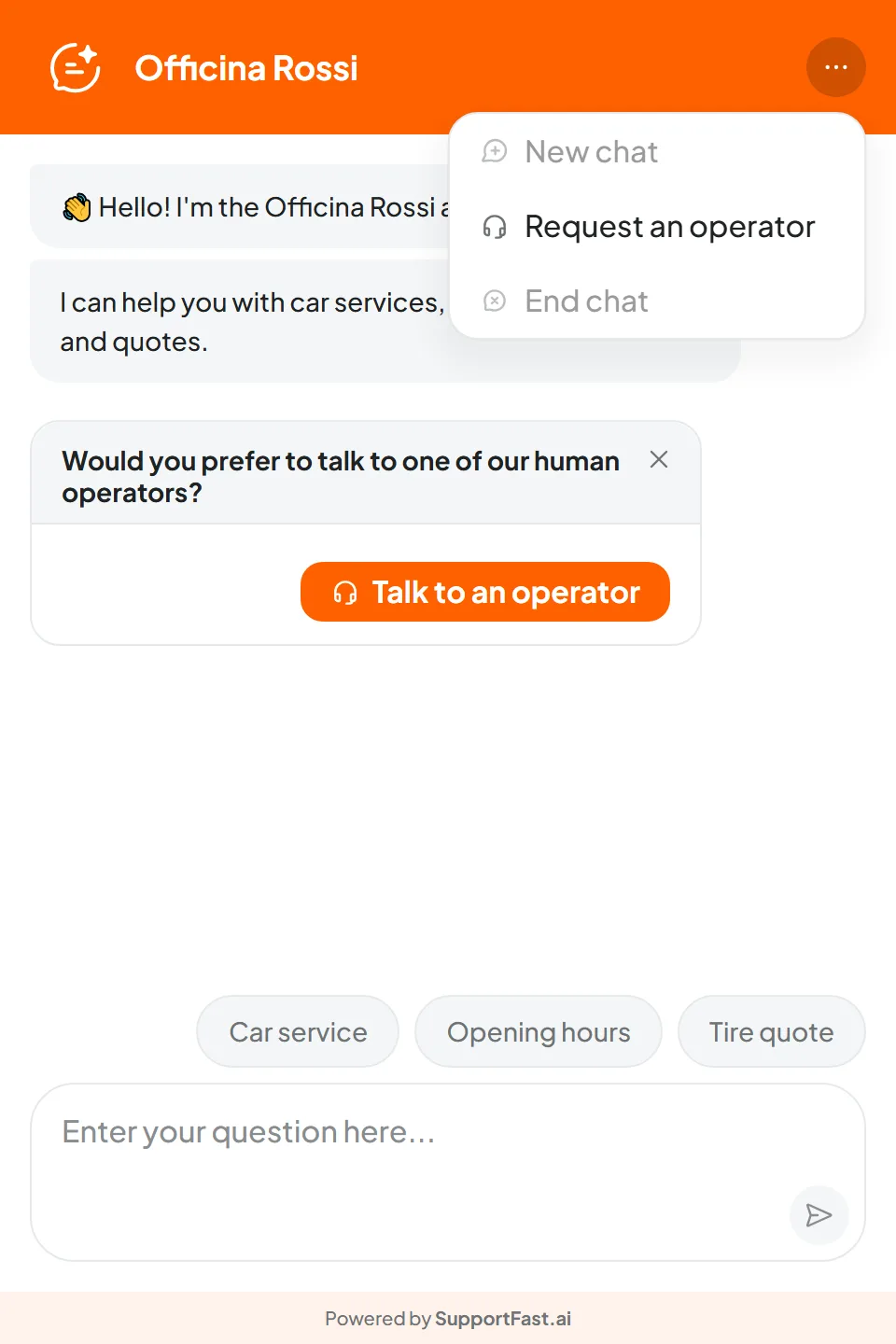
Despite the name, it doesn't add a button: it adds the Request an operator item to the menu at the top of the website chat, that is, in the widget, the link and the iframe. On WhatsApp, Instagram and Messenger this item doesn't exist.
- Mandatory Contact Form before the handover Yes / No
When the customer chooses Request an operator, they first fill in a form with the fields you choose below. If the chat already knows those details, the form doesn't appear.
Below is the Contact form fields panel, which applies only when the form is on: see Contact form fields.
#The Playground's Live chat node
To hand the chat to a teammate at a specific moment, for example after a complaint, you can also use the Live chat node in the Playground. There the request starts when the agent decides, on all channels, including WhatsApp, Instagram and Messenger. Compared with the switches in this tab:
- it uses the hours and the unavailability message below;
- it doesn't show the form before the handover, which applies only to the Request an operator item;
- it doesn't depend on the menu item, but Enable Live Chat must stay on: otherwise the request arrives in Conversations, but no teammate can take the chat.
#Operator Availability Hours
- The operator is available Always · Only during opening hours · Only outside opening hours
When the customer can ask for a person. It follows the workspace's opening hours, time zone and closing days. Outside the chosen hours, whoever asks for an operator reads the unavailability message and can keep writing to the agent.
- Unavailability Message Text · per language · max 200 characters
The text shown to anyone who asks for an operator outside the hours. If the operator follows the hours, write it in every language.
If the workspace has no opening hours, “The workspace has no opening hours: the operator is always available.” appears. Set up the hours takes you to the Workspace settings.
#The message variables
The message can use two variables, which in the chat become the next available time. You find them above the field, in Available dynamic tags: one click inserts them where you are typing.
| Variable | Becomes | Example |
|---|---|---|
{{next_livechat_day}} | The day, in the customer's language | Monday |
{{next_livechat_hour}} | The time | 09:00 |
“An operator will reply to you as soon as possible.” Outside the hours the customer waits without knowing until when.
“We're closed: a colleague will reply to you on {{next_livechat_day}} at {{next_livechat_hour}}. In the meantime, you can write to our assistant.”
#How to save and check
Press Save changes in the bar at the bottom: “Operator chat saved” appears.
To test, open the link from the Share tab and choose Request an operator: in Chat agentConversations the chat appears among those Waiting for operator.
#Frequently asked questions
The customer doesn't see “Request an operator”.
Turn on Enable Live Chat and Show the "Request Operator" Button in the Widget Header, then save.
The customer reads that the operator will be back, but we're in the office.
Availability follows the workspace hours. In the Workspace settings, check the time zone, the opening time slots and the closing days.