

Before you start
- PDF, DOCX or TXT files up to 26 MB each; PDFs with selectable text, not scans.
#Upload the documents
-
Open the documents page
In Chat agentTraining, press New training, then Select Documents. “Document Training” opens.
-
Add the files
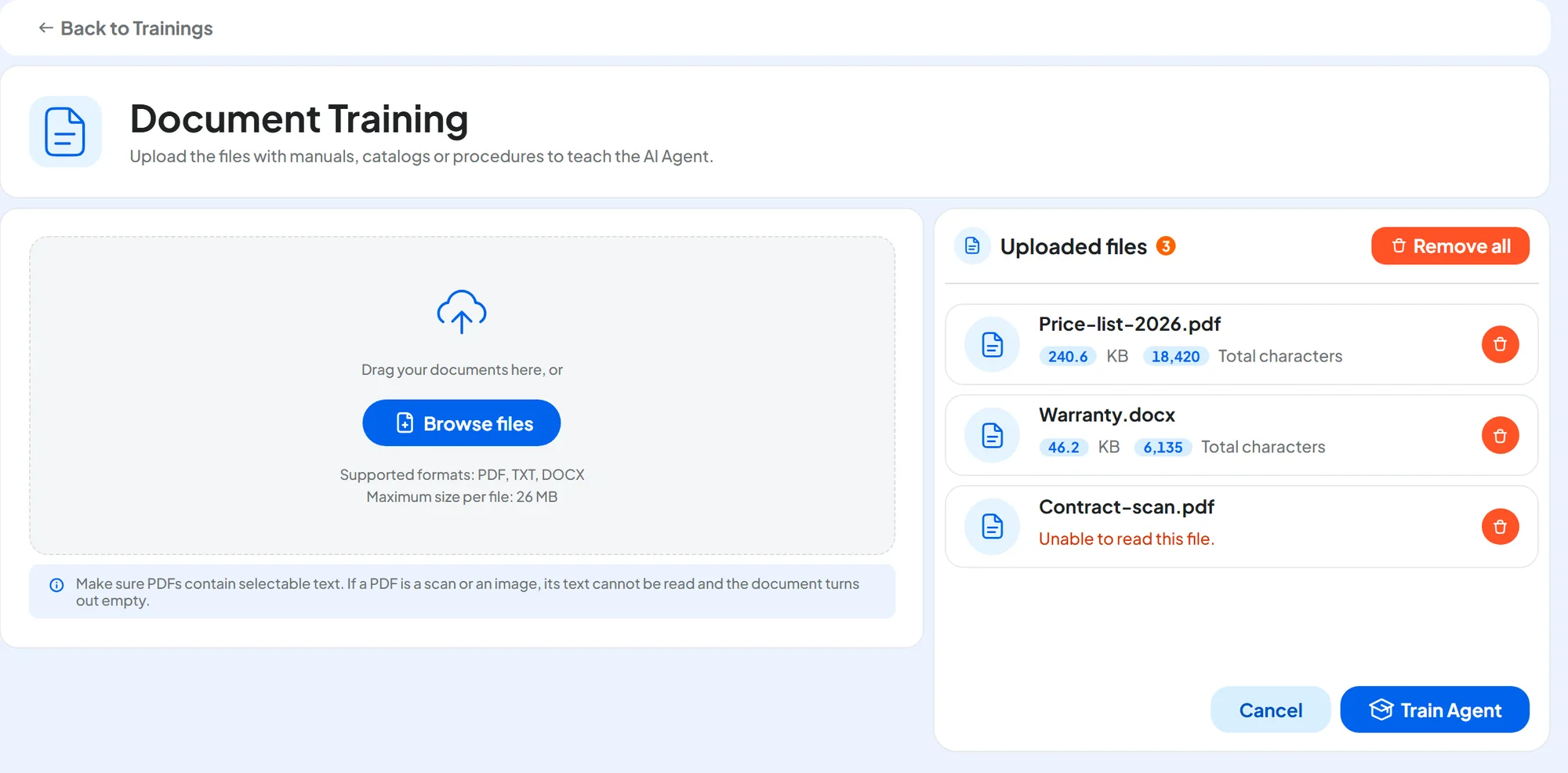
Drag them into the “Drag your documents here, or” area, or press Browse files. You can choose more than one at a time.
-
Wait for the reading
Wait for the files to be read: in “Uploaded files”, each file then shows the characters read.
-
Remove files with errors
If a file has an error, remove it with the Remove the file trash can.
-
Train
Press Train Agent.
Result
You go back to the list: the training is “In progress”, then “Completed”. It is named after the first file and groups all the files uploaded together.
To check what the agent read, see Checking and editing the extracted text.
#Formats and limits
- DOCX
Word documents saved in
.docxformat. Old.docfiles can't be read: open them in Word and save them as.docx.- Other formats
Excel, CSV, PowerPoint and images can't be uploaded. Copy their content into a Textual training, or export it to one of the three formats.
#Scans and PDFs made of images
The system ignores images and charts, and the text inside images. A PDF made with a scanner or from a photo contains only images: the system finds no text in it and the file turns out unreadable.
To tell, open the PDF and try to select a word with the mouse. If it doesn't select, it's an image.
- Use the original file, for example the Word document the PDF was made from.
- Or run the scan through a program with text recognition (OCR) and upload the result.
- For a few pages, copy the text into a Textual training.
#Error messages
| Message | Why | What to do |
|---|---|---|
| “Unsupported format: PDF, DOCX and TXT are allowed.” | The file isn't in one of the three formats. | Convert it, or copy the text into a Textual training. |
| “The file exceeds the maximum size of 26 MB.” | The file is too large. | Split it into several files, or remove images and attachments. |
| “Unable to read this file.” | There is no text to extract from the file: a scan, an image or a password-protected file. | Remove the password and upload it again; for scans, see Scans and PDFs made of images. |
| “The file could not be read.” | A problem while reading. | Remove the file and upload it again. |
| “The character limit has been exceeded.” | With these files the agent would go over your plan's character cap. | Upload fewer files or remove the trainings you no longer need. |
#Checking and editing the extracted text
From the training's ⋮ menu, choose Edit training: “Edit Documents” opens. On the left are the files, with the Search document or text... search; on the right, the text of the selected file, which is what the agent knows. If it is empty or full of odd characters, the file needs fixing: see Error messages. You can also correct it by hand: remove useless parts, fix badly read tables, update a figure. Then press Train Agent. The other rules are in Editing a training.
When a document changes, replace it. Upload the new file in a new training, then remove the old file: if it was uploaded on its own, delete its training; if it was uploaded with other files, remove it in Edit training and press Train Agent. That's why it's best to upload one topic at a time, for example the price list on its own.
#Frequently asked questions
The agent doesn't use the information in a table in the PDF.
Complex tables are sometimes read badly. Open Edit training, check the text and rewrite the table as a list, for example “Small car service: €180”.