

An add-on is an addition to your plan that you pay for every month: it starts right away and renews until you cancel it. Automatic purchase, instead, buys by itself, one time only, an extra amount of messages, minutes, runs or sends: in this guide we call it an automatic purchase pack, and it's valid until the end of the month.
In the console, the add-on and the automatic purchase pack have the same name, for example “Message pack”, and the same amount. What changes is how long they last and how you pay for them:
| Add-on | Automatic purchase pack | |
|---|---|---|
| Who buys it | You, from the Plans page. | The system, if you've turned on automatic purchase. |
| How long it lasts | It renews every month, until you cancel it. | Until the end of the month it's bought in. It doesn't renew. |
| How you pay | The full amount today, then every month on the same date. | One invoice per purchase, charged right away to the card on file. |
| Where you see it | In “Active add-ons”, with “Next charge on …”. | In the month's automatic purchases, with the “Automatic purchase” label. |
Before you start
- A paid plan, paid by card, and no pending invoice. With a subscription paid with PayPal, add-ons aren't available.
#The available add-ons
| Add-on | What it adds |
|---|---|
| Message pack | Extra AI messages every month. |
| Minute pack | Extra call minutes every month. The per-minute price is your plan's. |
| Run pack | Extra automation runs every month. |
| Send pack | Extra campaign sends every month. |
| Extra chat agent | One more chat agent. |
| Extra phone assistant | One more voice agent. |
| Extra team member | One more seat on the team. |
| Extra phone number | One platform number beyond those included. |
| No «Powered by» | Removes the SupportFast brand from your agents. No quantity. |
The amount and price of each add-on are written on its card, in Account › Plans, in the “Extra add-ons” section. If an add-on is already active, the card shows how many you have, for example “×2 active”.
The add-ons your plan already covers appear in the “Add-ons already included in your plan” band, with “Included” or “Unlimited” instead of the price. For example, on White Label plans the “Powered by” is already removed.
Concurrent calls can't be bought from the console. If you need more, write to us at info@supportfast.ai.
#Buying an add-on
-
Choose the add-on
In AccountPlans, in the “Extra add-ons” section, press Add on the card. You can also start from Account › Subscription: Add add-on opens all the cards, Add more only the card of an add-on you already have.
-
Check your usage
The “Buy add-ons” window shows how much you use today compared with your limit. You buy one add-on at a time.
-
Choose the quantity
Set the quantity, from 1 to 100 per purchase. The summary shows “Subtotal” and “Total” per month.
-
Pay
Press Proceed to payment. The payment page opens: you pay by credit or debit card.
How to check. You go back to Account › Subscription and the add-on appears in “Active add-ons”, with the limit already higher. For messages, minutes, runs and sends, “… of which from add-ons” appears on the usage card. For a resource, the card in “What the plan includes” shows the new maximum.
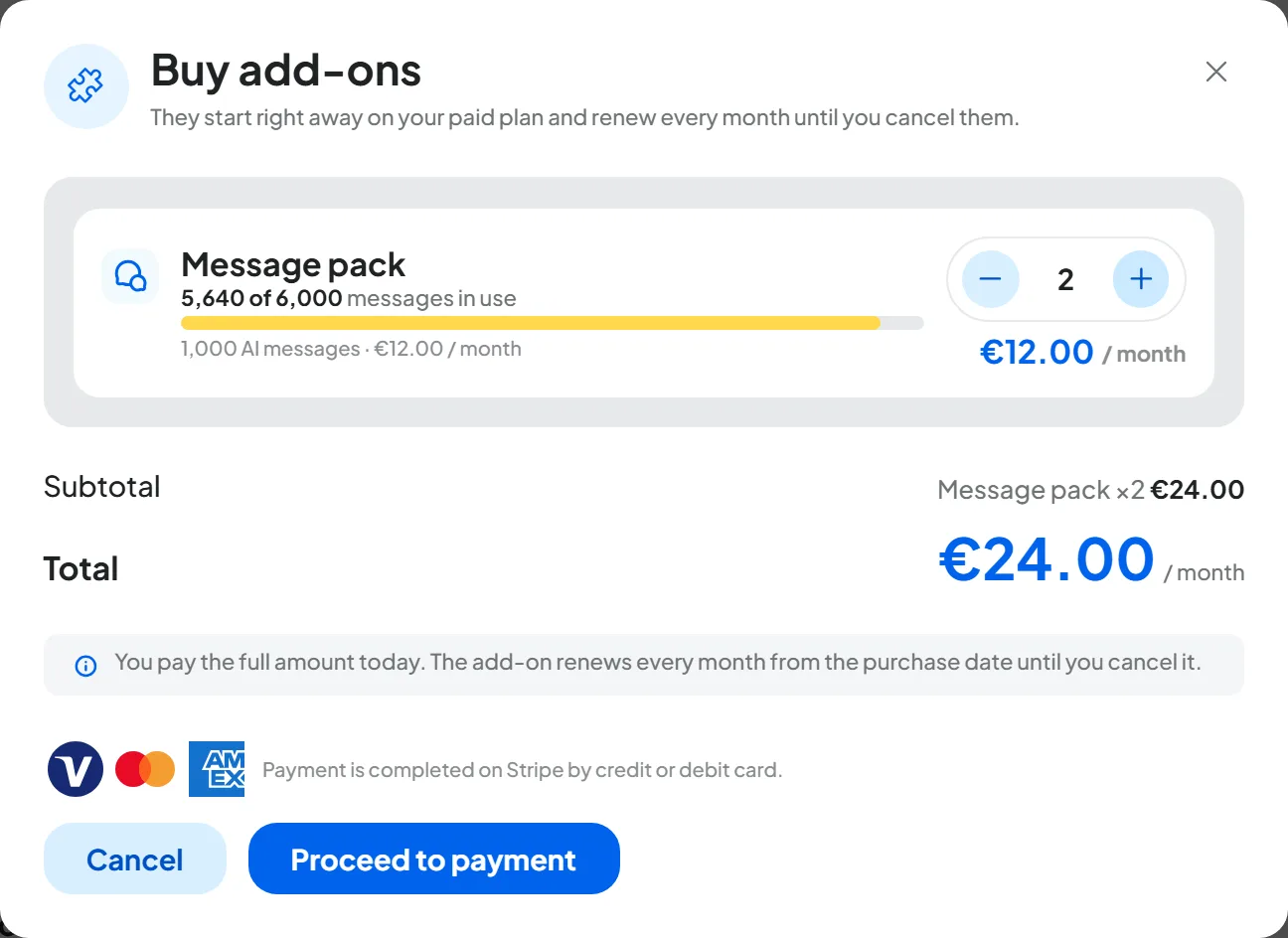
#The purchase rules
- Today you pay the full amount, with no calculation on the days left. The add-on renews every month on the purchase date, until you cancel it.
- Quotas, instead, are counted by calendar month, from the first to the last day (see How usage is counted). The add-on amount is added in full to the month you buy it in and to every following month, as long as it stays active.
- If you buy an add-on you already have again, a second row is created, with its own quantity and its own renewal date.
- If you change plan, from the next renewal the “Minute pack” add-on costs the same as on the new plan.
An example with dates. You buy a “Message pack” on 28 October. From 28 to 31 October you have all the add-on's messages on top of what's left of your plan. On 1 November the counters restart from zero and the add-on is added again in full. On 28 November you pay the first renewal, and then on the 28th of every month.
#Viewing and managing active add-ons
In Account › Subscription, in the “Active add-ons” section, each add-on has a card with:
- the name and quantity, for example “Message pack ×2”;
- how much each unit brings and the price per month;
- the date of the next charge, “Next charge on …”;
- the Add more button;
- the red “Payment failed” label, if the last charge didn't go through.
At the top right, “Add-ons total” adds up the month's spending, automatic purchases included. At the bottom, “See all add-ons in Plans” takes you to the full list.
#Cancelling an add-on
You cancel an add-on from the payment portal: press Manage Subscription in Account › Subscription and choose to cancel. Each add-on is a subscription of its own, separate from the plan's. If you can't find the option, write to us at info@supportfast.ai.
When an add-on ends, its amount leaves the limit right away, even mid-month, and the extra resources, such as the added agent, go on forced pause. If you cancel the plan, all add-ons also close when it expires.
#Automatic purchase
With automatic purchase turned on, the pack is bought by itself when what's left of the month's quota drops below a threshold: 50 AI messages, 5 minutes, 250 runs or 50 sends. If the quota runs out sooner, for example with a lot of usage at the same moment, the system tries to buy it at that moment.
- The automatic purchase pack is valid until the end of the month it's bought in and doesn't renew.
- Packs are bought one at a time, at most 5 per type in a month.
- Each purchase has its own invoice, separate from the plan's and charged right away to the card on file. The account owner gets an email.
- By default, automatic purchase is off.
#Turning it on or off
-
Find the box
Open AccountSubscription and scroll down to “Active add-ons”. The box is called “Automatic add-on purchase”.
-
Turn on the switch
The setting is saved right away, without confirmation: “Automatic purchases enabled” appears.
To stop it, turn off the switch: “Automatic purchases disabled” appears.
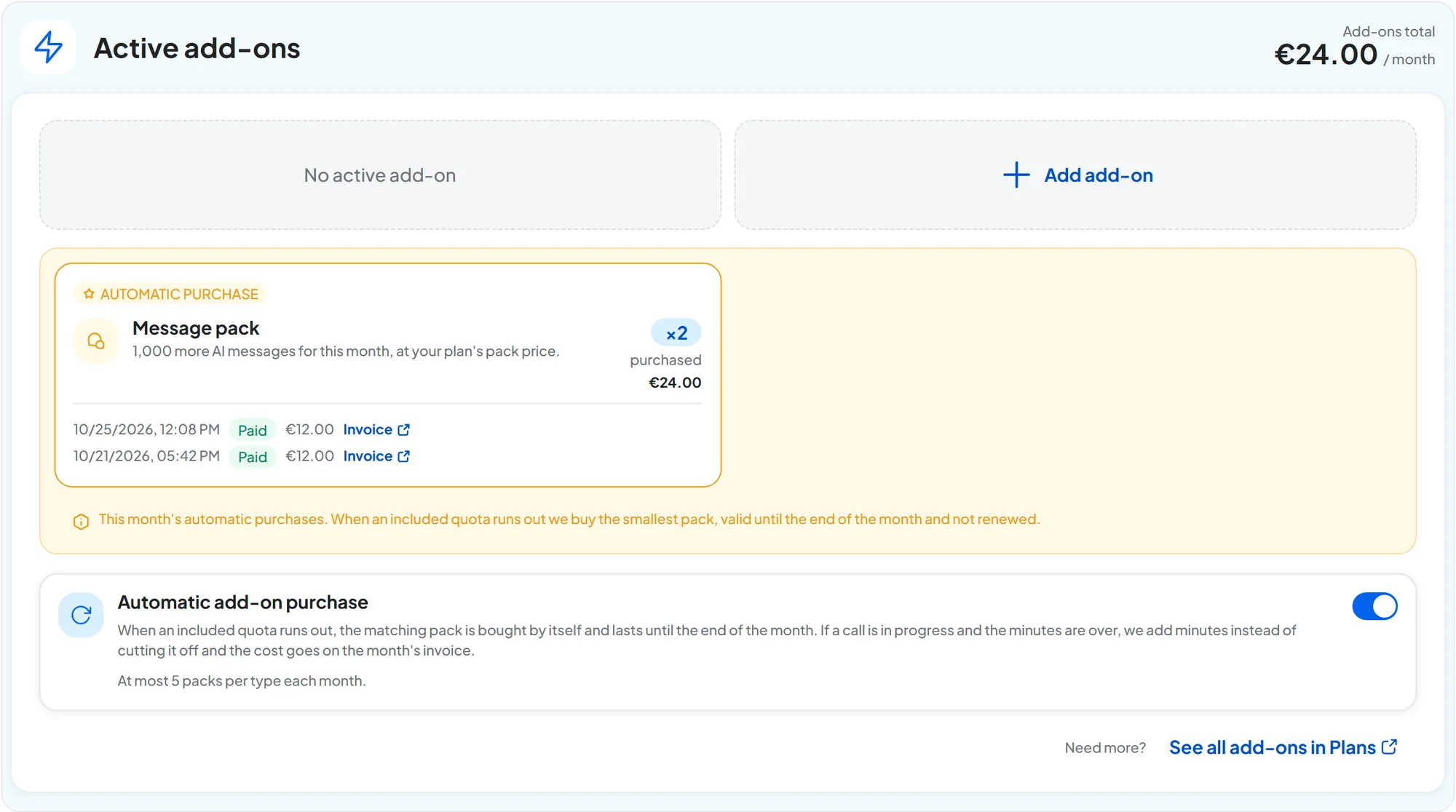
#The month's automatic purchases
In Subscription you find the list of the month's automatic purchases, with status and invoice.
#If an automatic payment fails
If the card refuses the charge, the pack isn't added and the usage that triggered it stops at the plan's limit. Automatic purchases stop for 24 hours, or until you change the card or pay that invoice. In the box you read “Automatic purchases paused until … because of a failed payment.” and the owner gets an email.
What to do. Change the payment card with Manage Subscription: automatic purchases start again right away.
#Add-on or automatic purchase?
Choose based on how often you go over the quota. If it happens every month, consider an add-on or a higher plan. If it happens rarely, automatic purchase covers you with no commitment.