

#I can't sign in: “Wrong email or password”
Why it happens. The email isn't registered or the password is wrong. If instead the yellow notice “Your address is not confirmed yet.” appears, the account exists but the sign-up wasn't completed.
What to do.
- Check the email: it must be the one you signed up with, or the one the account owner, or a teammate with the “Team and permissions” permission, used to create your user.
- Type the password again, minding upper and lower case; the eye icon shows what you're typing. If you don't remember it, press Forgot your password?.
- If the yellow notice appears, press Confirm your address and enter the code you received when you signed up.
How to check. After Sign in, the last workspace you used opens, or the Home.
#I don't get the confirmation code
Why it happens. The email ended up in spam, or you typed a wrong address when you signed up and the code went to that address.
What to do. Look for the email in your spam folder. On the confirmation page, the Email field must contain the address you signed up with. Then request a new code and always use the latest one.
If you request a new code and read “No address to confirm: check the email or sign in.”, the address in the Email field is already confirmed, or it isn't registered. To find out which, use Forgot your password? with that address:
- if you get the code, the address is registered: sign in, and if you don't remember the password, create a new one;
- if you read “No account with this email.”, the address isn't registered. You may have typed a different one when you signed up: sign up again with the right address.
On a reseller's portal. If you don't get the Forgot your password? code, let the reseller know: the portal's emails go out only after the reseller has verified their address.
#It says “Invalid code”
Why it happens. A digit is wrong, the code was replaced by a newer one, or it was sent to a different address. The sign-up code doesn't expire. The code for a new password is valid for one hour and can be used once: when it has expired, you read “Invalid or expired code. Request a new one.”
What to do.
- Open the most recent email and copy the code: you can paste it whole into the six boxes.
- Check that the Email field contains the address that received the code.
- If the code has expired, press Request a new code.
How to check. When you confirm your address, you go straight into the console. When you change your password, “All done” appears.
#It says “Too many attempts”
Why it happens. The console limits attempts to protect your account.
| Message | Why | What to do |
|---|---|---|
| “Too many attempts: try again in … seconds.” | Too many requests from the same connection in a short time. | Wait the number of seconds shown. In an office with a single connection, your teammates' attempts add up. |
| “Too many attempts: request a new code.” | You entered the wrong code too many times, and the code was canceled. | Request a new code. |
#The console signed me out: “You signed in from another device”
Why it happens. Someone signed in with your credentials from another computer or browser: each user has only one open session. The message “Your session has expired: please sign in again.”, instead, means an expired session, a password changed elsewhere or a suspended user.
What to do.
- Sign in again.
- If several people use the same credentials, create a user for each of them in Account › Team.
- If it wasn't you who signed in elsewhere, change your password from your Profile: the other sessions close.
- If you have to sign in again every time you reopen the browser, leave Remember me on when you sign in.
Several tabs in the same browser don't interfere with each other.
#It says my user has been suspended
Why it happens. The message is “Your user has been suspended: ask your Administrator.” In console messages, “Administrator” means the account owner or whoever has the “Team and permissions” permission. One of them suspended you, or the plan was reduced and there are no longer enough user seats.
What to do.
- If you're a team member, contact the account owner or whoever has the “Team and permissions” permission: you can't reactivate yourself.
- If you have that permission, in AccountTeam press Resume user on the user's row.
- If the suspension comes from the plan, it's a forced pause: see Forced pause.
How to check. In Team, the status goes back to “Active”, and your teammate signs in with their usual credentials.
#It says “An account with this email already exists”
Why it happens. The address is already registered: you signed up in the past, or someone created a user for you in their team. Each address can have only one login across the whole platform.
What to do.
- Press Sign in in the red box and sign in with that email. If you don't remember the password, use Forgot your password?.
- If you need a separate account, sign up with another address.
- In Team, the message is “This email is already used by another user.”: choose another email for your teammate.
#I don't see a menu item
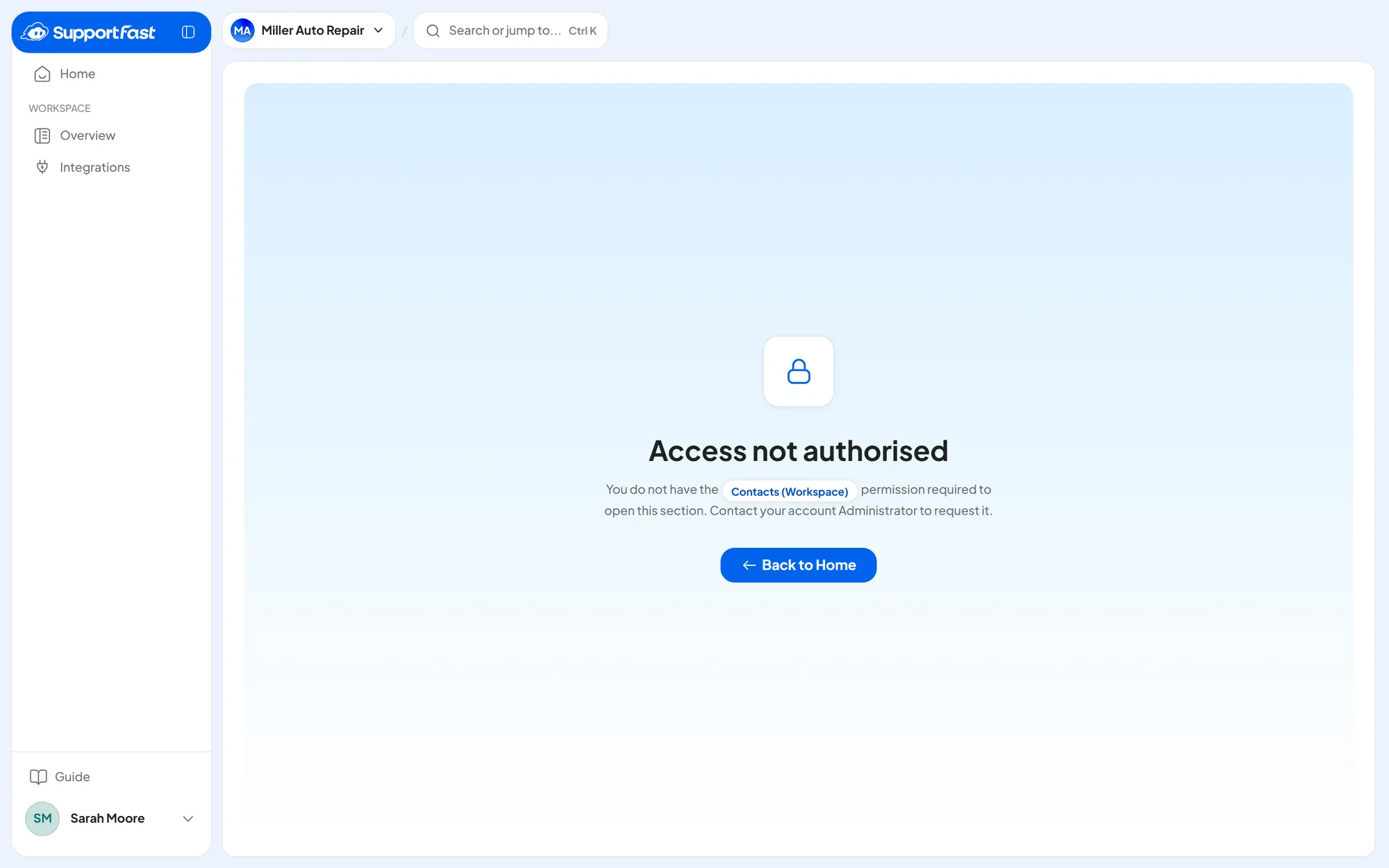
Why it happens. Items you can't open don't show: almost always you're missing a permission. In the same way, you don't see a workspace or an agent that hasn't been assigned to you.
Features your plan doesn't include, on the other hand, don't disappear: they stay visible with a lock. The exception is the “OpenAI key” panel in AccountSubscription: if the plan doesn't include your own key, it doesn't show, and there's no lock. When it's missing, and why: If the “OpenAI key” panel is missing.
What to do. If you have the page link, open it: “Access not authorised” tells you which permission is missing. Then ask the account owner, or whoever has the “Team and permissions” permission, to add it from AccountTeam with Edit user. Each permission is explained in Team, roles and permissions.
How to check. After the change, reload the page: the item shows. If it still isn't there, sign out and sign in again.
#I see a lock
Why it happens. The lock always means a plan limit, never a permission: the feature isn't in your plan, or you've reached the maximum for that resource or the month's quota.
What to do. Click the lock: the limit window says what's missing. You can free up resources you don't use or, if you need more, add an add-on or change plan: see The lock and the limit window. If you don't handle payments, ask the account owner or whoever has the “Billing” permission.
#The payment failed
Why it happens. The bank declined the charge for the renewal or for an add-on, for example because the card has expired or has insufficient funds. You can tell from the red “Payment failed” label in Account › Subscription and from Resolve payment in the sidebar.
What to do. Pay the invoice, with another card if needed, and update the card for future renewals: the steps are in Subscription and payments.
How to check. Reload Account › Subscription: the red label is gone, and Upgrade Plan is active again.
#Some resources are on “forced pause”
The plan was reduced and covers fewer resources than you have: how to find them and reactivate them is explained in Forced pause.
#An agent has a red icon and doesn't reply
The same problem can also look like this: “The agent stopped replying and the widget says I can't reply right now”.
Why it happens. The red icon, next to the agent's status and on its card in the workspace, means “Stopped for usage”: this month the agent can't use any more messages or minutes. On the website, the visitor reads “I can't reply right now. Please try again later.”; on WhatsApp, Instagram and Messenger, they get no reply. On the phone, the call rings and hangs up without the agent speaking. Hover over the icon to read the cause:
| What you read | Why | What to do |
|---|---|---|
| “it has used up its limit” | The agent has used all the monthly limit you gave it. | Raise the limit, or turn on When it runs out, use the workspace's messages (minutes, for a voice agent). |
| “the workspace has used up its quota” | The workspace has used all its quota and stops once it runs out. | Raise the workspace quota, or turn on When it runs out, use the free allowance. |
| “the account's free allowance has run out” | The workspace has no quota, or has used it up, and was drawing on the account's free minutes or messages, which have run out. | Lower the quota of a workspace that isn't using it, or add a pack or, for minutes, a minute top-up. |
| “the monthly plan has run out” | The plan's minutes or messages have run out and automatic purchase can't buy any more. | Add a pack or a minute top-up, or upgrade. For messages you can also use your own OpenAI key. |
| “the workspace quota is all assigned to the other agents” | The agent has no limit of its own and the other agents' limits take up the whole workspace quota. | Lower another agent's limit or raise the quota. This case doesn't clear on its own at the start of the month. |
| “ask whoever manages the subscription” | You don't have the “Billing” permission, so you can't see the cause. | Let the account owner, or a colleague with that permission, know. |
What to do. Click the red icon: AccountUsage opens with the agent's workspace already expanded. Change the limit or the quota with the pencil on the row, as explained in Usage, quotas and alerts. You can also change an agent's limit in the Limits panel of its settings, in General. For all of this you need the “Billing” permission and access to that workspace.
The agent starts again as soon as you save, without reactivating it. If you change nothing, it starts again on its own on the 1st of the next month.
How to check. The red icon disappears. Ask a question in the website chat, or make a test call: the agent replies.
Find out sooner. In Usage you can get an email when a workspace or an agent gets close to its quota or limit. The “Something stops” alert is always on: when an agent stops, the email arrives anyway.
#I can't save the quota
Why it happens. As you type, the window checks the number. With a red note, Save changes stays grayed out. The most common notes:
- “The quota exceeds the maximum allowed. This workspace has at most … left.”: the quotas of all workspaces, added up, can't exceed this month's plan.
- “Its agents' limits add up to …, lower them before saving”: the quota can't be lower than the sum of its agents' limits. This also applies to a workspace's first quota.
- “The limit exceeds the maximum allowed. This agent has at most … left.”: in a workspace with a quota, its agents' limits all fit within the quota. In a workspace without a quota, a limit can't exceed the account's free allowance.
- “Someone else is saving this account's usage settings, try again in a moment.”: a colleague is saving at the same time.
The number must be a whole number from 0 to 10,000,000.
What to do. Make room first: lower another workspace's quota, or the limits of this workspace's agents, then try again. If you need more minutes or messages, add a pack or change plan. Lowering, on the other hand, is always possible, even when the value stays above the maximum: the yellow note says “You can also lower it in several steps.”
If you can't find the Usage page, you don't have the “Billing” permission: ask whoever manages the Team.
How to check. After Save changes you see “Quota saved”, or “Limit saved” for an agent, and the table shows the new number.
#Calls don't go through even though I have minutes in my plan
Why it happens. Not all the plan's minutes are available to every agent: the agent's limit and the workspace quota come before the plan. In Calls the call shows as “Unsuccessful”, with one of these reasons:
- “Agent limit used up”: the voice agent has used its monthly limit;
- “Workspace quota used up”: the workspace has used its minutes quota, or the other agents' limits take up the whole quota;
- “Account's free minutes used up”: the workspace has no quota, or has used it up, and the free minutes have run out. The other workspaces' quotas stay reserved for them even if they don't use them, so the free allowance can run out before the plan does.
An agent or workspace that stops because of its limit or quota uses neither the minute top-up nor automatic purchase. If you see the yellow warning “Quotas exceed the plan by …” in Usage, when the plan runs out everyone stops, even those still within their quota.
What to do. In AccountUsage, expand the agent's workspace and look for rows with “Stopped” or “At …%”. Then raise the limit or the quota, turn on When it runs out, use the free allowance or When it runs out, use the workspace's minutes, or lower the quota of a workspace that isn't using it. A campaign paused for these reasons has to be resumed by hand: see The campaign stopped on its own.
How to check. Make a test call: in Calls it shows as “Completed”.
Calls in progress are never cut off. If the limit or the quota runs out during a call, the call goes on and the extra minutes are counted: that's why you may read, for example, 108 / 100.
#I can't delete the workspace
| What you see | Why | What to do |
|---|---|---|
| Delete Workspace disabled, with “The account's last workspace cannot be deleted.” | The account must have at least one workspace. | First create another workspace, then delete this one. |
| From the three-dot menu, after you confirm, “The deletion failed. Try again” | If it's the account's last workspace, the reason is the same: the account must have at least one. | First create another workspace, then delete this one. |
| Confirm and Delete stays disabled | The confirmation phrase isn't typed exactly. | Type Delete Permanently, with the capitals. |
| No three-dot menu and no Settings | You don't have the “Workspace management” permission. | Ask the account owner, or whoever has the “Team and permissions” permission, for it. |
#I can't use the console from my phone
Why it happens. The console needs a screen at least 1024 pixels wide. On a narrower screen, like a phone's, “Screen resolution not supported” appears.
What to do.
- Press Copy console link and open the link on a computer.
- If you're already at a computer, widen the browser window.
- To know from your phone when a conversation comes in, turn on the agent's notification emails in Agent profile › General.
#Still not working?
Write to us following How to report a problem. For a payment, include the account owner's email and the date of the charge.