

You manage numbers and lines in AccountTelephony. If the number works but the agent behaves strangely, see Voice agent and calls.
Here “carrier” means the phone company. In Telephony statuses and messages the console says “carrier”, for example “Under carrier review”: that's the phone company that provides the number, not a teammate from the live chat. In the text of this page we say “phone carrier”.
#I can't find available numbers
Why it happens. It depends on the message you read during the purchase.
| Message | What to do |
|---|---|
| “Our stock has no availability right now…” | The ready-to-use numbers have run out. Choose Inbound and outbound calls: the number is in your name and arrives in a few days. |
| “No number available for this choice right now. Try another city.” | Change city, or leave the field empty to get suggestions from the main cities. |
| “No numbers are available for the chosen country.” | Choose another country or write to us. |
| “The chosen number was just taken. Pick another one from the refreshed list.” | Choose another number from the ones suggested. |
| The “Buy add-ons” window opens, or the limit window for phone numbers | All your plan's numbers are in use: add the “Extra phone number” add-on or deactivate a number you don't use. |
| “This profile has an order with details declined by the carrier: fix them before buying another number.” | First fix the profile fields shown in red: see The order needs fixing. |
| A lock on Buy a number | The plan doesn't include “Platform numbers”: see Plans, quotas and usage. |
#I can't link a number to the agent
Why it happens. It depends on the message in the number window, in the voice agent's bar.
- “There are no other numbers free for inbound calls…”: a number answers for only one inbound agent, and yours are all already linked to other agents.
- “There are no numbers that can make calls…”: an outbound agent needs a number enabled for outbound calls, and the account doesn't have one.
- “Linking the number failed. Try again”: a temporary error.
What to do. With Go to Telephony, add a number, or unlink the one you need from the other agent. For the temporary error, try again; if it keeps happening, write to us. The steps are in Assigning and managing numbers.
#The order has been pending for days
Why it happens. A number in your name waits for the phone carrier's verification: usually a few days, with no guaranteed date. The status in the table updates about every 30 minutes.
- “Under carrier review”: the phone carrier is examining the order.
- “Late · still under review”: the verification is taking longer than expected.
- “Documents to complete”: the order is waiting for your details or documents.
- “Action required”: the phone carrier declined some details; see the section below.
What to do. With “Documents to complete”, open the holder's profile, complete it and press Save documents and Confirm documents. Do it as soon as you can: the order has a deadline, 10 days unless the phone carrier sets a different one. If the documents are already confirmed and the status doesn't change, or if it stays “Late” for many days, write to us with the number you ordered.
How to check. The row becomes “Active”, and the account owner receives the email “Your phone number is active”.
#The order needs fixing (“Rejected” or “Action required”)
Why it happens. The phone carrier is asking for a correction to the details or documents. The email “Your order needs a correction” tells you too.
What to do. In the “Rejected” or “Action required” row, press the label: the window shows the reason, with “Declined fields: N” when there are any, and the date by which to make the correction. Fix it as explained in Fixing after a rejection. If you read “The carrier gave no reason.”, write to us with the number you ordered.
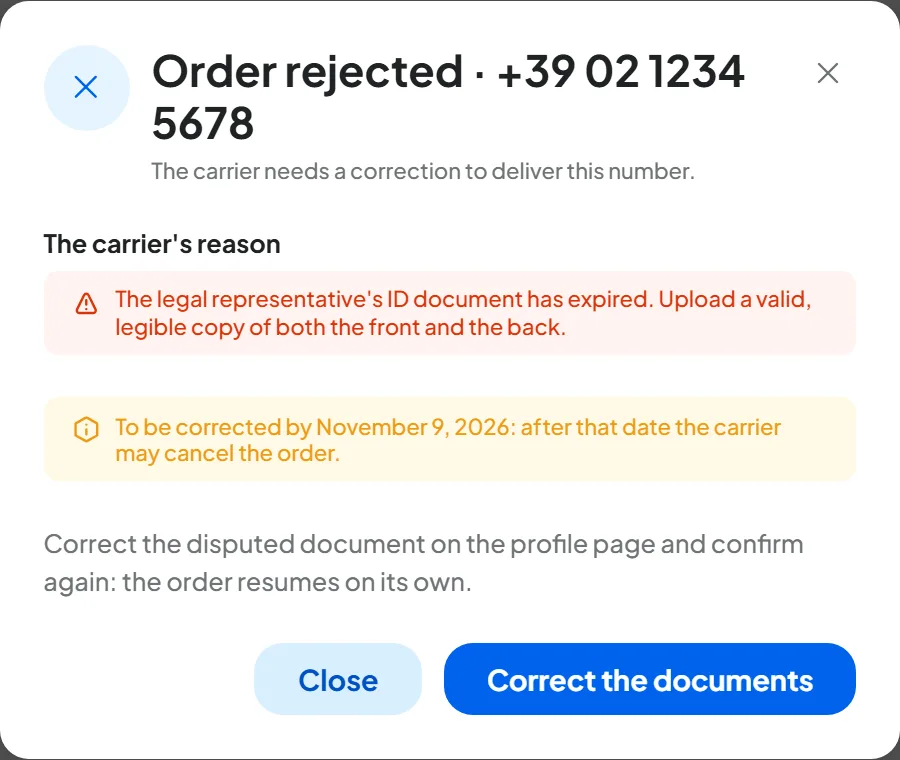
If the date passes without a correction, the order may become “Cancelled”: its place in the plan becomes free for a new order.
How to check. After you confirm the documents, the row usually goes back to “Under carrier review” within an hour: follow the status in the table until it says “Active”.
#The documents are rejected
Why it happens. The profile is “To correct” or “Documents expired”, or a field shows “The phone carrier does not accept this value: correct it and save again.” For a file, “The file was not accepted: check format and size.” means the format or size isn't right: the safest format is PDF.
What to do. Fix the field or file shown and press Confirm documents again. The most common errors:
- an ID document that's cropped or missing the back;
- the wrong customer type: an SRL (an Italian limited company) is a legal entity;
- a proof of address older than three months.
All the details are in Documents for numbers.
#Call forwarding doesn't work
Why it happens. You set up call forwarding with your phone carrier. If your phone still rings, or callers end up somewhere else, forwarding isn't active or the agent's number doesn't answer.
What to do.
- Dial the check code your phone carrier gives you, for example
*#21#: the phone tells you whether forwarding is active and to which number. - Check that the number is the agent's, with the international prefix, and not yours.
- Check that the agent's number is “Active” and linked to an active inbound agent.
- Test from another phone, not the forwarded one and not a number in your account: see Testing the agent.
- With “If I don't answer”, let it ring for all the seconds you set.
- If voicemail answers, it may have replaced the forwarding, for example because you turned voicemail back on afterwards: set the forwarding to the agent again.
- If the code gives an error, ask your phone carrier: some plans limit call forwarding, and on a PBX you set it from its own panel.
How to check. Call your number from another phone: the agent answers and the call shows in Calls. See Forwarding calls from your number.
#Callers hear a busy tone
Why it happens.
- You're already on the phone and you don't have “If I'm already on the phone” forwarding: your line is busy, as always. With call waiting on, the second call usually reaches you on hold and this forwarding doesn't kick in.
- All the simultaneous calls your plan allows are in progress, tests included. The extra call is rejected, and you find it in Calls as “Unsuccessful”, with “All lines busy”.
- With a SIP line, your line may have its own limit of simultaneous calls with your phone carrier.
What to do. Turn on “If I'm already on the phone” forwarding to the agent, with the call forwarding configurator; if you want it to kick in when you're on another call too, turn off call waiting. If “All lines busy” appears often and you need more simultaneous calls, you have two options: move to a plan that includes more (Plans, quotas and usage), or write to us at info@supportfast.ai to add an “Extra concurrent call”, which is activated on request. For the SIP line, ask your phone carrier.
How to check. Have someone call you while you're on another call: the agent answers.
#The SIP line doesn't receive calls, or there's no sound
Why it happens. Calls reach the SIP line only if your phone carrier or your PBX forwards them to the address shown in the line. If the call arrives without audio, or you hear only one side, a firewall or router on the PBX side is usually blocking the audio.
What to do.
- In the line's menu, choose Check configuration: with “Missing” or “Error”, press Realign.
- Have your technician check the forwarding to the line's address, the IPs or credentials, and the number: it must be the same as the one written in the line.
- For the audio, have the PBX's firewall and router checked.
How to check. When you call your number from a mobile, the agent answers and the transcript in Calls shows what both sides said. See Connecting your PBX (SIP).
#I can't delete a number
Why it happens.
- You bought it less than 10 days ago: the window says in how many days you can delete it.
- You didn't type
DELETEexactly like that, in capitals. - The number is already “Being released”: the actions are disabled, and in a few days it goes back to the phone carrier.
What to do. If you only need to stop the number, use Deactivate: it stops answering immediately and frees up its place in the plan. If you don't put it back into service within 30 days, the number goes back to the phone carrier.
How to check. You read “Number being released: in a few days it goes back to the carrier” or, for a SIP line, “Number deleted”.
#The number is on forced pause
The plan no longer covers the number: a bought number becomes “Deactivated · returned on …”, a SIP line becomes “Paused”, and calls show “Number not in service”. How to put it back into service before the return date is explained in Forced pause.
#Still not working?
Write to us following How to report a problem, with the number, its status and what you've already tried.