

The reason is almost always already written in the console. For a campaign, open the “Send details” panel from the Executions table in the Dashboard. For an automation, open the “Execution detail” from the Run log.
#A monthly quota has run out: what stops and how to restart
AI messages, minutes, runs and sends are monthly quotas: they reset on the 1st of every month. When one runs out early, not everything behaves the same way.
| Quota used up | What happens | What you need to restart |
|---|---|---|
| The plan's AI messages | The chat agent stops replying. On the website, the visitor reads “You've reached the monthly message limit.”; on WhatsApp, Instagram and Messenger, they get no reply. Agents that use your own OpenAI key keep replying. | A “Message pack” (add-on or automatic purchase) applies immediately to the next messages. Otherwise everything restarts on the 1st. |
| An agent's Monthly Message Limit | Same as above, but only for that agent. It's a cap you set, not a plan quota. | Raise or turn off the limit in General › Traffic Limits. You don't need a pack. |
| Call minutes | New calls don't start: inbound ones show in Calls as “Unsuccessful”, with “Voice minutes exhausted”. A call already in progress isn't cut off. | A “Minute pack” (add-on or automatic purchase) applies immediately to the next calls. Otherwise everything restarts on the 1st. |
| Minutes, in a call campaign | After a few attempts the campaign pauses. The contact it was calling is marked as failed; the others stay in the queue. | It doesn't restart on its own, not even the following month or with a pack: Resume only opens the plan window. To restart it, write to us (How to report a problem). |
| Campaign sends | The campaign pauses. The remaining contacts are set aside, with “Monthly sends used up: skipped.” | It restarts on its own on the 1st of the following month, if the plan allows it. Not before, even if you buy a “Send pack”: Resume only opens the plan window. |
| Automation runs | The automation stays active, but events are discarded: the log shows “Monthly executions used up: the automation did not run.” | A “Run pack” (add-on or automatic purchase) applies immediately to the next events. Events already discarded aren't recovered. |
An add-on is an extra you pay for every month, and it renews until you cancel it. The automatic purchase pack, instead, is bought on its own, once, when a quota is about to run out, and it's valid until the end of the month. With automatic purchase on, the quota usually doesn't reach zero, so campaigns don't stop either. See Add-ons and automatic purchase and How usage is counted.
#The campaign doesn't start
Why it happens.
- A setting is missing: the “Start campaign” window says, for example, “1 setting is missing to start.” and keeps the button disabled.
- At the final check, the system refuses to start and writes the reason in the window, for example “No reachable contact in the chosen audience: the campaign would not start.”
- The plan doesn't allow it: the campaign is a voice campaign and “Outbound calls” isn't included, or you already have all the campaigns your plan allows turned on. The plan window opens.
- The campaign is Running, but you're outside the time slots, on an excluded day or in a different time zone: it resumes at the next opening.
What to do. Complete the Campaign Options following the Summary, press Save changes and then Start again.
How to check. In the Dashboard, filter by Queued and open a send: you read when it's scheduled, for example “No attempt yet: the send is scheduled for …”.
#Some contacts were excluded
Why it happens. The campaign skips contacts without a phone number and blocked contacts. If the month's sends run out, it also sets aside the remaining ones. Contacts excluded at launch don't use up any sends.
What to do. Filter by Excluded and open a send to read the reason, for example “Contact without a phone number: skipped.”
- No number: add the number in the contact card. The same campaign doesn't pick up a contact it has already excluded: put the contact in a new list and create another campaign.
- Blocked: this is intentional. Unblock only people who have agreed again to be contacted (see Consent and rules).
- Sends used up: they restart on their own at the start of the month. See When sends or minutes run out.
How to check. Before you launch, the Audience panel in the Options says how many contacts are reachable and how many aren't.
#A contact removed from the list got the message anyway
Why it happens. Removing a contact from the list doesn't cancel their send: if the campaign has already started, the message or call goes out when their turn comes.
What to do. To stop it, block or delete the contact before their turn, as explained in Contacts removed from the list after launch.
How to check. In the campaign Dashboard, their row becomes Excluded, with “Blocked contact: skipped.”, or disappears if you deleted the contact.
#Replies to the WhatsApp campaign don't show in Conversations
Why it happens. No chat agent is linked to the WhatsApp channel. The campaign starts anyway, because the Summary doesn't check this, but customers' replies aren't saved.
What to do. On the channel page (WorkspaceIntegrations, WhatsApp), choose a chat agent in the Assigned Agent panel. Replies that arrived earlier won't show up: this applies only to new ones. See Campaigns.
How to check. In the campaign Overview, Replying agent shows the agent's name instead of None.
#WhatsApp messages aren't delivered
Why it happens. The causes are the same as for any WhatsApp template: you find them in Messages aren't delivered. Here you see how to read them in a campaign.
What to do. Open a Failed send. In the “Send details”, the DELIVERY section shows where the message stopped: Sent, Delivered, Read or Failed. The ATTEMPT TIMELINE shows the error, for example “WhatsApp send failed.” An empty value in SUBSTITUTED VARIABLES means the contact is missing some data: complete it or use fixed text.
How to check. Send the campaign to a list with only your number: in the DELIVERY section, the send reaches Delivered.
#The campaign stopped on its own
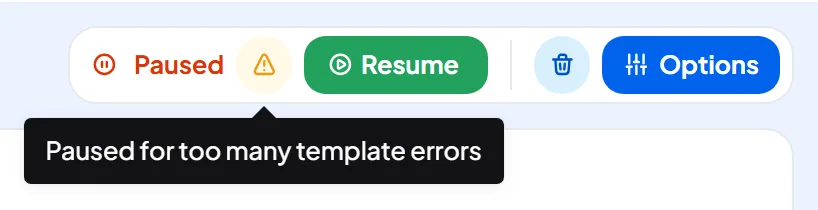
Why it happens. The campaign pauses on its own and tells you why: next to the status, when you hover over the yellow sign, and in the Status panel of its Overview.
| Reason | What to do |
|---|---|
| “Paused for too many template errors”: 10 sends in a row failed because of a template problem. | Open a few Failed sends, fix the cause and press Resume: the error count starts again from zero. |
| “Paused because the template is no longer usable” | In Campaign Options, choose an approved template, save and press Resume. |
| “Paused because the assistant is no longer available”: the agent was moved to another workspace. | Voice campaign: choose another agent in Voice assistant. WhatsApp: link an agent to the channel. Then save and press Resume. |
| The month's sends are used up. Whoever manages the subscription sees Forced pause. | On the 1st of the following month the campaign restarts on its own, if the plan allows it, and also reaches people who joined the audience in the meantime: if the message no longer makes sense, change it or delete the campaign first. It doesn't restart before the 1st, even if you add a send pack. See When sends or minutes run out. |
| The month's minutes are used up. Whoever manages the subscription sees Forced pause. | The campaign doesn't restart on its own, even if you add a minute pack. To restart it, write to us, as explained in How to report a problem. |
| Forced pause because of the plan: too many campaigns turned on, or a feature that's no longer included. | The campaign restarts on its own when the plan covers it again: see Forced pause. |
In pauses decided by the plan, Resume opens the plan window instead of the confirmation.
#The campaign's calls don't start
Why it happens and what to do. The reason is in the ATTEMPT TIMELINE of the “Send details”.
| What you read | What to do |
|---|---|
| “No phone line connected to the campaign assistant” | Link a number to the voice agent: see Assigning and managing numbers. |
| Agent unavailable in the Options | The agent is no longer active or no longer outbound: reactivate it or choose another one. |
| “Monthly minutes used up: the call was not placed.” | The campaign has stopped: see The campaign stopped on its own. |
| “No attempt yet: the call is scheduled for …” | You're outside the time slots or on an excluded day: the call starts at the next opening. It also happens when all the account's lines are busy: the campaign retries every minute as long as the time slot is open. If it happens often, choose time slots with fewer inbound calls, or increase your simultaneous calls as explained in Callers hear a busy tone. |
How to check. Test with a list that contains only your number: the row must become Completed, and GENERATED must open the call.
#A call attempt shows “Failed”
Why it happens. In the ATTEMPT TIMELINE, an attempt counts like a call: Calls: list and details explains when it's successful. Next to a “Failed” attempt there's the end reason, for example “No answer” or “Voicemail”: see The call shows as “Unsuccessful”.
What to do. The campaign retries on its own, based on the attempts and interval in the Campaign Options. Check Max attempts there and press Save changes: with 1 attempt, the campaign doesn't retry. With “Invalid number” or “Blocked by the carrier”, on the other hand, it doesn't retry that contact, even if attempts are left: fix the number as explained below.
#A contact's number isn't valid
Why it happens. The number has a typo, doesn't have the right international prefix or is no longer active. What you see depends on the case:
- if it can't be read as a phone number, the row becomes Excluded, with “Contact without a phone number: skipped.”;
- if it's written correctly but doesn't exist or is no longer active, the campaign tries anyway: the message doesn't arrive or the call doesn't go through, and the row becomes Failed. In a voice campaign, the end reason can be “Invalid number”.
What to do. Fix the number in the contact card, in international format: +39 02 1234 5678. If you imported the contacts from a file, the import summary flags the phone numbers it didn't recognize, which were saved as they were. Then gather the corrected contacts in a new campaign, as for excluded contacts.
#The automation doesn't run
Why it happens and what to do. Check, in this order:
- In the Overview, the automation is active. With Draft it must be published; with Paused it must be resumed.
- You pressed Publish: Save changes saves only the draft.
- Conversations and Telephony events fire only for the agent chosen in the trigger.
- On every message fires when the agent replies, not when the customer writes, and starts at least 10 minutes later.
- For an automation started via webhook, the address responds with an error: the responses are explained in Starting an automation via webhook.
- Call ended doesn't apply to transferred calls: for those there's Call transferred.
- With Contact in List, the list is the right one. The event doesn't fire for a contact that's created already inside the list, like those created by automatic profiling: for them, New Contact fires.
- There's no Forced pause, and the month's runs haven't run out (see below).
How to check. Make the event happen, for example with a test conversation: a new row must appear in the Run log. See also Saving, publishing, fixing.
#The automation runs twice
Why it happens.
- Two active automations listen to the same event, for example the original and a copy made with Duplicate and then published.
- The event really happens twice: a contact edited twice, or an external service that sends the same request to the webhook twice.
- An automation that creates or edits a contact, or adds it to a list, triggers the Contacts events in the other automations.
What to do. Pause the duplicates. If the event is too generic, choose a more specific one, for example Contact in List instead of Contact Updated.
How to check. In the Run log, open the two rows and compare the event, source and data in the Starting event tab.
#A run is “Failed” or “Stopped”
Why it happens. Failed: something in the flow didn't work, such as a setting, missing data or an external service. Before that, a node with a temporary error is retried several times: meanwhile the status is Retrying. Stopped: the run was stopped from outside, for example because the automation was paused, the contact was deleted or a plan limit was reached.
What to do. In the “Execution detail”, the failed node has a red box with a code and a sentence; the Execution end tab says where the run stopped. The most common sentences:
| Sentence | What to do |
|---|---|
| “Invalid phone format.” or “Invalid email format.” | Fix the contact's data or the variable that provides it. |
| “API request failed.” | The external service responded with an error: read the HTTP status. |
| “Execution cancelled: the automation was turned off.” | You paused it while the run was waiting: these runs don't resume when you reactivate the automation. |
| “Resume node no longer exists. Trigger aborted.” | You republished after removing the node the run was waiting on. |
| “Execution interrupted and not resumed.” | Make the event happen again. If it happens again, write to us. |
How to check. Make the event happen again: the new row must say “Completed successfully”. See Dashboard and runs.
#The automation's email doesn't arrive
Why it happens.
- An address that's invalid after the variables are filled in is discarded. If none are left: “No valid recipient: the email was not sent.”
- An address belongs to a blocked contact: “Email not sent: the contact is blocked.”
- “Email send failed.”: try again, and if it keeps happening, write to us. On White Label portals you need a verified sender.
- The email ended up in spam: search for it by the sender's name.
What to do. In the “Execution detail”, in the Send Email node's tab, read Discarded recipients and Variables used. The cause is often an empty variable, like {{user.email}} for a contact without an email.
#The automation's call doesn't start
Why it happens and what to do.
- In the Make Call node, the agent must be a voice agent, outbound, active and with a number. Without a number, the node warns: “This agent has no linked number: without it the call cannot start. Link a number to the agent.”
- Write the number to call in international format, like
+39 02 1234 5678, or use a variable that has a value, like{{user.phone}}. - With busy lines or minutes used up, the node retries for a while, then stops with “All lines busy: the call was not placed.” or “Monthly minutes used up: the call was not placed.”
- Blocked contact: “Call not made: the contact is blocked.” Plan without outbound calls: “Feature not included in the plan.”
An unsuccessful call doesn't stop the automation: the node retries like a campaign does (see A call attempt shows “Failed”), then the automation continues.
How to check. In the “Execution detail”, the node's tab shows “Call successful”, with Yes or No, the “End reason” and every attempt.
#Variables come through empty
Why it happens. A variable that doesn't exist or has no value becomes empty text. It happens mostly in these cases:
{{user.…}}: the run has no contact;{{history}}: the event doesn't carry a conversation;{{webhook.…}}: the external service doesn't send that field;- a parameter of a Prompt node is written without the node's name: you write
{{NodeName.parameter}}, for example{{Analisi.citta}}; - you renamed a node: references to the old name don't update.
What to do. Pick variables from the Variables panel instead of typing them by hand. The warning “It uses the variable {{…}}, which no node or event produces.” means a wrong name. See Variables.
How to check. In the “Execution detail”, the Starting event tab shows the data that arrived, and each node shows the values it used.
#You've used up this month's runs
Why it happens. Each time an automation starts, it uses one run from the “Automation runs” quota; waits, resumes and retries don't count. When the quota is used up, without automatic purchase, the event is discarded and no node runs. The log shows a Stopped row with “Monthly executions used up: the automation did not run.”
What to do. Add a “Run pack” from AccountSubscription or turn on automatic purchase, which buys the pack when the quota is about to run out. Otherwise the counters restart on the 1st of the following month. Discarded events aren't recovered. See Add-ons and automatic purchase and the table in A monthly quota has run out.
How to check. In AccountSubscription, check “Automation runs”: after the purchase, the next event creates a normal run.
#Still not working?
Write to us following How to report a problem. Include the send or run code, which you copy from the details with Copy send ID or Copy execution id: it lets us find your case right away.