

#Draft and published version
Every automation has two versions of the flow. The draft is the one you work on in the Playground. The published version is the one that actually runs when the event arrives. The status bar, described below, tells you where you are.
Whether the automation listens to events is shown instead by its status, explained in Automation statuses: the Draft status is not the same thing as the draft of the flow, which always exists.
#The status bar
At the top right of the Playground, a bar tells you where you are and offers the right commands.
| Status | What it means | Commands |
|---|---|---|
| Unsaved changes | You changed something since the last save. | Cancel goes back to the last saved draft, trigger included. Save changes saves it. |
| Saved | The draft is saved and differs from the version in service, or it has never been published. | Publish |
| Published | The draft matches the version in service. | Publish is off. |
If the flow has problems to look at, once changes are saved a red counter appears next to it, for example “3 errors in total”. Clicking it opens the errors panel.
#Saving
Save changes saves the flow and, if you changed it, the trigger: “Automation saved” appears. Errors reported on the nodes don't block saving, only publishing. Saving fails in three cases:
- the trigger is incomplete: you read “Complete the trigger before saving” and the trigger panel opens;
- some data isn't accepted, for example an agent that is no longer in the workspace: you read “The save was rejected, check the errors” and the errors panel opens;
- your plan doesn't include “API and webhooks” and the flow uses it: the plans window opens. The API and Webhook Response nodes and the Webhook trigger use it. This feature is checked on every save, every publish and when you resume. The other plan features, such as outbound calls, don't stop saving: only publishing checks them.
Save before leaving. Unsaved changes are lost when you leave the Playground or close the page.
#Publishing
- Save your changes
Press Save changes. The bar switches to “Saved” and Publish turns on.
- Press Publish
If the flow has blocking errors, no confirmation appears: you read “Fix the errors reported on the nodes before publishing” and the errors panel opens on the first node to fix.
- Read the Publish Automation window
The window says what happens: the first publish turns the automation on, a republish replaces the version in service.
- Press Confirm and Publish
“Automation published” appears. The plans window opens instead if your plan doesn't include “API and webhooks”, or if the automations turned on already match the number your plan includes: this happens after moving to a smaller plan, as explained in Automations.
Result
The bar says “Published” and the automation is Active, even if it was paused before. From now on every event starts a run.
#How to check
Trigger the event with test data: for example add a test contact to the list, or call the voice agent from your phone. Then open AutomationsDashboard: a new row appears in the Run log. Open it and check node by node what happened, as explained in Dashboard and runs.
#Live mode
The Live switch in the top bar shows the version in service instead of the draft. It appears only in the Playground and only if there is a published version that differs from the saved draft. With unsaved changes it's off: “Save your changes to switch to Live mode”.
In Live mode you see the published version as read-only: no changes can be made. Turn the switch off to go back to the draft.
#Fixing: the Flow Error Management panel
Before publishing, the console checks the trigger and every node. On the node it flags whatever is missing or not valid, for example the instructions of a Prompt or the date of a Wait.
The panel also opens on its own when Publish finds errors or a save is rejected. It lists the nodes with problems, of two kinds:
- Error: it blocks publishing and must be fixed.
- Warning: it flags something that might not work as you expect, but lets you publish.
The Go to node link opens the node to fix. On the canvas, too, the node's card has a red mark for errors, amber for warnings only.
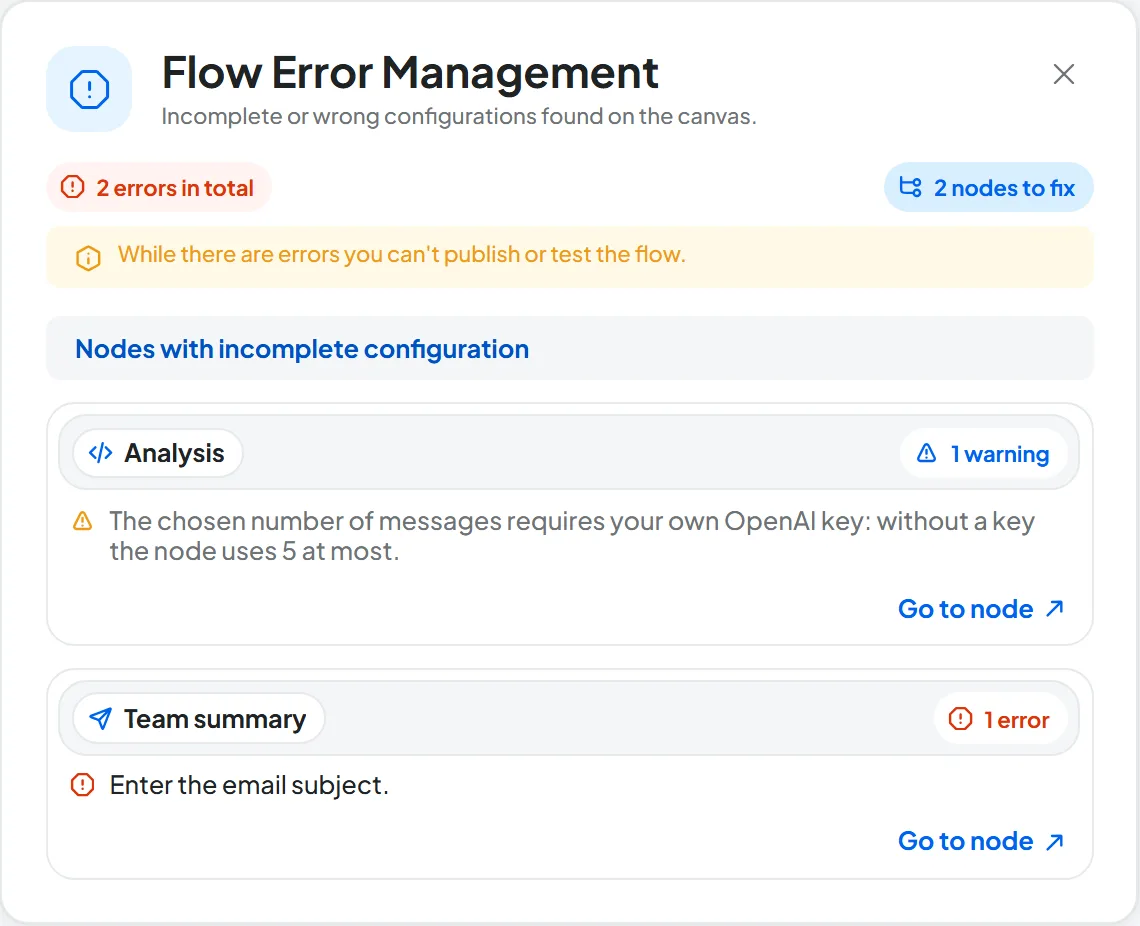
The problems that apply to all nodes:
| Problem | Type | What to do |
|---|---|---|
| The node is not configured yet. | Error | Open the node and fill in the fields: the card still shows the light blue hint. |
| The node has no name. | Error | Type a name in Node name. |
| The node uses a variable that no node or event produces. | Warning | Fix the variable: as it is, it would arrive empty. |
| The automation exceeds the maximum limit of 15 nodes. | Error | Remove some nodes, or split the flow: see How many nodes you can use. |
| In the “Nodes outside your plan” group: “Your plan does not include API and webhooks.” or “Your plan does not include outbound calls.” | Error | Remove the node, or move to a plan that includes the feature: see Plans, quotas and usage. |
The fields of each node are in Nodes: messages and actions and Nodes: logic and data; those of the trigger in Errors on the trigger.
#Automation statuses
The status tells you whether the automation as a whole listens to events. You read it in the Status column of the Overview and, at the top, in the “Automation status” box. There an Active automation shows as Running: it's the same name as one of the statuses of individual runs, but here it only means the automation is turned on. Run statuses, such as Scheduled or Completed, are in The six run statuses.
| Status | What it means | How to get out of it |
|---|---|---|
| Draft | It has never been published, or it went back to draft after a move. It listens to nothing and has no commands at the top. | Publish in the Playground. |
| Active | It listens to the event and works with the published version. | Pause; or a save that changes the event; or the plan's forced pause. |
| Paused | It doesn't listen: events that arrive during the pause aren't recovered. It may have been stopped by a person on your team or by the plan, with the forced pause: see the comparison below. | It depends on who stopped it. |
#Paused or on forced pause
Both pauses stop the automation in the same way. What changes is who decides them and how you get out of them.
| Paused | Forced pause | |
|---|---|---|
| Who decides it | A person on your team, with Pause, or a save that changes the event. | The plan, when there are more automations turned on than it includes: after a cancellation, a missed payment or a move to a smaller plan. The most recent ones stop. |
| How to recognize it | “Paused” status. | “Paused” status with the “Forced pause” badge, visible only to people with the “Billing” permission. |
| Events and waiting runs | Events aren't listened to. A waiting run closes as Stopped if its moment comes while the automation is stopped. | |
| How to get out of it | Resume or Publish. | On its own, when the plan covers it again: stopped automations go back to active starting from the oldest. Resume only opens the plans window, which explains the reason. Publish turns it back on only if the plan has a free slot. |
See also Forced pause.
#Pausing
At the top press Pause, then Confirm and Pause: “Automation paused” appears. The command is there only if a published version exists.
Waiting runs can close as Stopped. A run held on a wait, a retry or a call back closes as Stopped if, when its moment comes, the automation is still paused, or if in the meantime you published a version without the node it was waiting on. If you resume before that moment, the run carries on. Once Stopped, though, it never starts again.
#Resuming
Press Resume, then Confirm and Activate: “Automation activated” appears. The published version starts again, not the draft.
- If the plan stopped it, only the plans window opens, which explains the reason: see Paused or on forced pause.
- If the automations turned on already match the number your plan includes, the plans window opens.
#Editing an automation that is already active
Edit, save and publish as above. With Live you compare the draft with the version in service. After publishing, runs held on a wait carry on with the new version from the next step, and their detail says so; the exception is in the box under Pausing.