

Open Chat agentAgent profileContacts. Here you set up the chat's contact form: the Contact Acquisition Form panel decides whether the website chat asks for the customer's details, when, and which ones. It applies to the widget, the link and the iframe. The contact book itself is in WorkspaceContacts.
Available in plans that include “Contacts”: see Plans, quotas and usage.
Before you start
- To ask for custom details, such as a license plate: the contact variables, which you create in WorkspaceSettingsContacts.
#Contact Acquisition Form
- Enable Contact Form Yes / No
Shows a form in the chat that asks the customer for their contact details.
- Make the Form mandatory before starting the chat Yes / No
When it's on, the customer fills in the form before writing.
| Mandatory | Optional | |
|---|---|---|
| When it appears | Before the conversation, in place of the chat | After the agent's first reply, in the message thread |
| What the customer sees | “Contact Information”, “Enter your details to help us assist you better.”, the fields and Start the Chat | The “Contact form” card with the fields, Send and the X to close it |
| Can they write without filling it in? | No | Yes |
| After sending | The conversation starts | The card becomes “Form sent” and doesn't come back |
Which one to choose. Mandatory when every chat must become a contact, for example for quotes. Optional when you don't want to stop people who only have a quick question.
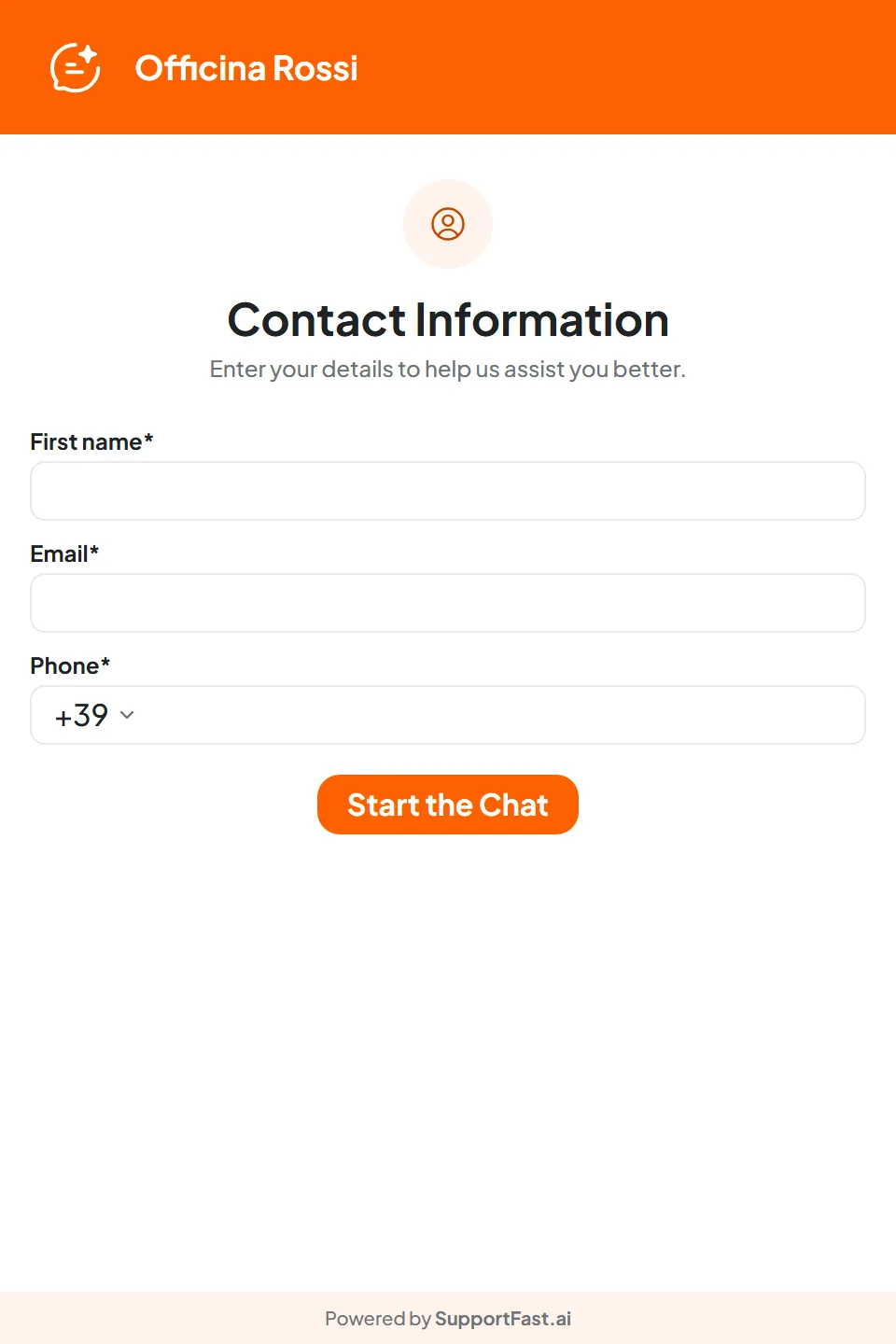
#Contact form fields
Below the switches is the Contact form fields panel, with one tab for each workspace language. For each field, turn on the switch and type in Custom label the text the customer reads.
The fields are Email, Phone, First name, Last name, Full Name and Company. Full Name asks for first and last name in a single field. After these you find the contact variables, with their label. The Form node of the Playground uses the same fields.
#The rules
- You need at least one way to reach the customer, otherwise “Enable at least the email or the phone field.” appears.
- Each field that's on needs a label in every workspace language: “Label required.”
- For the customer, every field that's on is required: you can't make a single field optional.
- If you delete a contact variable, it also disappears from the form.
Every extra field is a reason not to fill in the form. Turn on the contact detail you need and a few other fields. Automatic profiling can complete the rest, from the conversation.
#Where the details end up
- In the contact book. The form creates the contact in the workspace, or updates the one that already exists: the person is recognized by the email or phone number they enter. For example, someone who wrote to you on WhatsApp and then fills in the form stays a single contact if they enter the same phone number in the form, or an email their contact already has. If they enter different contact details, they remain two separate contacts.
- In the conversation. The contact stays linked to the chat: in Conversations you open it with Contact card.
- In your mailbox. If in General › Email Notifications you turned on New Contact, you get an email with the details.
#The form and automatic profiling
The form collects what the customer types into the fields. The workspace's Automatic Profiling, if it's on, reads the conversation instead and completes the card. First name, last name, full name and company entered by the customer in the form are not overwritten by the AI. How to set it up: Variables and automatic profiling.
#When the form doesn't appear
- The chat already knows the details for all the fields. Your website may have passed them (see Passing user data), or the customer may have entered them on a previous visit.
- The mandatory form appears only before the conversation: someone who already has a chat in progress doesn't see it.
- With a teammate in the chat, or with an operator request waiting, no form appears.
#How to save and check
Press Save changes in the bar at the bottom: “Contact form saved” appears.
To test, open the chat link, from the Share tab, in a private window and fill in the form with test data, for example Mario Rossi and mario.rossi@esempio.it. In WorkspaceContacts you find Mario Rossi with the details you entered.
#Frequently asked questions
How is this different from the live chat form (the Operator Chat tab) and from the Form node?
The form in the Operator Chat tab asks for the details before handing the chat to a teammate. The Playground's Form node asks for them when a tool fires, for example after a quote request. This one asks for them at the start of the chat or during it.