

It is an AI assistant that works in the chats for you. It understands the question, looks for the answer in your business's information and replies in the customer's language. If you turn on live chat (the Operator Chat tab), a teammate can take over the conversation when a person is needed.
#Where it answers
The same agent can answer on several channels at once, with the same instructions and the same knowledge.
- On your website. With the widget, the button in a corner of every page that opens the chat window. Or with the full-page chat: a link, or a frame inside a page (iframe). The codes are in Agent profileShare.
- On WhatsApp, Instagram and Messenger. First connect the channel to the workspace, in WorkspaceIntegrations, then choose the agent that answers in Agent profileIntegrations. Each channel has only one agent.
#The three parts of an agent
What the agent writes depends on three things.
When an answer is wrong, to work out which of the three to fix, see Why the agent answered that way.
#The agent menu
Open the agent from the workspace Overview: on its card, press Manage. The Chat agent group appears in the sidebar, with five items.
| Item | What it's for | Learn more |
|---|---|---|
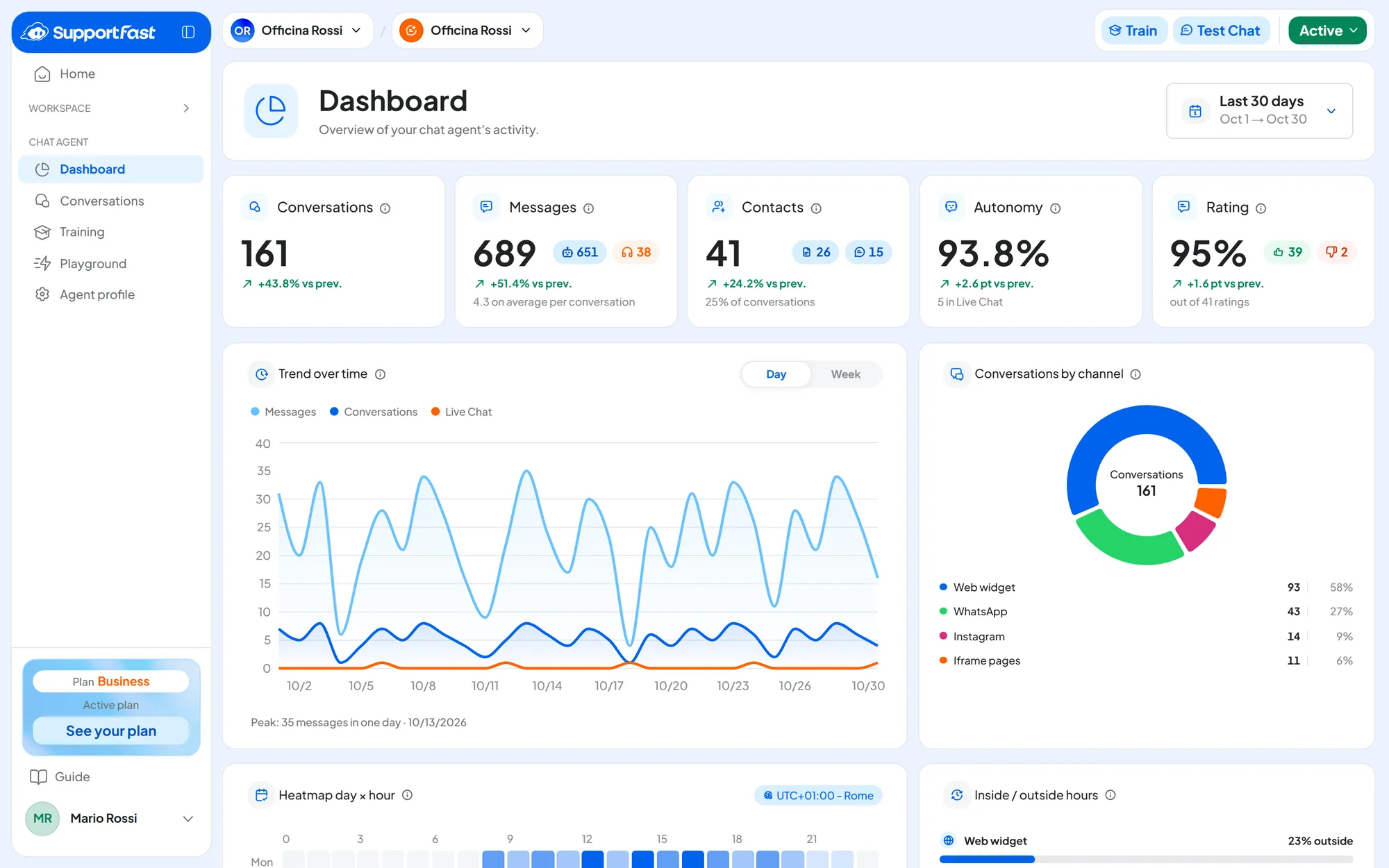
| Dashboard | The agent's numbers and the getting-started guide. | The agent Dashboard |
| Conversations | Chats from all channels: you read them and step in when needed. | The conversations inbox |
| Training | The knowledge sources: website, documents, FAQs and texts. | Training: how it works |
| Playground | Instructions, AI model, tools, testing and publishing. | Playground: instructions and flows |
| Agent profile | The agent's settings, in seven tabs: from the widget to the channels. | Agent profile: General |
In the top right of every agent page you find Train, the status button and Test Chat, which opens the draft test: see Testing with the Test Chat.
#The recommended path
To put a new agent to work, follow this order.
After creation and in the Dashboard, the console suggests three of these steps, with their buttons. They are called “Train the knowledge” (Train), “Customize the interface” (Customize) and “Test it” (Open the Playground). The instructions aren't among those steps: write them before testing.
Connect the channels last. A new agent answers as soon as you connect it, even if it isn't trained yet.
#Active and Paused
The status decides whether the agent answers. To change it, press the status button in the top right and choose Active or Paused. The change applies immediately, with no confirmation.
| Status | What happens for customers |
|---|---|
| Active | The agent answers on the website, on the chat link and on the connected channels. |
| Paused | The widget doesn't appear on the website. The link and the iframe show “This chat is not available.”. On WhatsApp, Instagram and Messenger, messages get no reply and don't reach Conversations: not even a teammate sees them. In the Playground you can still test it with the Test Chat. |
Messages received during the pause can't be recovered. When you reactivate the agent, on WhatsApp, Instagram and Messenger it answers only new messages. The ones customers wrote while it was paused don't appear in Conversations, not even later. The same applies to a channel with no agent: see What happens to messages with no agent.
The pause doesn't affect what is already there: training, conversations and settings stay.
The pause applies to all channels. To stop the agent on the website only, remove the widget from your pages. For a single social channel, first read What happens to messages with no agent: if you only want a teammate to answer, use live chat instead of disconnecting.
If your plan is reduced, an agent can go into Forced pause: see The forced pause.