

The widget is the chat on your website: a round button in a bottom corner of the page that opens the chat window when clicked. Your chat agent answers, with the instructions and knowledge you gave it. Conversations reach the console, in Conversations, together with those from your other channels.
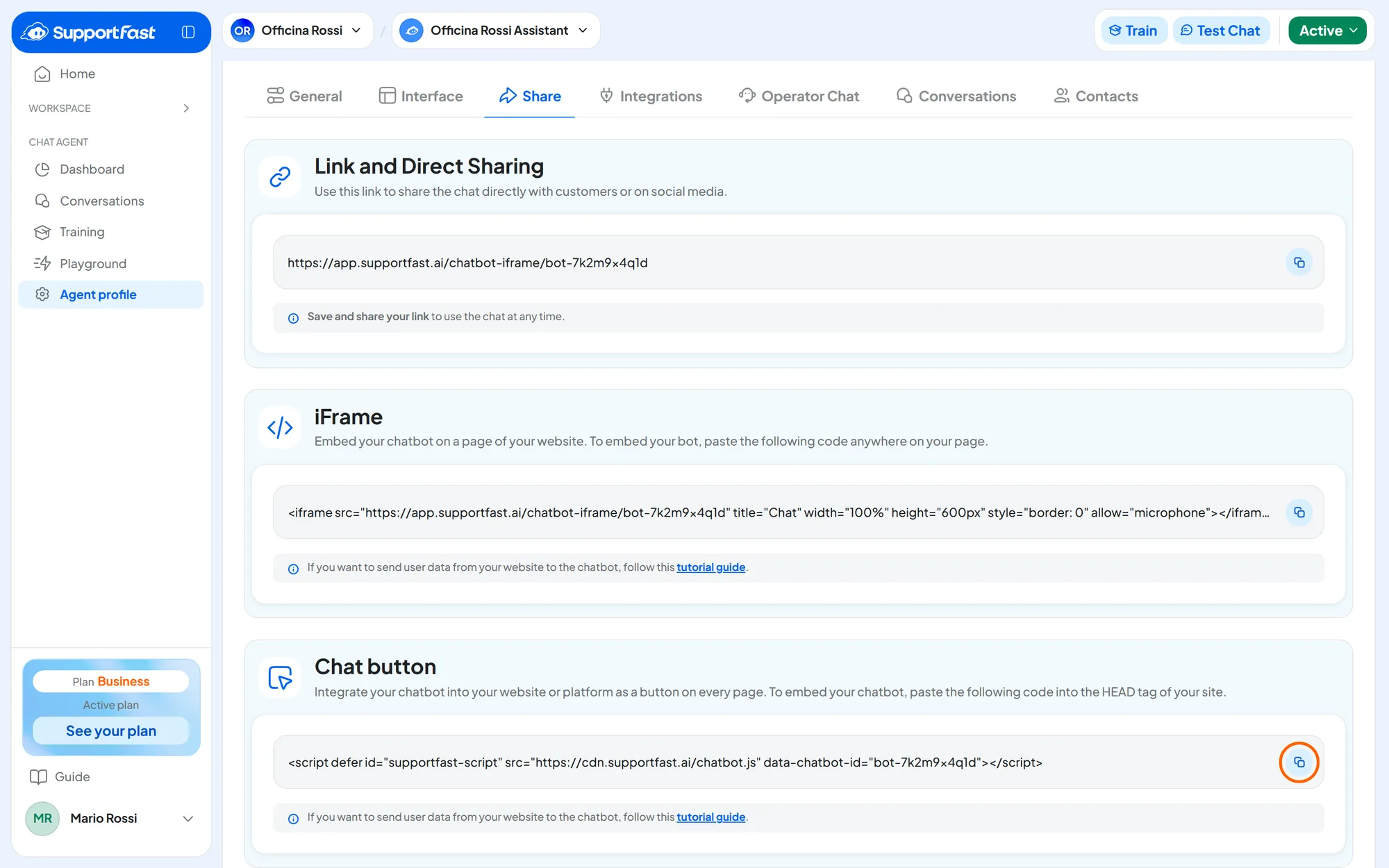
The agent's Share tab offers three codes: the widget, in the Chat button panel, the link and the iframe. The link and the iframe are covered in Full page and iframe.
Before you start
- A chat agent with the Active status, and access to the website's admin panel or files, or a web agency you can send the code to.
#Copy the code
-
Open the Share tab
In the console, go to Chat agentAgent profileShare.
-
Copy the widget code
In the Chat button panel, press Copy. The message “Copied to clipboard!” appears.
The code you copy looks like this:
HTML · the widget code (sample agent code)
<script defer id="supportfast-script" src="https://cdn.supportfast.ai/chatbot.js" data-chatbot-id="bot-a1b2c3d4e5"></script>#Paste the code into your website
The code goes in the website's header, that is inside the <head> tag, right before </head>. Put it in the template shared by all pages, usually the theme header: this way the widget appears on the whole website.
- As it is. Always copy it from the console and paste it without changes, in Google Tag Manager too: if it changes, the widget doesn't appear.
- Once per page. A second code on the same page is ignored, even if it belongs to another agent. Different agents go on different pages.
- At the bottom of the page too. If your platform doesn't let you write in the header, the code also works right before
</body>.
Choose the guide for your platform:
#The publishing domain
The publishing domain sets which website the widget can appear on; it doesn't restrict the link and the iframe. It's optional: if you leave it empty, the widget appears on any website that uses your code.
We recommend filling it in once the website is online. This way the widget doesn't appear on websites that aren't yours, even if someone copies the code.
-
Open the general settings
Go to Chat agentAgent profileGeneral, Agent Profile panel.
-
Type the domain
In the Publishing Domain (Optional) field, type only the domain, all lowercase, without
https://and withoutwww.: for exampleesempio.it. With a capital letter, as inEsempio.it, the widget doesn't appear on any page. -
Save
Press Save changes in the bar at the bottom of the page. The message “Settings saved” appears.
With the domain esempio.it filled in, the widget behaves like this:
| Page address | Does the widget appear? |
|---|---|
esempio.it and www.esempio.it | Yes. |
negozio.esempio.it | No: a subdomain counts as a different website. |
| Another domain or a test address | No. |
Is your website on several domains or subdomains? Leave the field empty, or use one agent per website, each with its own domain.
Result
The widget appears on your website's pages, bottom right or bottom left depending on the Button position chosen in Interface. When clicked, it opens the chat with your agent.
#How to check
-
Open the website in a private window
Private browsing shows you the website as a new visitor sees it. If the website uses a cache, clear it first.
-
Look for the widget
Check the home page and a couple of inner pages.
-
Ask a question
Open the chat and type a message: the agent must answer.
-
Check the console
Open Chat agentConversations: the test conversation appears among those of the Web channel.
Test the agent before putting it online. With Test Chat, at the top of the agent's page, you talk to the same widget without touching the website: see Testing and publishing.
#Widget, link and iframe: the differences
| Widget | Link and iframe | |
|---|---|---|
| Where it appears | On every page of the website, above the content | In a tab of its own or in a box on the page |
| Welcome bubble and closing X | Yes | No |
| Website page passed to the agent | Yes: the page's address and title | No |
In Conversations, chats from all three methods are in the Web channel.
A widget and an iframe on the same page make two chats. The visitor would see two separate conversations. Ask whoever looks after the website to hide the widget on the page with the iframe, using the CSS rule explained in Widget JavaScript API.
#Common problems
If the widget doesn't appear, appears only when you scroll the page or covers other elements, the causes and fixes are in Website widget.
#Frequently asked questions
If I change the agent's colors or texts, do I have to reinstall the code?
No: the code stays the same, and the changes you save in the console show up on the next visit.