

The portal has neither our guide nor our contact details, and every blocking message refers the client to the “Administrator”, that is, you. You provide first-line support: you solve whatever depends on configuration, permissions and plan, and you write to SupportFast for the rest.
See it through the client's eyes. Create a test user with the same workspace, the same agents and the same permissions as the client. When you sign in to the portal with that user, you see exactly what the client sees. The test user takes up one of the plan's user seats.
#What to check first
Start from what the client reads on screen: the message almost always tells you where to look.
#“The portal won't open”
If the client sees “Portal unavailable”, ask them for the code and follow The closed portal: codes 001–004.
If instead the browser can't find the site or shows a security warning, check the domain in AccountWhite label: see Custom domain.
#“I can't sign in”
| What the client reads | What to do |
|---|---|
| “Wrong email or password.” | Check their user's email in AccountTeam. If needed, set a new password with Edit user and send it to them. |
| “Your user has been suspended: ask your Administrator.” | The user is suspended: reactivate them from the Team with Resume user. If there's a small circle with a red triangle next to the “Suspended” status, the forced pause mark, the plan stopped the user: see below. |
| “You signed in from another device: this session was closed.” | The same user signed in from another computer or browser. If two people share it, create a user for each of them. |
| The Forgot your password? code doesn't arrive | Check that the sender email is “Active”: see Custom email. Meanwhile, set a new password yourself. |
#“I can't see an item” or “Access not authorised”
A missing item is almost always a missing permission; only the plan pages don't exist on the portal for anyone, as explained in Plans, payments and usage. If the client opens a page they lack the permission for, from a link or by typing its address in the browser, they read “Access not authorised” with the name of the missing permission, for example “Contacts (Workspace)”. Add it from AccountTeam, with Edit user, in the Role and permissions tab.
If they read “Workspace not available” or “Resource no longer available”, the element isn't assigned to their user, or it has been deleted. Check workspaces and agents in the Details and access tab.
#“There's a padlock” or “is not available”
It's a plan limit, not a permission: the sentences the client reads are in Plan messages. Check usage and quotas in AccountSubscription, on the SupportFast console. If you need more, you can add a pack, turn on automatic purchase or change plan: see Add-ons and automatic purchase.
#“The agent has stopped replying”
- The website shows “You've reached the monthly message limit.” The plan's messages have run out, or the agent has reached its Monthly Message Limit. See Quotas add up on your plan.
- The agent is “Paused”. While paused, it's offline on the channels: reactivate it by changing its status to “Active”.
- The channel shows “Error”. When they open the channel, the client reads “Connection broken”. Reconnect it from the SupportFast console with Reconnect: see Your clients' channels and calendars.
- The button doesn't appear on the website. Follow Website widget.
#“Emails don't arrive”
If no email arrives at all, check the sender: see Until the address is verified. If only one email is missing, check the client's address, in their user or in the agent's Email Notifications, and ask them to look in spam. If the problem persists, write to us with the time the email was sent.
#Resources on forced pause
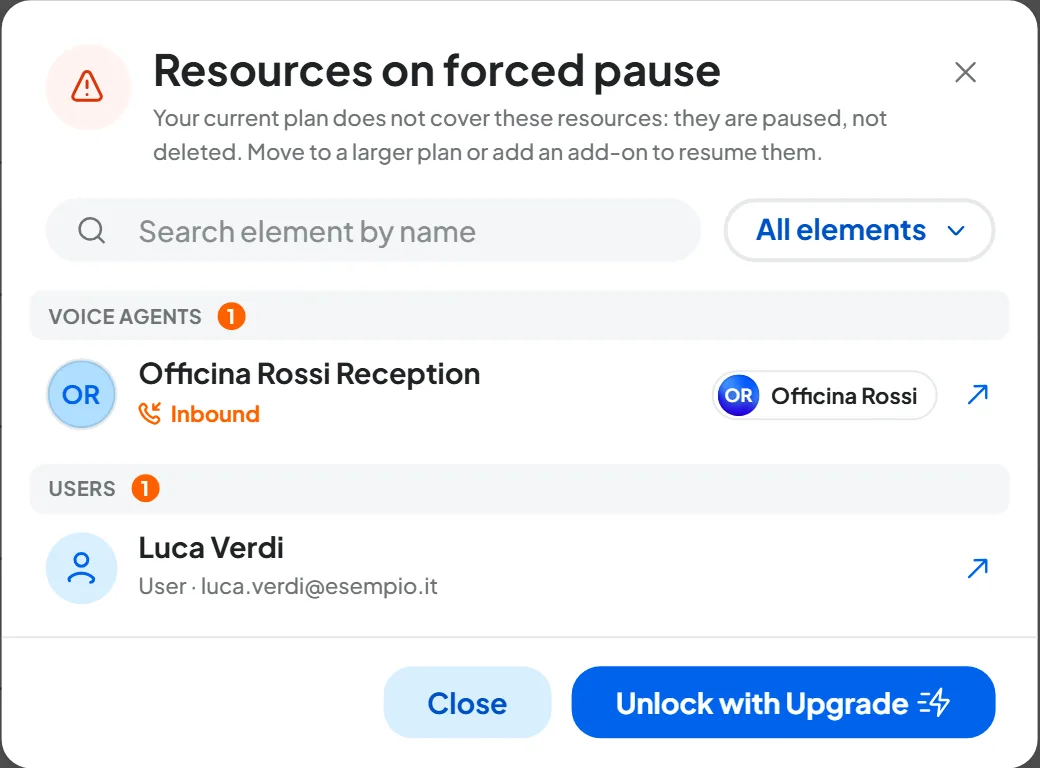
The client sees resources stopped by the plan only as “Paused” or “Suspended”. People with the “Billing” permission, like you, see the forced pause mark next to the status: a small circle with a red triangle that says “Forced pause” when you hover over it. Clicking it opens “Resources on forced pause”, the list of stopped resources with their workspace. See The forced pause.
#When to write to SupportFast
Write to us when you've done the checks and the problem persists, or when it doesn't depend on you:
- the portal shows code 001 for more than a few minutes;
- the domain doesn't verify, or the certificate stays in preparation, even with the right record;
- “Something went wrong” appears several times in a row;
- an agent, a channel or a call behaves differently from what this guide describes;
- you have questions about your subscription, invoices or a plan change.
Write to info@supportfast.ai from your account's address: support is handled by email. The response time depends on your plan: you'll find it on the plan's card, in AccountPlans. For a complete report, follow How to report a problem and add:
- your account's email and the portal's domain;
- the client's workspace and user involved, with their email and role;
- the portal code, if there is one, for example “Code 004”.
Never send us passwords, keys or verification codes, not even in a screenshot: we don't need them. If one has ended up in a message, change it right away.
#Frequently asked questions
Can I pass this guide on to my clients?
The guide carries the SupportFast brand. Use it yourself to answer questions; for your clients, you can prepare instructions with your own brand.
Can I read a client's conversations to understand a problem?
Yes: as the account owner, you see all the workspaces. For chat agents, you can also find out why the agent answered the way it did: see Why the agent answered that way.