

Before you start
- An active White Label plan, also on trial.
- If you're not the account owner, the “White Label” permission in the Account group.
- Logo and icon ready in their final form: the console doesn't crop images.
#Where to find it
On the SupportFast console, press your name at the bottom of the sidebar, then Account and White label.
The page has four panels. Brand identity and Customisation are saved together, with the bar at the bottom of the page. Custom domain and Custom email have their own buttons: we explain them in Custom domain and Custom email.
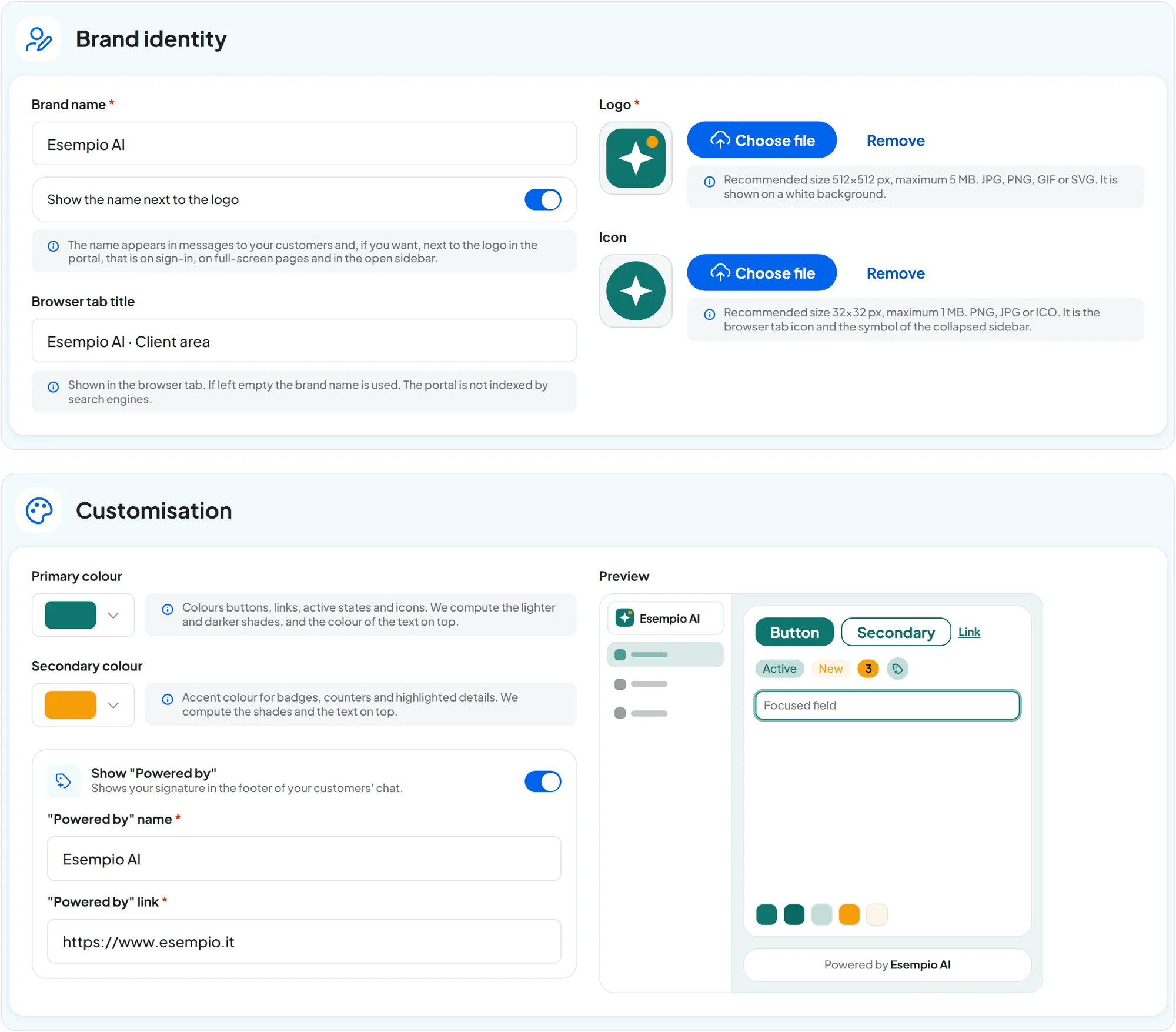
#Brand identity
- Brand name Text · max 80 characters
The name of your portal, for example
Esempio AI. It appears in automatic emails to your clients and, if you choose, next to the logo.- Show the name next to the logo Yes / No
When on, the name appears next to the logo on the sign-in page and in the open sidebar. Turn it off if the name is already written in the logo.
- Browser tab title Text · max 80 characters
The text in the browser tab, for example
Esempio AI · Client area. If left empty, the brand name is used.- Logo Image · JPG, PNG, GIF or SVG · max 5 MB
The portal's sign: it appears on the sign-in page, in the open sidebar and in automatic emails. The recommended size is 512×512 px. It always appears on a light background: choose a version that reads well on light.
- Icon Image · PNG, JPG or ICO · max 1 MB
The browser tab icon and the symbol of the collapsed sidebar. The recommended size is 32×32 px. Without an icon, the logo is used there too.
To upload an image, press Choose file; to remove it, Remove.
#Customisation
- Primary colour Color · hex code
Colors the portal's buttons, links, active items and icons, and the gradient of the sign-in page. With a very light color, the button text turns dark.
- Secondary colour Automatic or a color of your choice
The accent color for labels, counters and highlighted details. With Automatic: follows the primary it uses the primary color; choose one yourself if you want a different accent.
- Show "Powered by" Yes / No
Your signature at the bottom of your clients' chat. When on, it asks for the name and link below. When off, the signature disappears from all agents.
- "Powered by" name Text · max 60 characters
The name in the signature, for example
Esempio AI. Required when the signature is on.- "Powered by" link Web address
The page that opens when someone clicks the signature, for example
https://www.esempio.it. It must start withhttp://orhttps://.
On the right, the Preview shows the result, signature included.
The chat colors are a separate setting. Brand colors apply to the portal. The colors of the widget on your clients' websites are chosen for each agent, in Agent profile: Interface.
#The signature in your agents
With the signature turned on and saved, the name and link appear at the bottom of every chat agent's window. To remove the signature from a single agent, turn off Show "Powered by Esempio AI" (with your signature's name) in Chat agentAgent profileInterface, Footer panel, and save.
Only people with the “White Label” permission see the switch. It's a permission in the Team's Account group, the same one that opens AccountWhite label: don't give it to your clients, as explained in The right role for a client. Until the signature is set up here, it can't be used: below the switch you see “Not applicable: name and link are not configured in the Whitelabel tab of your Account.”
#Saving
Press Save changes in the bottom bar; Cancel restores the saved values. A new logo or icon can take a few minutes to appear on the portal: if you still see the old ones, reload the page.
#How to check
Before saving, check the Preview. After connecting the domain, open the portal in a private browser window:
- the sign-in page shows your logo, your colors and, if turned on, the name;
- the browser tab shows your title and your icon;
- when you sign in with a test user, the sidebar shows the logo when open and the icon when collapsed;
- on the test website, your signature appears at the bottom of the chat, or no signature if you turned it off.