

#How a client is set up
In your account, a client is made of two parts.
- A dedicated workspace, with their agents, channels, contacts, automations and campaigns, and their settings: languages, time zone, opening hours. If the client has several locations or brands, you can give them more than one workspace.
- One or more users on your Team, one for each person at the client, limited to their workspaces and agents.
The plan doesn't limit the number of workspaces. As the account owner, you see them all.
Before you start
- Your portal's brand, domain and email ready: the client's user will use the portal and password recovery right away.
- The email address of the person at the client who will use the portal.
#1. Create the client's workspace
-
New workspace
From the Home page, press New workspace. In Workspace name, enter the client's name, for example
Officina Rossi, and press Create workspace. -
Set up the workspace
In the workspace menu, open Settings: choose the client's languages, time zone and opening hours, then press Save changes. The details are in Workspace settings.
#2. Create the agents
In the client's workspace, create the agents they need, train them and test them: follow Your first chat agent and Your first voice agent.
Do this before you create the user: every user must be assigned at least one agent.
#3. Create the client's user
-
Add the user
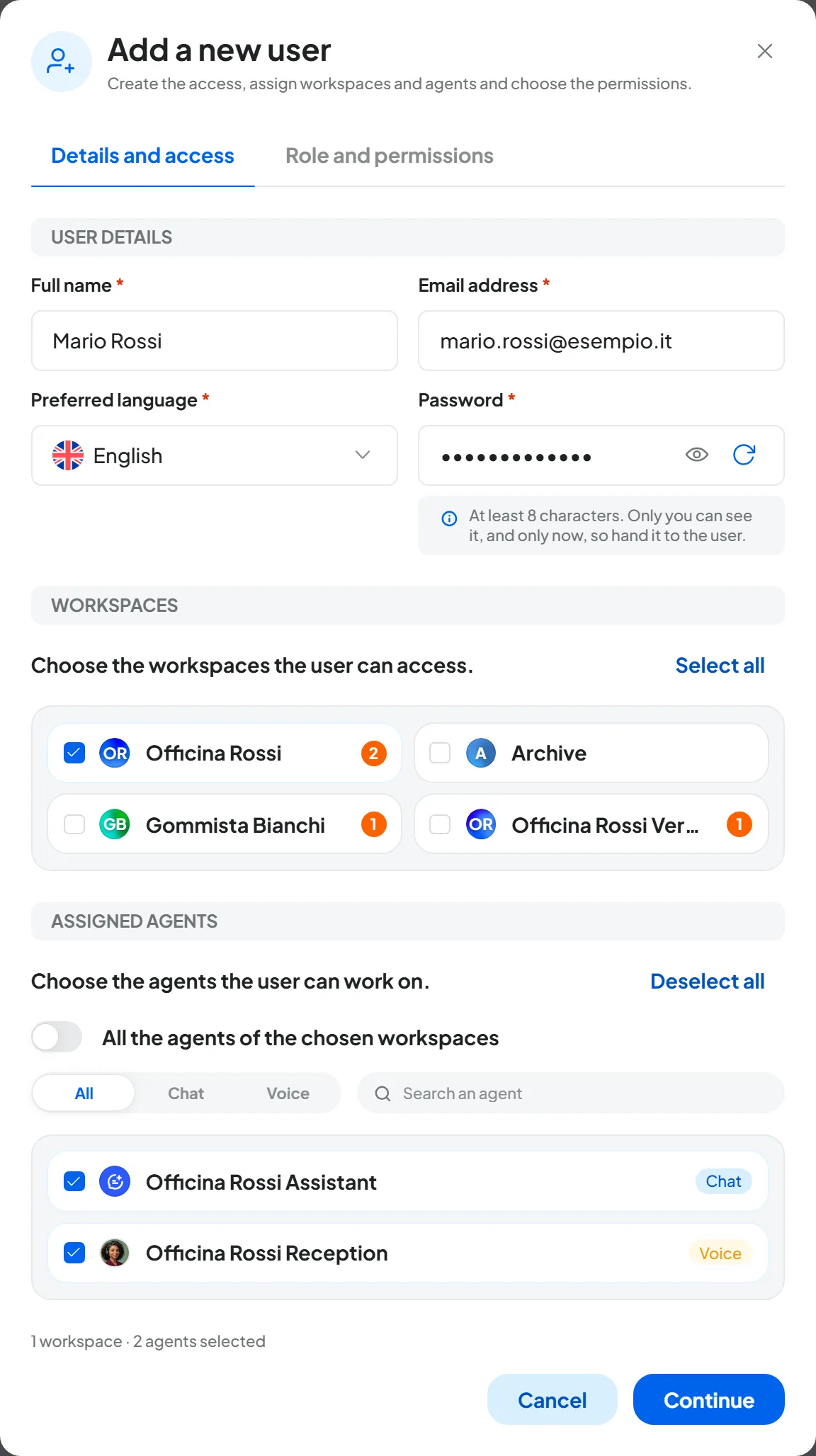
Go to AccountTeam and press Add user.
-
Fill in the details
In the Details and access tab, fill in Full name, Email address and Preferred language: it's the language the client will see the portal in. In Password, enter at least 8 characters, or press Generate a password. You only see it now: copy it.
-
Choose the workspace
In Workspaces, check only the client's workspace. Leave All the workspaces of the Account off.
-
Choose the agents
In Assigned agents, check the client's agents. If you turn on All the agents of the chosen workspaces, the client will also see the agents you create in their workspace in the future. Press Continue.
-
Choose role and permissions
In the Role and permissions tab, choose the role, as explained below, and adjust the permissions if needed. Press Add user.
Result
“User created” appears and the client is in the Team table with the status “Active”. No email is sent: you hand over the login yourself.
#The right role for a client
The role pre-fills the permissions; you can then change them one by one, and the role becomes “Custom”. For a client, we recommend one of these.
| Role | What the client can do | When to choose it |
|---|---|---|
| Reader | Works only in the conversations of the assigned agents: reads them and can step in as an operator. Doesn't touch agents, contacts, automations or campaigns. | The client follows the conversations and replies to their customers. |
| Editor | Manages conversations, contacts, training, settings and Playground of their agents, automations and campaigns. With the “Integrations and channels” permission, also manages the channels already connected in their workspace and can disconnect them. Can't create or delete agents. | The client works independently on their agents. |
| Custom | The permissions you choose. For example, an Editor without “Playground” and “Settings”: the client replies and manages contacts, you keep the agents' instructions. | You want to split the work with the client. |
Don't give clients permissions from the Account group. They apply to the whole account: with “Telephony” the client would see everyone's numbers, with “Team and permissions” the other clients' users, with “Billing” OpenAI keys and limits. With “White Label” they could turn your signature on or off in their agents and change your brand settings. So avoid the Admin and Manager roles, and leave “Workspace management” off, since it allows deleting the workspace.
A missing permission doesn't cause an error: the item doesn't appear, as explained in I can't see a menu item. All permissions are explained in Team, roles and permissions.
#4. Hand over the login
Send the client:
- your portal's address, for example
https://portale.esempio.it; - the email they sign in with;
- the password.
Send the password on a separate channel. Send the address and email in one message and the password in another, or tell them in person or by phone. Ask the client to change it the first time they sign in, from AccountProfile with Change password.
If the client forgets the password, they can use Forgot your password? on the portal: this needs a verified sender, see Custom email. Or you can set a new one for them: in AccountTeam, press Edit user and enter the new password.
#One user per person
Create a user for each person at the client. Each user can have only one open session on the portal: if they sign in from another computer or browser, the previous session closes. The SupportFast console and the portal, however, are two separate logins: you can keep both open at once.
The plan's user seats are for the whole account: your user counts, and so do your teammates', your clients' and test users. A suspended user still takes up a seat: to create a new one, delete a user you no longer need or add the “Extra team member” add-on.
If you get “This email is already used by another user.”, that address already has a login on SupportFast: in your account, in another account or in another reseller's portal. An address can belong to only one user across the whole platform. Use another of the client's addresses, or an alias if their mailbox allows it: for example mario.rossi+portale@esempio.it. The rules are in Team, roles and permissions.
#Suspending or removing a client
From the table in AccountTeam, on the user's row:
- Suspend user removes access. Workspaces, agents and permissions stay saved, and with Resume user you give access back whenever you want. The next time they try, the client reads “Your user has been suspended: ask your Administrator.”
- Delete user removes access for good.
Suspending the user doesn't stop the agents. The client's agents keep replying on the website, on the channels and by phone. To stop the service, pause their agents too: with the status “Paused” they're offline on the channels.
To end your work with a client completely, export the data you need, such as conversations and contacts. Then delete their users and finally the workspace, with Delete Workspace. Deleting can't be undone: everything the workspace contains disappears from the console, except the phone numbers, which stay in the account: see Workspace settings. How we keep data, and how to respond to people who ask for theirs, is explained in Privacy and security and in the data processing agreement (DPA).
#Quotas add up on your plan
All your clients use your plan's quotas: AI messages, call minutes, automation runs, campaign sends. Agents, users, numbers, automations and campaigns add up too. Users include your own, your teammates' and test users.
Concurrent calls also belong to the whole account: if two clients receive a call at the same moment, they use two. How many each plan includes, along with users, is shown on the cards of the price list for your clients.
You see the total in AccountSubscription, on the SupportFast console. How quotas are counted is explained in Plans, quotas and usage.
A quota that runs out runs out for all your clients. For example, once the month's messages are used up, their chat agents stop replying.
To keep usage under control:
- A cap per agent. In Chat agentAgent profileGeneral, Traffic Limits panel, turn on Monthly Message Limit and enter the number: the agent doesn't go over that many replies in the month.
- Automatic purchase. In AccountSubscription, turn on Automatic add-on purchase: when a quota is about to run out, the pack is bought on its own. See Add-ons and automatic purchase.
- The client's OpenAI key. In the settings of the client's workspace, OpenAI key panel, turn off Use the main Account API key and enter a key of theirs. Messages in that workspace aren't deducted from your plan: whoever owns the key pays OpenAI for them. Call minutes still count. See OpenAI key.
Which OpenAI key applies. Keys sit at three levels: agent, workspace and account, the last one in AccountSubscription. The one closest to the agent applies: first the agent's, then the workspace's, then the account's. Only people with the “Billing” permission can see and change them.
To understand how much each client uses, look at their agents' dashboards, for example the Messages and Minutes panels.
To split the quotas into packages to sell, with each client's cost and margin, use The price list for your clients.
#Frequently asked questions
Can one user look after several clients?
Yes: assign them several workspaces. This also applies to your teammates.