

Each client is a workspace in your account, and everything they use is paid for by your plan. You decide how much each client can use: with a quota for their workspace and, if needed, a limit for each of their agents.
This page explains how to do it for your clients. All the rules on quotas, the free allowance and limits are in Usage, quotas and alerts.
#Where you see each client's usage
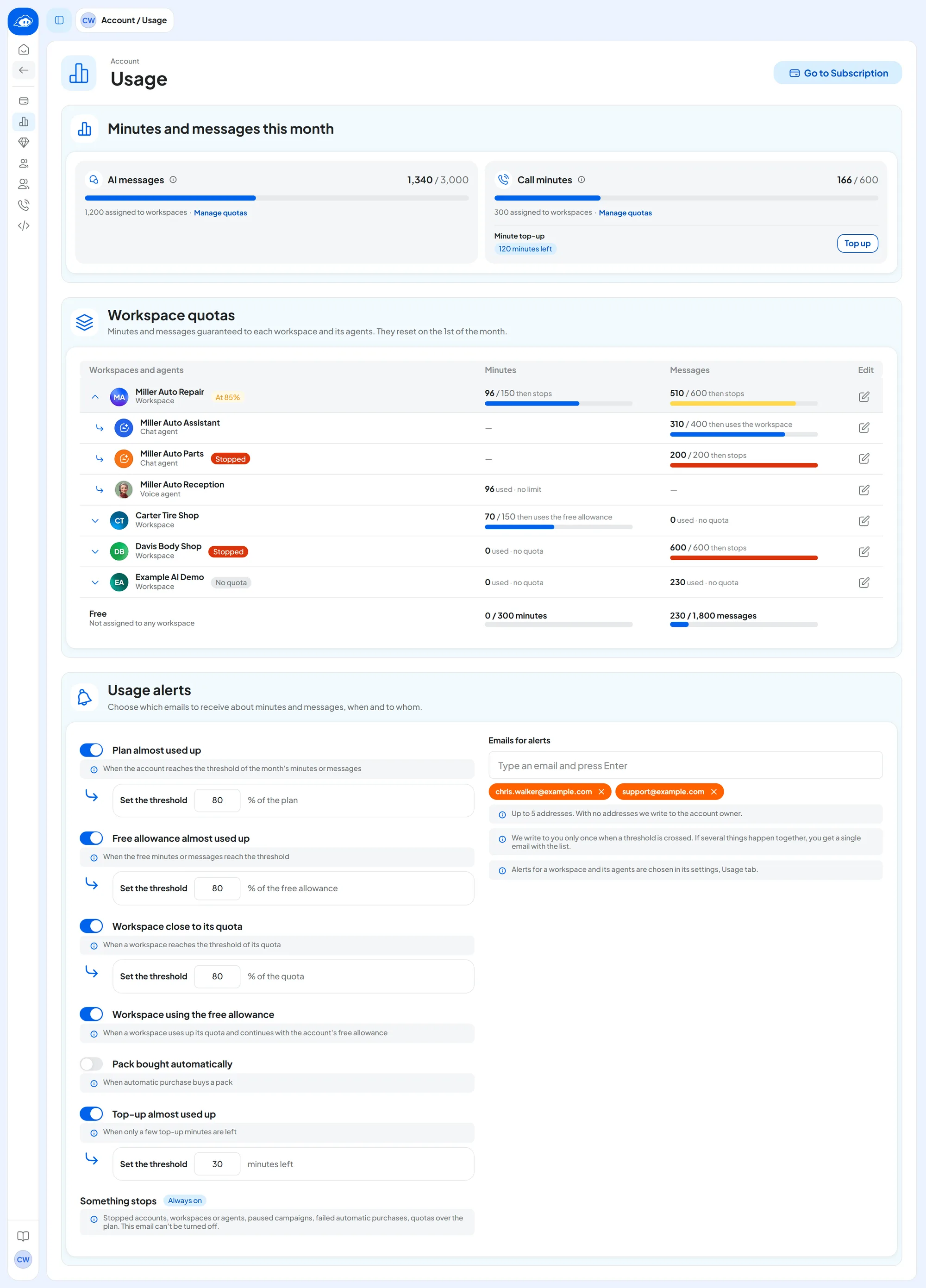
Open AccountUsage. On the SupportFast console the item sits between Subscription and Plans; on your portal, after Team. At the top, “Minutes and messages this month” shows your whole plan. Below, in the “Workspace quotas” table, each client is a row: their workspace, with the minutes and messages used this month.
- Click the client's name to see their agents, each with its own messages or minutes.
- Next to the name you read a percentage in yellow, for example “At 85%”, from 80% of their quota; “Stopped” in red when they've stopped; “No quota” in gray if they have no quota.
- After all the clients there's the “Free” row, “Not assigned to any workspace”: the plan's minutes and messages you haven't given to any client.
Only people with the “Billing” permission can see the page. You, as the account owner, always have it. A teammate with “Billing” and access to only some of your clients sees their rows; the others appear as a total, in the “In use by other workspaces” row. They still see the whole plan and the Free row, though.
The same things, for a single client, are in their workspace settings, Usage tab: see The Usage tab.
On your portal. The Usage page works the same way, but without the buttons to buy: you read “Purchases are managed from the Supportfast console.” The top-up, add-ons and automatic purchase are managed only from the SupportFast console.
#A quota for each client
A quota is the part of your plan guaranteed to a client: minutes per month, messages per month or both. It stays theirs even if they don't use it, and your other clients can't touch it. It resets on the 1st of every month.
What you don't give to anyone is the free allowance. It's shared by clients without a quota and by those who have used theirs up and are allowed to continue. An example, with the numbers in the screenshot above. Your month's plan has 3,000 messages and 600 minutes. You gave Miller Auto Repair 600 messages and 150 minutes, Carter Tire Shop 150 minutes and Davis Body Shop 600 messages. The 1,800 messages and 300 minutes left over are the free allowance. It's shared by your Example AI Demo workspace, which has no quota, by Carter Tire Shop for messages and by Davis Body Shop for minutes, which their quotas don't cover. Once Carter Tire Shop uses up its 150 minutes, it also continues with the free minutes.
Before you start
- The “Billing” permission, on the SupportFast console or on your portal.
- The package you sold the client, translated into minutes and messages: see From the package you sell to a quota.
-
Open the window
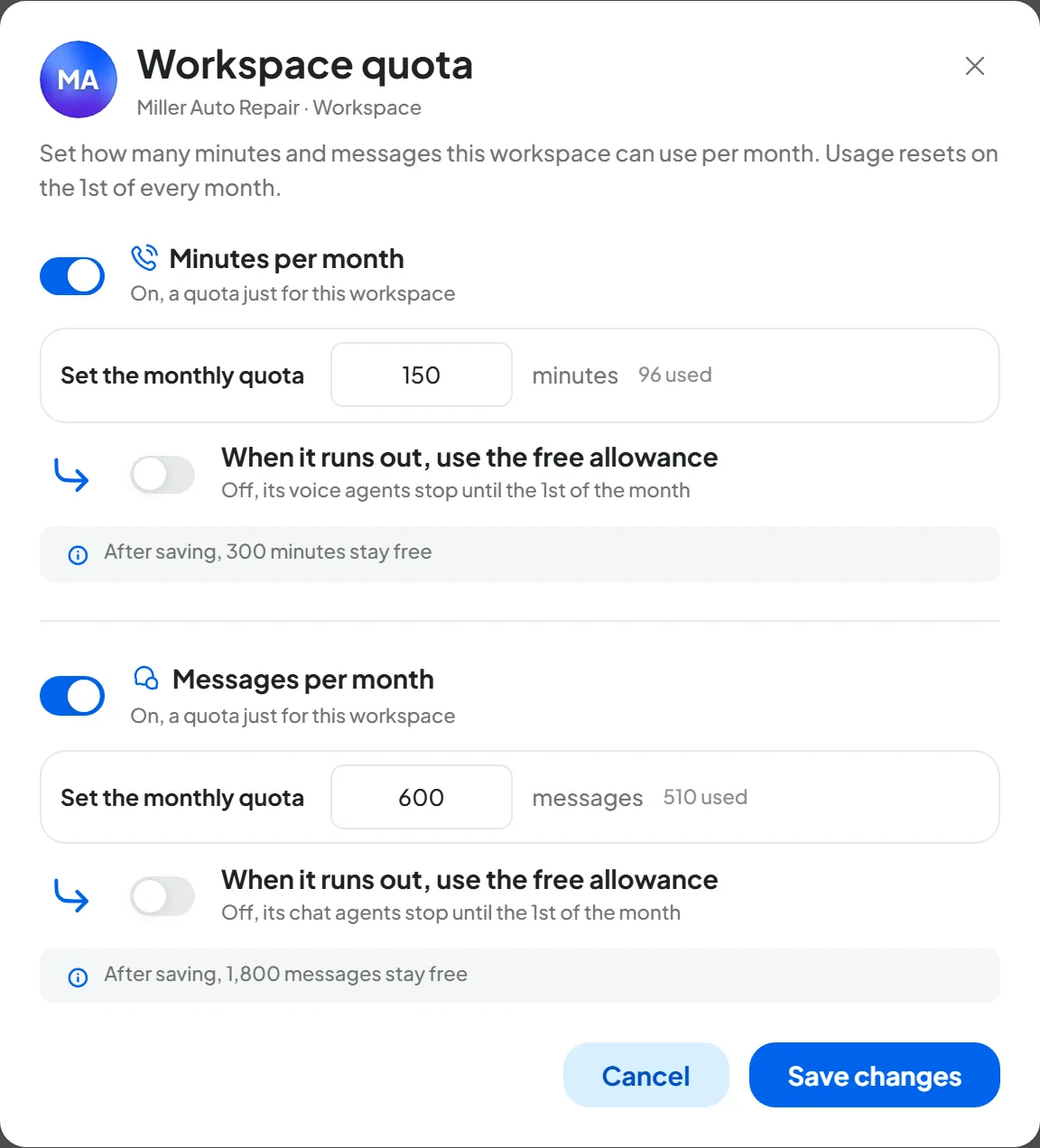
In AccountUsage, press the pencil at the end of the client's row. The “Workspace quota” window opens. You can also open it from the Usage tab of their workspace, with Edit.
-
Turn on the quota
Turn on Minutes per month, Messages per month or both. Type the number in Set the monthly quota.
-
Choose what happens when it runs out
With When it runs out, use the free allowance off, the client stops until the 1st of the month. On, they continue with your free allowance, as long as there is some.
-
Save
Under the block you read for example “After saving, 300 minutes stay free”. If you enter less than the client has already used, a yellow note warns you that they stop as soon as you save. Press Save changes: “Quota saved” appears.
How to check. The client's row shows for example “510 / 600” with “then stops” or “then uses the free allowance”. The Free row has dropped by the same amount.
#Quotas fit within your plan
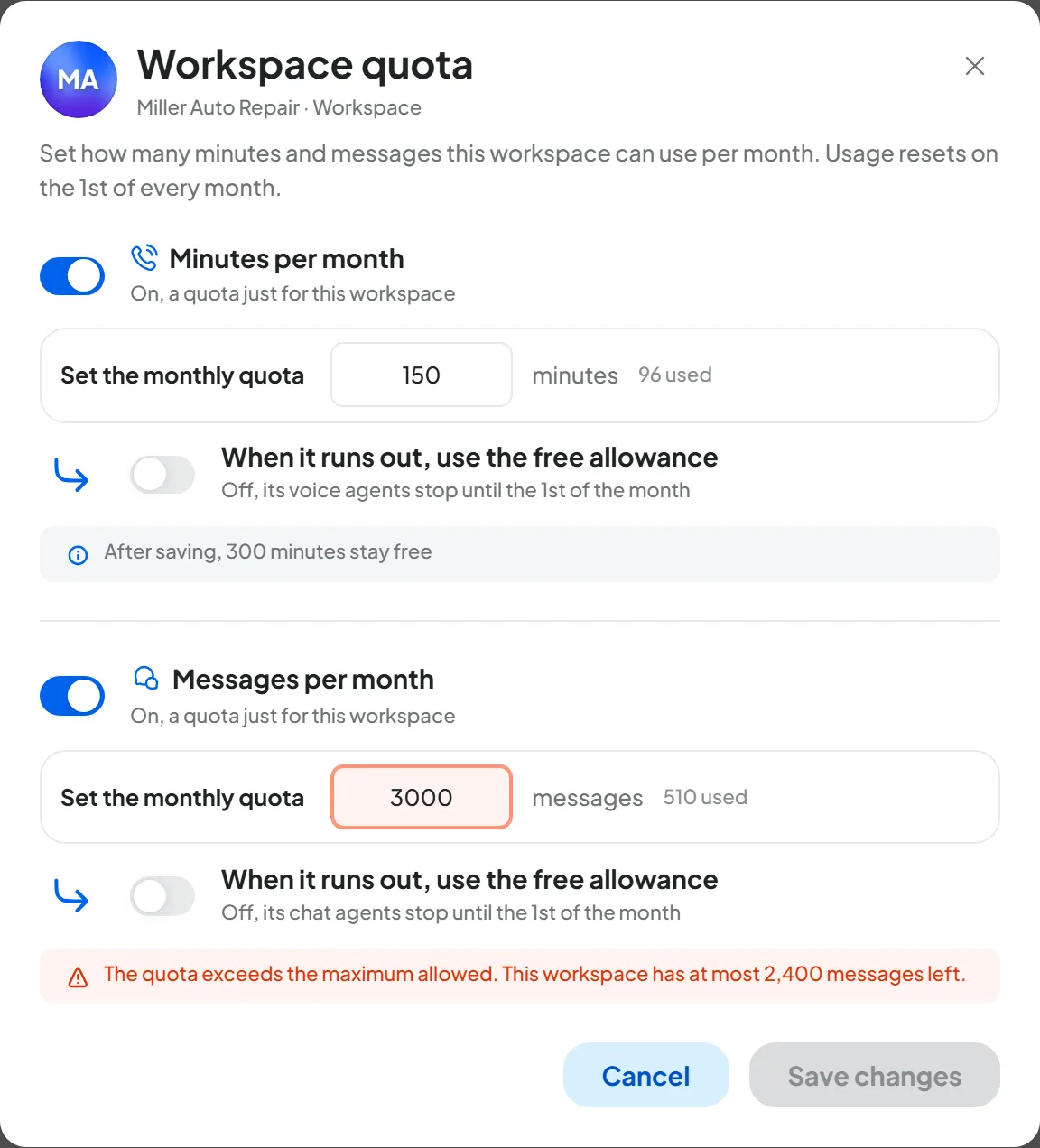
The sum of the quotas can't exceed the month's plan: your plan, plus the add-ons and the automatic purchase packs bought this month. If you try to give more, the note under the block turns red and the quota isn't saved. For example, if you enter 3,000 messages for Miller Auto Repair, you read “The quota exceeds the maximum allowed. This workspace has at most 2,400 messages left.”: of the plan's 3,000, 600 are already Davis Body Shop's quota. Lowering a quota, on the other hand, always saves.
- The minute top-up doesn't count. Its minutes can't be given as a quota.
- Automatic purchase packs only last until the end of the month: don't count on them for quotas.
- If you sell more than your plan can hold, first move up a plan or add an add-on that renews every month, then raise the quotas. See Add-ons, top-up and automatic purchase.
Keep some free allowance aside. You need it for tests in your own workspaces and for clients without a quota. If you give your whole plan away in quotas, anyone without a quota may stop right away.
#A limit for a single agent
If a client has several agents, you can give each one a monthly limit: messages for a chat agent, minutes for a voice agent. It's useful, for example, when you sell chat and phone as two separate packages.
- Where. In Usage, click the client's name and press the pencil on the agent's row. Or use the Limits card in the agent's settings: in Agent profile: General for the chat agent, in step 1 General for the voice agent.
- How. Turn on Monthly limit and type the number in Set the monthly limit. With When it runs out, use the workspace's messages (or minutes) on, once the limit is used up the agent continues with the client's quota; off, it stops until the 1st of the month.
- Within the quota. If the client has a quota, the limit is a part of the quota reserved for that agent: the sum of the limits can't exceed the quota. For example, of Miller Auto Repair's 600 messages, 400 are Miller Auto Assistant's limit and 200 are Miller Auto Parts' limit. Without a quota, the limit is just a cap.
- What counts. For the chat agent, AI replies on every channel, including the Playground. For the voice agent, call minutes. Operator replies never count.
#From the package you sell to a quota
The price list is for you, to decide packages and prices. The console doesn't know about it: no package is applied on its own. The only way to keep a client within their package is to give them a quota, and if needed a limit per agent. They apply only to minutes and messages.
Everything else belongs to the whole account and isn't split by client: agents, users, numbers, concurrent calls, automations, campaigns, automation runs and campaign sends. You create the client's agents, users and numbers yourself. Their automations and campaigns, however, use the runs and sends of the whole account.
To go from the package to the numbers to enter:
- Messages. Multiply the package's conversations by the AI replies in each conversation. The price list assumes 3 replies: check yours in the Messages panel of the chat agents' dashboard.
- Minutes. Multiply the calls by the average length, rounded up to the next minute: every call counts in whole minutes. For outbound calls, for example campaigns, multiply again by 1.5.
- Tests. Replies in the Playground and test calls from the browser count against the client's quota. Leave some margin.
#An example
The numbers are an example. You sold a new client a package with chat and phone.
| In the package | The math | In the quota |
|---|---|---|
| 200 chat conversations a month | 200 × 3 AI replies | 600 messages |
| 100 inbound calls, two and a half minutes on average | 100 × 3 minutes | 300 minutes |
| 40 outbound callback calls, 2 minutes each | 40 × 2 × 1.5 | 120 minutes |
| Total | 600 messages and 420 minutes |
If the minutes belong to two voice agents, one that answers and one that calls back, you can also give the first a limit of 300 minutes and the second a limit of 120: together they make the quota of 420.
Then choose how you sell extras:
- When it runs out, use the free allowance off. The package is a cap. Once it's used up, the client stops; if they want more, you sell them an extra and raise the quota.
- On. The client continues with your free allowance, and at the end of the month you invoice them for what they used beyond the package. Read the numbers in Usage: they're the minutes as the plan counts them. The Minutes panel of their voice agents' dashboard shows the actual durations instead.
#Alerts for your client
The client can get an email when they get close to the end of their package and when they stop. Each client's alerts are chosen in their workspace settings.
-
Open the client's Usage tab
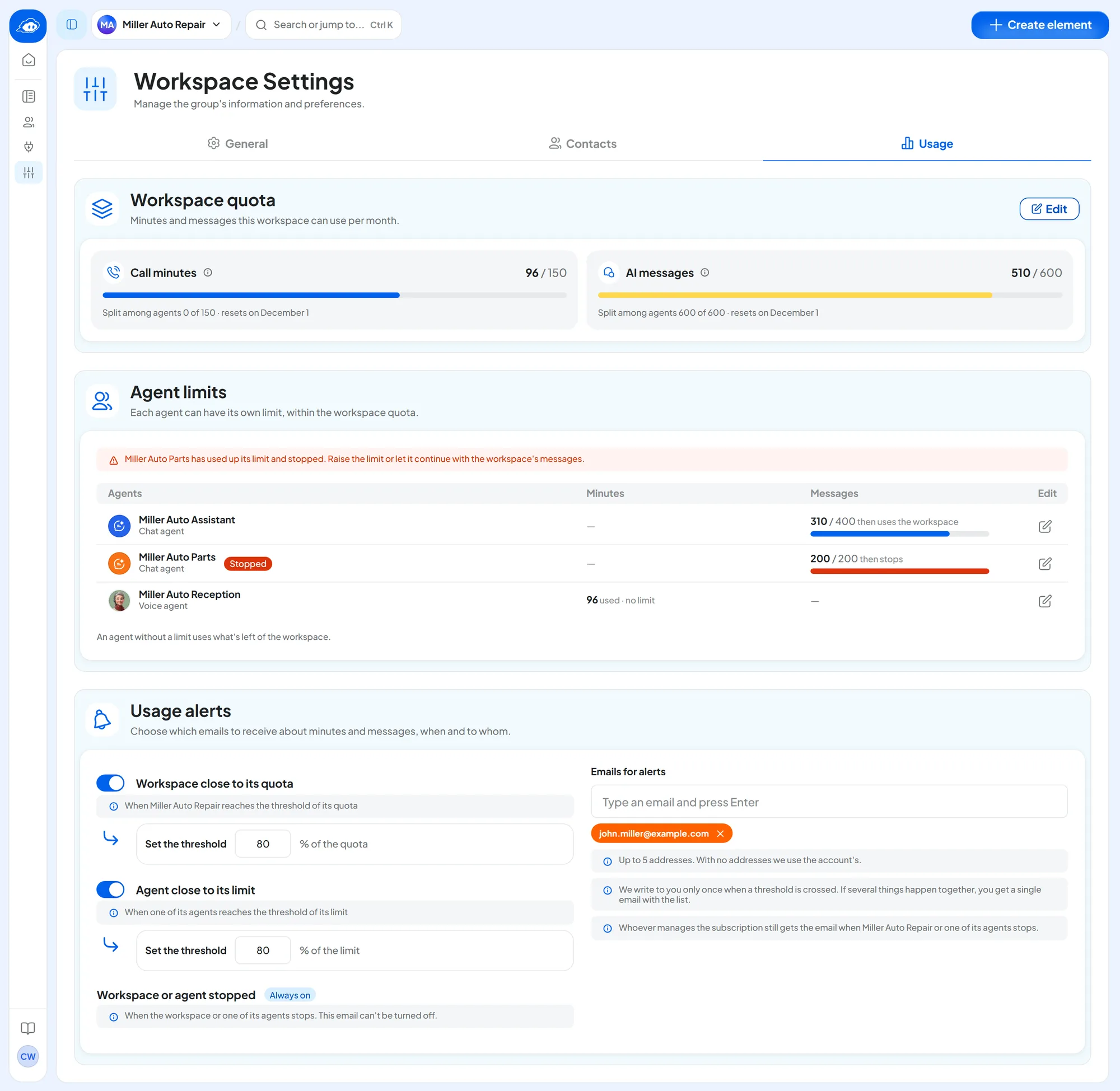
In the client's workspace, open Settings, Usage tab, “Usage alerts” card.
-
Choose the alerts
Workspace close to its quota and Agent close to its limit go out at the threshold you enter in Set the threshold, 80% to start with. Workspace or agent stopped is Always on.
-
Enter the client's addresses
In the Emails for alerts field, type an address and press Enter, up to 5. For example
john.miller@example.com. -
Save
Press Save changes in the bar at the bottom of the page. “Alerts saved” appears.
- Your verified sender is needed. Emails to the client go out only if the address in Custom email is “Active”. Otherwise they aren't sent, and nobody tells you.
- When the client stops, you know too. The email always also reaches the account's alert addresses, with the SupportFast brand. The card says so: “Whoever manages the subscription still gets the email when Miller Auto Repair or one of its agents stops.”
- With no addresses in the workspace, its alerts go only to you, at the account's addresses.
- The client knows nothing about your plan. When your plan or your free allowance runs out, the client gets no email: only you do. The exception is one of their campaigns being paused.
#What the emails say
They're written for your client. They're sent from your address, with your logo and your brand name, in the first language of their workspace. They have no links, don't talk about quotas, limits or plans and don't mention SupportFast. To get more or to restart right away, they tell the client to contact you.
| When | Subject, for example | What it says |
|---|---|---|
| The client reaches the threshold | “Miller Auto Repair has used 80% of its messages for November” | How many are left and until when, then “For more messages contact us.” |
| One of their agents reaches the threshold | “Miller Auto Assistant has used 80% of its messages for November” | How many are left and until when. |
| The client stops | “Davis Body Shop has used up its messages for November” | That the chat agents are stopped and until when, and if that's the case that the voice agents keep answering. Then “To restart them now contact us.” |
| One of their agents stops | “Miller Auto Parts has used up its messages for November” | That it's stopped and until when, then “To restart it now contact us.” |
| One of their campaigns is paused | “The campaign Spring promo is paused” | “Contacts not yet called stay on hold. To restart it contact us.” |
At the bottom it reads “You are receiving this email because you are among the recipients of usage alerts on Example AI.”, with your brand name.
How to check. Add to the workspace's addresses a test mailbox of yours that isn't among the account's alert addresses. Anyone on both lists gets a single email, the one with the SupportFast brand.
#What your client sees
The client doesn't have the “Billing” permission, so they don't see the Usage page, the Usage tab of their workspace or the “Limits” card of their agents. On the portal they don't see how much they've used or how much is left, and they can't change quotas, limits or alerts. If you want them to know, add them to the alerts or send them the numbers yourself.
- On the portal. When one of their agents stops, a red icon appears next to the agent with “Stopped for usage · ask whoever manages the subscription”. The sentence is the same for every cause and the icon can't be clicked. The agent's status stays “Active”.
- On their website. Visitors read “I can't reply right now. Please try again later.” On WhatsApp, Instagram and Messenger the agent doesn't reply. On the phone, the call rings and closes.

#Don't give them the “Billing” permission
The permission is in the Account group of the Team, which says “Apply to the whole account”. With “Billing”, your client:
- would see your whole plan: the month's minutes and messages for the whole account, the Free row and how much your other clients use, as a total;
- could raise their own quota, up to taking the whole free allowance, and change their agents' limits;
- could change the account's alerts: thresholds and addresses, including yours;
- would see and change the OpenAI keys of their workspace and agents.
They couldn't buy anything, though: there are no purchases on the portal. How to choose the right permissions is in The right role for a client.
#When a client runs out
If the quota or the limit runs out with “then stops”, these stop:
- their chat agents, on the website and on WhatsApp, Instagram and Messenger;
- inbound calls to their voice agents, which ring and close with no message;
- their call campaigns, which are paused. They're reactivated by hand when the agent can call again.
These never stop:
- calls already in progress: they go on to the end, and the extra minutes are counted;
- operator replies: the client and their colleagues can always reply from the Operator Chat, and they don't use anything;
- the other half of the package: if the messages run out, voice agents keep going, and vice versa.
You see it from the “Stopped” label on their row in Usage and from the red icon on the agent, which also tells you the reason, for example “Stopped for usage · it has used up its limit, restarts on December 1”. A click opens Usage on their workspace. You also get the email.
To restart it:
- wait for the 1st of the month: it restarts by itself;
- or raise their quota or the agent's limit, for example after selling them an extra;
- or turn on When it runs out, use the free allowance, or for the agent When it runs out, use the workspace's messages: it continues as long as there is some.
It restarts as soon as you save. The other cases are in When something stops.
#Minute top-up and automatic purchase
Only you buy the top-up and automatic purchase packs, from the SupportFast console: they aren't on the portal. Your account pays for them and they serve every client that reaches the free allowance.
- The minute top-up is a credit of minutes you buy once and that never expires. The price per minute is your plan's extra-minute price, which the window shows. When the free minutes run out, it's used by clients without a quota and by those with When it runs out, use the free allowance on.
- Automatic purchase buys a pack when your free minutes or messages are about to run out. The pack enlarges the free allowance, not the quotas, and lasts until the end of the month.
- Never for a client set to stop. A client who stops because of their quota or limit never reaches the top-up and doesn't trigger a pack. To restart them, raise the quota or turn on the switch that lets them continue.
- Never as a quota. Top-up minutes can't be given to a client as a quota.
How to buy them is in The minute top-up and Automatic purchase.
#Common mistakes
| Mistake | What happens | What to do |
|---|---|---|
| Giving the client the “Billing” permission | They see your plan, can raise their own quota and change your alerts. | Remove it in AccountTeam: see above. |
| No quotas for your clients | A client who uses a lot runs out the free allowance, and the others stop too. | Give each client the quota of their package. |
| Selling more packages than the plan can hold | The quota isn't saved: “The quota exceeds the maximum allowed…”. | Move up a plan or add an add-on, then raise the quota. |
| Client's address in the alerts, sender not verified | Emails to the client aren't sent. | Verify the sender in Custom email. |
| Buying a top-up for a stopped client | They don't restart: they stopped because of their quota. | Raise their quota or turn on When it runs out, use the free allowance. |
#For each new client
- In AccountUsage their workspace has the quota of the package you sold, with When it runs out, use the free allowance set the way you decided to sell extras.
- Some free allowance is left for your tests and for clients without a quota.
- If you sold them chat and phone separately, their agents have a monthly limit.
- Their workspace alerts include their address, and your sender is “Active”.
- Their user doesn't have the “Billing” permission.
- The client knows what happens when the package runs out and how to ask you for more.
#Frequently asked questions
Can my client see how much they've used?
Not on the portal: only people with the “Billing” permission see the numbers. If you add their address to the workspace alerts, the email tells them how much is left when they reach the threshold. Or send them the numbers from their row in Usage yourself.
A client on trial: how do I keep them from using too much?
Give them a small quota, with When it runs out, use the free allowance off. Once the quota is used up they stop, and the trial doesn't touch your other clients' minutes and messages.
Does the minute top-up restart a stopped client?
No, if they stopped because of their quota or an agent's limit. The top-up only serves those who use the free allowance. Raise their quota, or turn on the switch that lets them continue.
The client uses their own OpenAI key: do they need a messages quota?
Messages paid by their key don't use your plan. A messages quota then only acts as a cap, if you want to stop them at a number, and reserves nothing from the plan. See OpenAI key.