

The AccountUsage page shows how many call minutes and AI messages the account has used this month and how they're split. From here you give workspaces a quota, give agents a monthly limit and choose your email alerts.
#Where it is and who sees it
Open AccountUsage: the item sits between Subscription and Plans. At the top right, Go to Subscription takes you to Subscription and payments.
- You need the “Billing” permission. The account owner always has it.
- People without the permission don't see the menu item or the numbers. If an agent stops, they only see the red sign with “Stopped for usage · ask whoever manages the subscription”.
- With the permission you change only the workspaces and agents you have access to. The others appear as totals, without names.
The same settings, for a single workspace, are also in WorkspaceSettingsUsage: see The Usage tab. An agent's limit can also be changed in the “Limits” card of its settings.
On a reseller's portal. The Usage page is there, after the Team item, and works the same way. The purchase buttons are missing: top-up, packs, upgrade and Go to Subscription. The account owner reads “Purchases are managed from the Supportfast console.”. If you resell SupportFast, how to give each client the quota of their package and their own alerts is in Your clients' usage.
#The alerts at the top of the page
When needed, a colored alert appears at the top of the page, one for minutes and one for messages. You always see the most serious one.
| Alert | What it means | What you can do |
|---|---|---|
| Red: “Minutes used up, calls are stopped” or “Messages used up, chat agents are stopped” | This month's plan is used up and automatic purchase can't buy any more. Below it you read the reason, for example “Automatic purchase is turned off”. Everything restarts on the 1st of the month. | Top up minutes (minutes only), Buy a pack or Upgrade plan. |
| Red: “Free minutes used up, 1 workspace is stopped” | Anyone without a quota, or who has used theirs up and draws on the free allowance, has stopped. | Manage quotas to lower the quota of a workspace that isn't using it, or Top up minutes or Buy a pack. |
| Yellow: “Quotas exceed the plan by 200 minutes” | This month's plan is smaller than the quotas you gave, for example after an add-on ended. When the plan runs out everyone stops, even those within their quota. | Manage quotas and lower them until they fit in the plan. |
#Minutes and messages this month
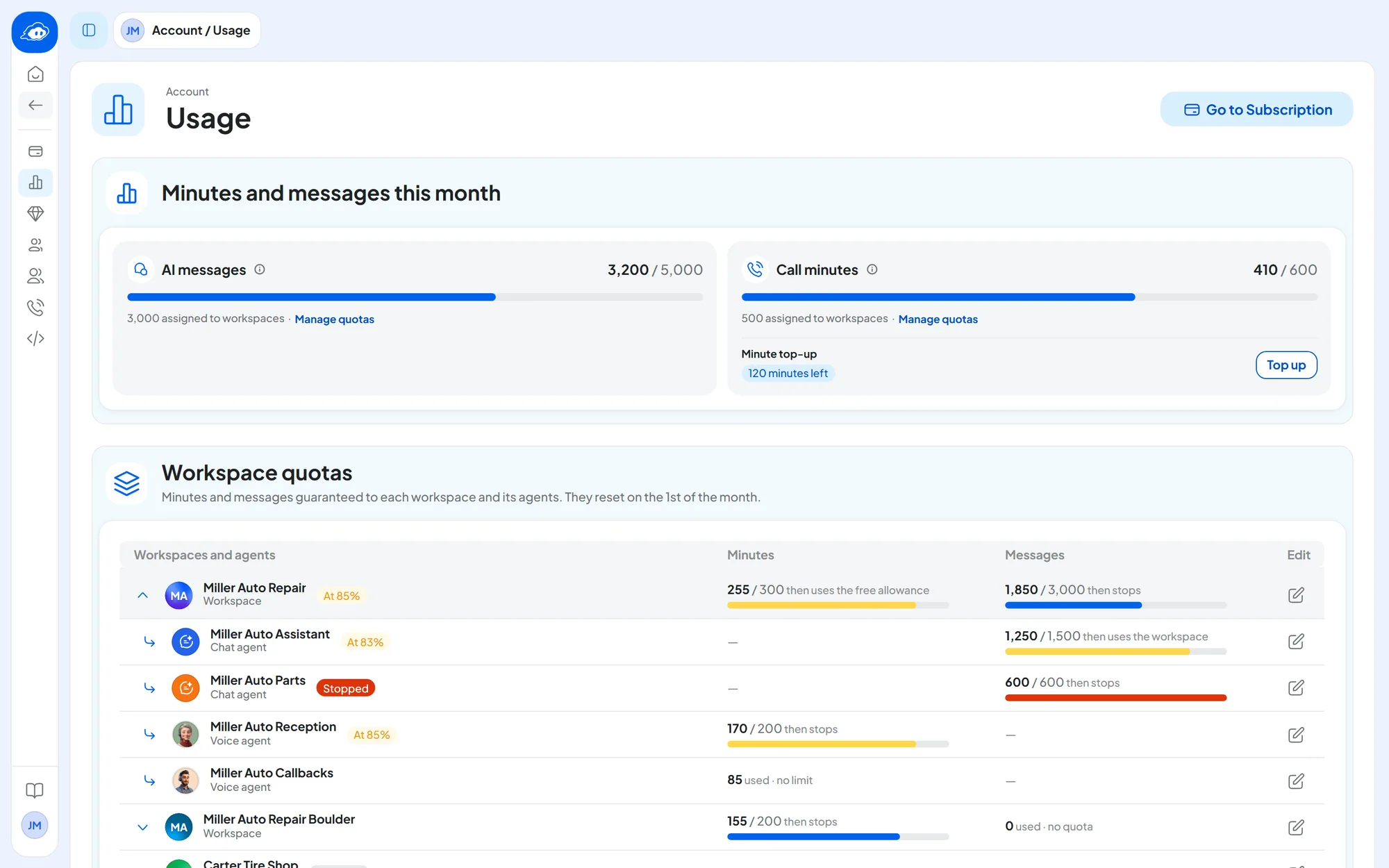
The “Minutes and messages this month” card has two tiles, AI messages and Call minutes. They're the same as in Account › Subscription.
- The number at the top right is “used / total” of the month's plan: the plan, plus the add-ons and the automatic purchase packs of the month. Messages paid with your own OpenAI key and minutes paid by the top-up don't count.
- The bar is blue, yellow from 80% and red at 100%. Hover over it to read the exact percentage.
- “… assigned to workspaces · Manage quotas”: how much of the plan you've given to workspaces as quotas. The link takes you to the quotas table. Without quotas you read “None assigned to workspaces”.
- “Includes 1 automatic pack”: how many packs automatic purchase has bought this month.
- When the plan is used up: “Plan allowance used up, calls now use the top-up”, “Plan allowance used up, the next pack is bought automatically” or, in red, “Plan allowance used up”: nothing can fix it by itself.
At the bottom of the minutes tile is the minute top-up: “45 minutes left” or “No credit loaded”, with the Top up button. See The minute top-up.
At the bottom of the messages tile is the OpenAI key: “Key added to the Account” or “No key on the Account”, with Add your key. On the right you read how many “messages with own key” went through the keys. With the account's key, instead of the assigned messages you read “With the account's key”.
#How quotas, the free allowance and limits work
Minutes and messages are split with three tools. All of them reset on the 1st of every month.
- Workspace quota Minutes and messages · optional
A part of the plan guaranteed to a workspace: it stays reserved even if the workspace doesn't use it. Each workspace can have a minutes quota, a messages quota, both or neither.
When the quota runs out, the workspace stops until the 1st of the month or continues with the free allowance. You choose.
- Free allowance The account's free minutes and messages
The month's plan minus the quotas. It's used by workspaces without a quota and by those that continue with the free allowance once their quota is used up. It's shared: whoever gets there first uses it. In the alert emails it's called “unassigned”.
Add-ons and automatic purchase packs enlarge the free allowance, not the quotas.
- Agent monthly limit Messages for the chat agent, minutes for the voice agent
A cap for a single agent. If the workspace has a quota, the limit is a part of the quota reserved for that agent: the sum of the limits can't exceed the quota. If the workspace has no quota, the limit only acts as a cap on the free allowance and reserves nothing.
When the limit runs out, the agent stops until the 1st of the month or continues with the workspace's minutes or messages.
Minutes and messages are independent. A workspace with only a minutes quota reserves minutes for its voice agents; for its chat agents the limit is just a cap on the free messages.
By default, when a quota or a limit runs out, it stops. An agent without a limit uses the part of the workspace quota that isn't assigned to other agents; if the workspace has no quota, it uses the free allowance.
#An example with three workspaces
The numbers are an example: you'll find your plan's numbers in Account › Subscription. Miller Auto Repair has a monthly plan of 1,000 minutes and 5,000 AI messages, and three workspaces.
| Workspace | Minutes | Messages |
|---|---|---|
| Miller Auto Repair | Quota 500, then stops | Quota 3,000, then uses the free allowance |
| Miller Auto Repair Boulder | Quota 200, then uses the free allowance | No quota |
| Carter Tire Shop | No quota | No quota |
| Free allowance | 1,000 − 500 − 200 = 300 | 5,000 − 3,000 = 2,000 |
The Miller Auto Repair workspace has three agents:
- Miller Auto Callbacks, voice agent: limit of 150 minutes, then stops. When it uses them up it stops until the 1st of the month, and its campaign is paused, even if the workspace still has minutes.
- Miller Auto Reception, voice agent: limit of 300 minutes, then uses the workspace's minutes. After its 300, it uses the workspace's 50 minutes that no agent has as a limit (500 − 150 − 300). When those are gone too, the workspace stops and Reception with it. It never touches Callbacks' 150 minutes.
- Miller Auto Assistant, chat agent, no limit: it uses the workspace's 3,000 messages. Then the workspace uses the free allowance, so the Assistant continues with the 2,000 free messages.
Miller Auto Repair Boulder first uses its 200 minutes, then the free allowance. Carter Tire Shop uses only the free allowance. So the 300 free minutes are shared between Boulder, after its quota, and Carter Tire Shop. The 2,000 free messages are shared by all three.
If the free minutes run out, whoever uses them stops, unless there's a top-up or automatic purchase. Miller Auto Repair, instead, keeps going within its quota: those minutes are guaranteed.
#The order of checks
For every message and every call, SupportFast checks, in this order:
- The first “stops” it meets blocks the request. Whoever stops because of a limit or a quota never reaches the top-up or the packs.
- If the account uses up the month's plan, even workspaces still within their quota stop. This only happens if the plan dropped below the quotas, or because of the extra minutes of long calls.
- A call in progress is never cut off: the extra minutes are counted, and you may read for example “108 / 100”.
- AI replies count, also in the Playground chat, and so do call minutes. Operator replies never count.
- The “stopped” state is recalculated at every request. It restarts by itself on the 1st of the month, and right after you raise a quota or a limit, buy a pack or top up.
#The Workspace quotas table
The “Workspace quotas” card says: “Minutes and messages guaranteed to each workspace and its agents. They reset on the 1st of the month.”. The columns are Workspaces and agents, Minutes, Messages and Edit. On a phone the first column stays put and the others scroll sideways.
| Row | What it shows |
|---|---|
| Workspace | With a quota: “used / quota”, the bar and what happens next, “then uses the free allowance” or “then stops”. Without a quota: “… used · no quota”. Click the name to see its agents; one workspace opens at a time. |
| Agent | Under the open workspace, chat agents first and then voice agents. Each agent has only its own column: messages or minutes. With a limit: “used / limit” and “then uses the workspace” or “then stops”. Without: “… used · no limit”. |
| Other agents | The agents you can't access, as a total only. |
| Free | “Not assigned to any workspace”: how much of the free allowance has been used out of the total. If the quotas exceed the plan, in red you read for example “200 minutes over the plan”. |
| In use by other workspaces | The workspaces you can't access, as a total only. |
A label may appear next to the name:
- “Stopped”, red: the workspace or the agent has stopped. Hover over it to read the reason. It wins over the other labels.
- “At 90%”, yellow: from 80% of the quota or the limit. For a workspace, the higher of minutes and messages counts.
- “No quota”, gray: the workspace has no quota for either minutes or messages.
A closed workspace with stopped agents shows a red sign; hovering over it you read for example “2 agents stopped”. The blue key next to the messages means an OpenAI key pays for them: see With your own OpenAI key.
#Setting a workspace quota
Before you start
- The “Billing” permission and access to the workspace.
- An idea of how much the workspace uses: look at its “… used” in the table.
-
Open the window
In Account › Usage, in the “Workspace quotas” card, press the pencil at the end of the workspace's row. The “Workspace quota” window opens, with one block for minutes and one for messages.
-
Turn on the quota
Turn on Minutes per month or Messages per month. In the Set the monthly quota box the window suggests the highest possible value: type the number you want, a whole number from 0 to 10,000,000. Next to it you read how many it has already used this month.
-
Choose what happens when it runs out
With When it runs out, use the free allowance off, its agents stop until the 1st of the month. On, the workspace continues with the account's free allowance.
-
Read the note under the block
For example “After saving, 300 minutes stay free”. If the note is red the quota isn't saved: see What saves and what doesn't.
-
Save
Press Save changes. “Quota saved” appears.
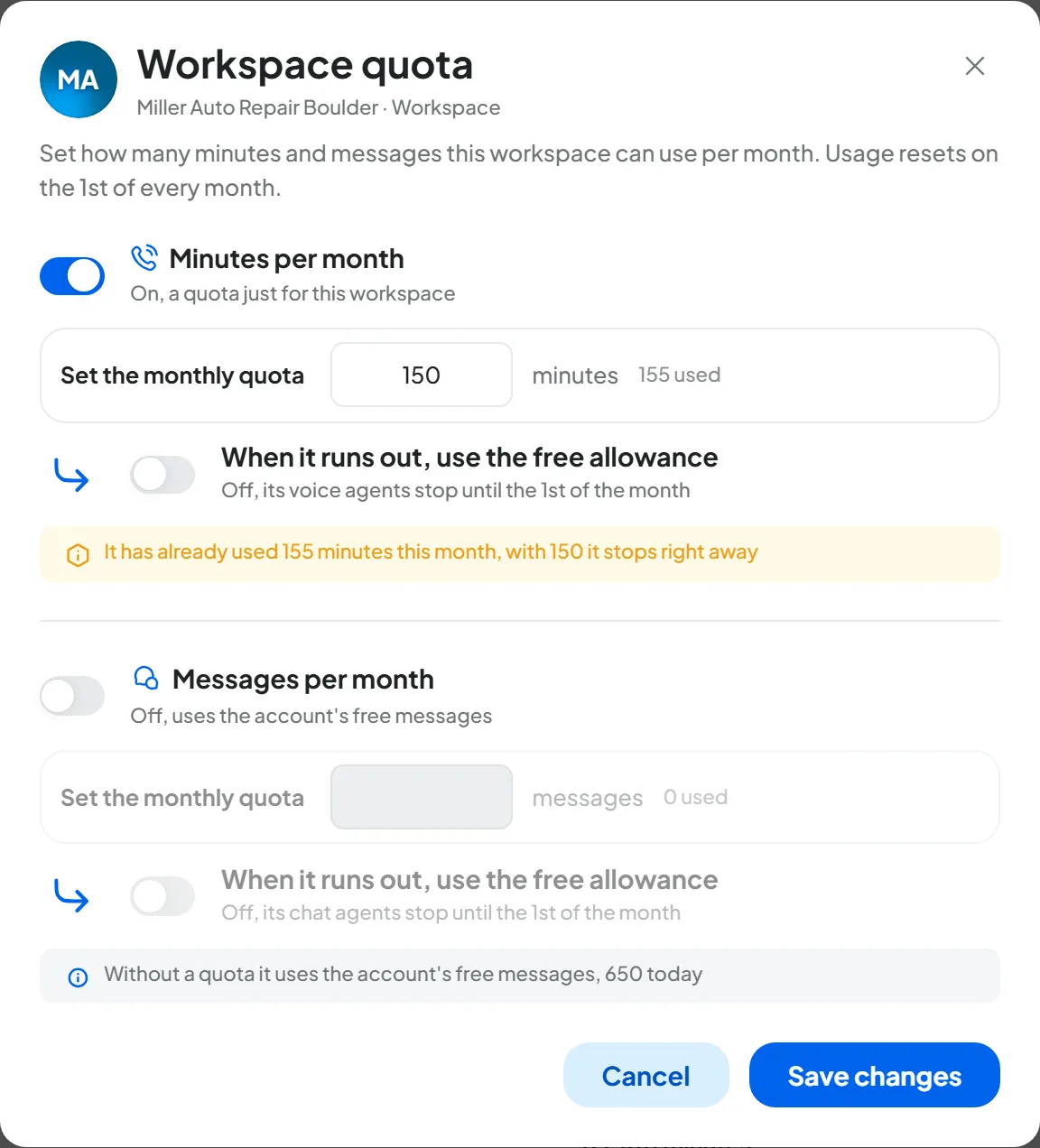
How to check. In the table the workspace's row shows “0 / 500”, for example, with “then stops” or “then uses the free allowance”. The Free row has dropped by the same amount and the month's card says “500 assigned to workspaces”.
To remove the quota, turn off Minutes per month or Messages per month and save. The note says how much of the free allowance it will use, for example “Without a quota it uses the account's free minutes, 300 today”.
#Setting an agent limit
-
Open the window
In the table click the workspace's name to see its agents, then press the pencil at the end of the agent's row. The “Agent limit” window opens.
-
Turn on the limit
Turn on Monthly limit. The window suggests 1,000 messages for a chat agent and 100 minutes for a voice agent, never above the maximum. Type the number in Set the monthly limit.
-
Choose what happens when it runs out
With When it runs out, use the workspace's minutes (or messages) off, the agent stops until the 1st of the month. On, it continues with the part of the quota that no agent has as a limit. If the workspace has no quota, it continues with the account's free allowance.
-
Save
Press Save changes. “Limit saved” appears.
How to check. The agent's row shows for example “0 / 100” with “then stops”. You see the same limit in the “Limits” card of the agent's settings, with the “Used in November” panel. The card is in Agent profile: General for the chat agent and in step 1 General for the voice agent; there it's saved with the bar at the bottom of the page.
#What saves and what doesn't
As you type, a note appears under each block. Its color tells you whether you can save.
| Note | Example | What it means |
|---|---|---|
| Red: doesn't save | “The quota exceeds the maximum allowed. This workspace has at most 300 minutes left.” | The sum of the quotas can't exceed the month's plan. |
| Red: doesn't save | “Its agents' limits add up to 450 minutes, lower them before saving” | The quota can't be lower than the sum of its agents' limits. This also applies to the first quota of a workspace whose agents already have a limit. |
| Red: doesn't save | “The limit exceeds the maximum allowed. This agent has at most 50 minutes left.” | With a quota, the maximum is the quota minus the other agents' limits. Without a quota, it's the plan's free allowance. |
| Yellow: saves | “It has already used 120 minutes this month, with 100 it stops right away” | The number is below what's already used: it stops as soon as you save. |
| Yellow: saves | “The quota exceeds the maximum allowed, which is now 300 minutes. You can also lower it in several steps.” | The plan has shrunk. Lowering always saves, even if you're still above the maximum. |
| Gray | “After saving, 300 minutes stay free” | Information: how much is left for the others. |
| Gray | “Miller Auto Repair has 500 minutes per month, 150 belong to the other agents, this one has at most 350 left” | How much you can give this agent within the quota. |
| Gray | “Carter Tire Shop has no quota, the limit acts as a cap on the account's free minutes, 300 today” | Without a quota the limit reserves nothing. |
If two people save at the same moment, the second one reads “Someone else is saving this account's usage settings, try again in a moment.”.
#With your own OpenAI key
An OpenAI key can be set on the agent, on the workspace or on the account: the one closest to the agent applies. Messages paid by a key never touch the plan, the free allowance or the packs, and are counted as “messages with own key”.
- Quotas and limits stay as caps. A limit that stops stops the agent even with a key. A messages quota with the workspace's or the account's key stops the workspace, but reserves nothing from the plan.
- An agent with its own key, in a workspace without a key, counts only against its own limit, not against the workspace quota.
- With a key there's no maximum for messages. If you turn on When it runs out, use the free allowance or use the workspace's messages, messages continue without touching the plan: the number is then only useful for alerts.
- In the window the gray note says so, for example “This workspace's messages go through the workspace's OpenAI key and don't use the plan.” and “The quota only acts as a cap.”.
Voice agents don't have their own key: their minutes always come from the plan. See OpenAI key.
#Email alerts
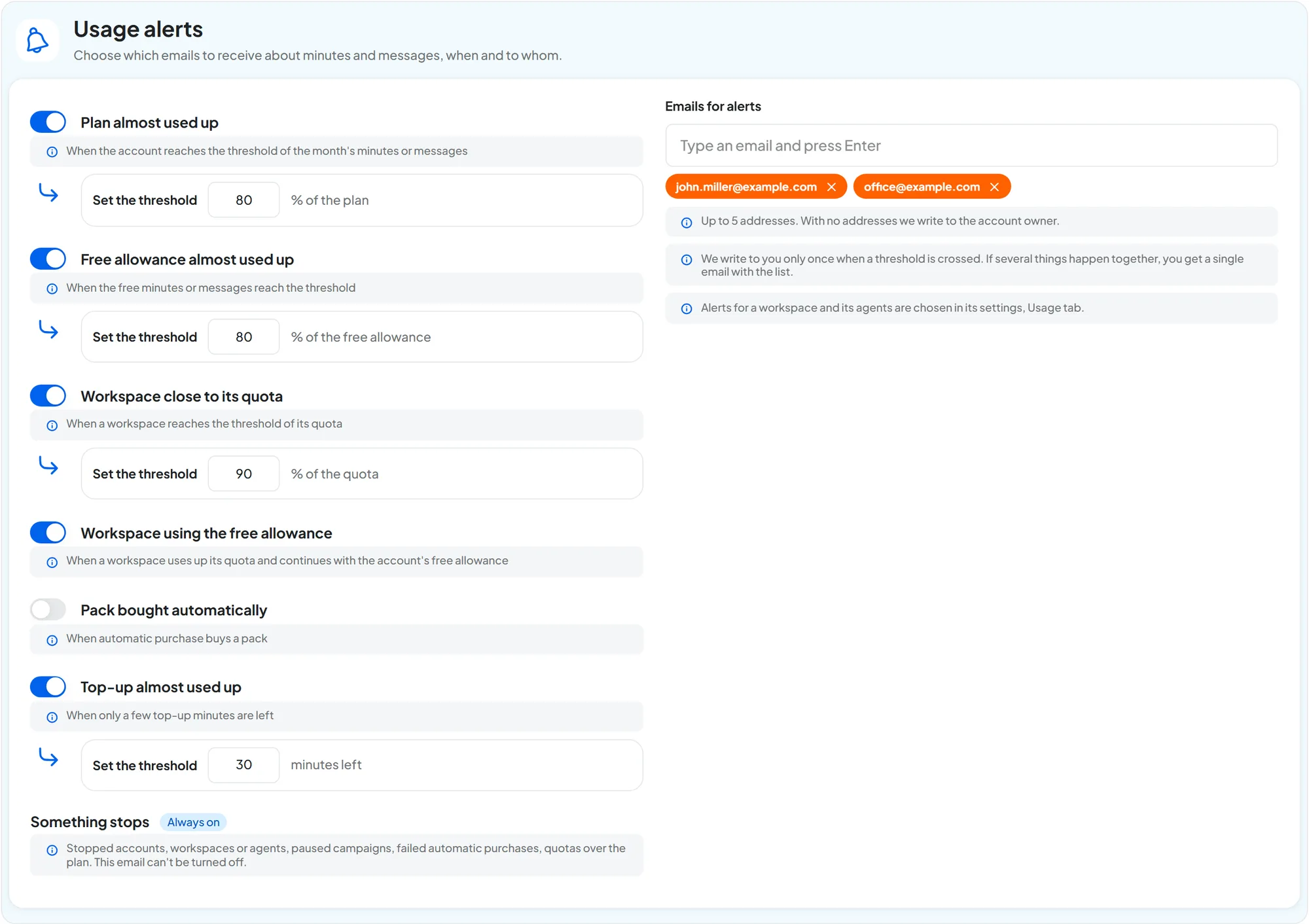
The “Usage alerts” card chooses which emails to receive about the account's minutes and messages, when and to whom. At the start all alerts are on.
| Alert | When the email arrives | Starting threshold |
|---|---|---|
| Plan almost used up | The account reaches the threshold of the month's minutes or messages. | 80 % of the plan |
| Free allowance almost used up | The free minutes or messages reach the threshold. | 80 % of the free allowance |
| Workspace close to its quota | A workspace reaches the threshold of its quota. | 80 % of the quota |
| Workspace using the free allowance | A workspace uses up its quota and continues with the free allowance. | None |
| Pack bought automatically | Automatic purchase buys a pack. | None |
| Top-up almost used up | Only a few top-up minutes are left. | 30 minutes left |
| Something stops | Stopped accounts, workspaces or agents, paused campaigns, failed automatic purchases, quotas over the plan. It's Always on: it can't be turned off. | None |
#Choosing alerts and recipients
-
Choose the alerts
Turn each row's switch on or off. On a row with a threshold, type the number in Set the threshold: a percentage from 1 to 100, or the minutes left for the top-up.
-
Choose who gets them
In the Emails for alerts field type an address and press Enter, up to 5. People outside the team are fine too. With no addresses, the emails go to the account owner.
-
Save
Press Save changes in the bar at the bottom of the page. “Alerts saved” appears. If you read “Fix the thresholds marked in red.”, correct the thresholds and save again.
How to check. Reload the page: the rows turned on, the thresholds and the addresses are the ones you saved.
#How the emails arrive
- Only once per threshold. The email goes out when the threshold is crossed, one for minutes and one for messages. It isn't repeated until something changes: a quota or a limit, a pack, a top-up, the new month. In any case at most one an hour per alert.
- Together. Things that happen close together arrive in a single email with the list, for example “3 usage alerts for November”. A more serious alert absorbs the less serious ones.
- Only if still needed. If you raise the limit before the email goes out, the email about the stopped agent isn't sent.
- In the language of the account owner.
The alerts for a workspace and its agents, such as “Agent close to its limit”, are chosen in its settings, with its own list of addresses: see The Usage tab. If a workspace or an agent stops, the email also reaches the addresses on this page.
With a White Label account. Emails to the account's list carry the SupportFast brand. Those to a workspace's list are written for your client, with your brand, and go out only if you've verified the portal's sender: see Custom email.
#When something stops
| Where | What happens |
|---|---|
| Console | A round red sign next to the agent, in the bar at the top of its pages, on its card in the workspace Overview and in search. Hovering over it you read “Stopped for usage”, the reason and when it restarts, for example “Stopped for usage · it has used up its limit, restarts on December 1”. A click opens this page on its workspace. If the agent is paused, you see the pause and not this sign. |
| Website widget | The visitor reads “I can't reply right now. Please try again later.”. The reason isn't shown to them. |
| WhatsApp, Instagram, Messenger | The agent doesn't reply. Operators can always reply: their replies don't count. |
| Inbound calls | The call rings and closes, with no message. In the conversations the unsuccessful call says for example “Agent limit used up” or “Workspace quota used up”. Calls already in progress continue to the end. |
| Call campaigns | The campaign is paused, for example “Paused, the agent has used up its limit”. When the agent can call again, you reactivate it yourself. If instead it stopped because the plan's minutes ran out, write to us to restart it. |
| Playground | The message isn't sent and a “Stopped for usage” window gives the reason, for example “This agent has used up its monthly limit”. |
| The “Something stops” alert reaches the addresses on the Usage page. |
There are four possible reasons: the agent has used up its limit, the workspace has used up its quota, the account's free allowance has run out, the monthly plan has run out. In one case the sign doesn't say when it restarts: “the workspace quota is all assigned to the other agents”. The agent has no limit of its own and what's left of the quota is reserved for the others: it doesn't restart by itself on the 1st of the month.
To restart it right away: raise the limit or the quota, turn on the switch that lets it continue, lower the quota of a workspace that isn't using it, buy a minute top-up, buy a pack or change plan. The agent restarts as soon as you save or pay.
#Frequently asked questions
Why is a workspace stopped if the plan still has minutes?
Those minutes are the quotas guaranteed to the other workspaces. A workspace that used up its quota with “then stops”, or that uses the free allowance when the free allowance has run out, stops. Lower the quota of a workspace that isn't using it, or raise the quota of the stopped workspace.
Can I give my workspaces more minutes than the plan has?
No: the sum of the quotas can't exceed the month's plan. To get more, buy an add-on or a pack, which enlarge the free allowance, then raise the quota.
Does the minute top-up raise a workspace's quota?
No. The top-up is used only after the month's plan, for requests that reach the account. An agent or a workspace that stops because of its limit or its quota never uses it.
Do my operators' replies use up messages?
No, never: not on the agent's limit, not on the workspace quota, not on the plan. Only AI replies count.
Why do I read 108 / 100 minutes?
A call in progress is never cut off. If it ends past the limit, the extra minutes still count.
A teammate can't see the Usage page.
They need the “Billing” permission: see Team, roles and permissions.